
Restore & Recreate “Show Desktop” Icon on Quick Launch Toolbar
June 20th, 2006I use the handy Quick Launch toolbar on my windows lower navigation bar to quickly open programs that I use very often. It has quick launch shortcuts to notepad, firefox, messenger, media player etc… and my favourite and most useful shortcut is “Show Desktop”.
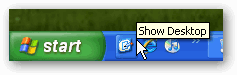
Clicking on the “Show Desktop” icon minimizes all open windows to show you the desktop. For some unknown reason, the Show desktop icon disappeared from my Quick Launch toolbar. I realized this is not like any other simple shortcut to a program. Of course I found a keyboard shortcut – pressing Windows key + M does the same job of minimizing all windows too.
In case you do not have a Quick Launch toolbar. Right click on the lower navigation bar, select Toolbars, check Quick Launch and the Toolbar should appear beside your start button. Drag and drop as many quick launch softwares as you want. Easily drag them to realign the order. Limit the length of the toobar by right click and selecting “Lock the Taskbar”.
I created a shortcut to “C:\Documents and Settings\Owner\Desktop” on my desktop and dragged it to the quick launch toolbar. The same icon appeared. But when I clicked on it opened a new window showing the desktop contents. I could tweak the settings in Properties such that it opened minimized. But that is not what I wanted.
Then I found this Microsoft support article and which instructed on how to recreate the Show Desktop icon. And here are the simple steps.
1. Open Notepad
2. Copy and Paste this exactly (in multiple lines)
[Shell]
Command=2
IconFile=explorer.exe,3
[Taskbar]
Command=ToggleDesktop
3. Save the file on Desktop as Show Desktop.scf (not with a .txt extension)
4. Drag the file to the Quick Launch toolbar
Click the Show Desktop Icon and it works!


Many thanks :)
Thanks pal – worked a treat
Many thanks; had somehow lost quicklaunch icons and now retored thanks to your simple right click instructions.
Spot on
Hey! Really helped me out.. was feeling lost without that short cut! thank u so much!! :)
The repository for the “Quick Launch Taskbar” is : “C:\Documents and Settings\[your_username]\Application Data\Microsoft\Internet Explorer\Quick Launch”.
So Cut & Paste the file “Show Desktop.scf” there if you want. No link needed.
very much helpful information.thanks a lot to you.
This was exactly what I was looking for! Thanks so much for this.
Thanks heaps – nice and simple help! Great work!
Thanx mate ;) Appreciated info’s and very usefull.
That certainly helped. Thanks a lot!! :)
thanks, really it was helpful :)
lovely just lovely i like it thanks
Excellent article. It works for me :)
Whow! works like a charm, thanks for the tip!!
i have check times without a number but my quicklaunch isnt coming up in the taskbar if i go to taskbar and startup and click it,it will select when i click apply too but when i click ok and go back to the properties it is uncheck again. am so mad in need of this cos the quicklaunch does more than enough for me.how can i make it work again,how can i make the arrow sign reappear on my taskbar am in trouble pls help.
Thank you. easy, concise. exactly what i needed
Thank you very much… I try to find the way for a long time
Thanks a lot :-)
:O :O
Thank you soooo much! I can finallly be at peace hehe
These tips are really helpful. Thanks a Lot
Click the start Button and choose run
just copy this and paste in that combo box and press ok button:
regsvr32 /n /i:U shell32
Now you could c the Desktop icon reappearing on quick launch bar !
It works! Thanks a lot
Hi,
It was a lovely article….Thank you very much…
Though, I knew that “Windows + D” can also be used to hide/show all windows on desktop, But I love my “Quick Lunch Icons” as they are quite handy…among them “Show Desktop” is my darling one….
Your trick worked for me….And I got back my icon back in its place……
Thanks again…
Useful. But it isn’t a complete solution. Taskbar icon stops working if you delete the file you created. Registry tweak would have been a better solution. Thanks for the post.
i always wanted this… 10x mate
Very useful n Interesting article..
Good Work… :)
thank you very much!!!
Fantastic…what grief when I lost the “Show Desktop” Icon…and now it has very simply been restored, thanks.
Thank you so much. I accidently deleted my shortcut and could not find how to get it back. The keyboard shourtcut was cumbersome. I live by my “show desktop” icon. Thank you for helping me get it back!
Thank you so much! My computer at work was replaced, and it didn’t have any icons in the Quick Launch bar any more. Now I do again!
woow, thank you soo much. i was desperate because i didnt know how to bring the ‘’show desktop” to my lower toolbar. kiss you, many thanks. :)