
[Solved] Fix Error 0X80070052 on USB Flash Drives
An alert popped up with Error 0X80070052: the directory or file can not be created as I tried to copy data from my Computer to USB stick. I used a 2GB Transcend USB Flash drive to store my office data. Here is my experience in fixing the error…
Testing USB Flash Drive

I had shared my experience with fixing flash drive errors earlier, but I was determined to try all means to figure out what went wrong before I would format the pen drive (and all data is deleted forever!). I googled some forums for support and the problem was not uncommon. Most people suggested some FAT to NTFS problem, something about not correctly formatting your disk when used the first time, fake pen drives (standard tech support answer) and the ultimate (and simplest) solution to format your disc and erase all data.
Here is my step-wise story of what I did, and maybe you can try this too …
Safely remove hardware
I used the “Safely remove hardware” option, stopped the flash drive, reinserted it into the USB port. All my files were listed well and could be opened. I could easily transfer data from the USB drive to the computer (So I transferred all data, just in case all data got corrupted by my experiments – always back up your data, ALWAYS while it is still working).
Create a New Folder
When I tried creating a new folder, it did manage to create some corrupted folder, which would not open, nor could it be deleted. Here is a comparison of the corrupted new folder on the left and the way a normal new folder displays in Window Vista.


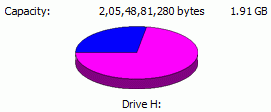
The first thing that struck me was that since more data was not getting stored on the pen drive, the maximum storage capacity must have been reached. But the USB drive was only at 25% capacity. So the problem has to be something else.
Infected USB Drive?
Maybe it was a bad virus that had infected the pen drive. I went to ‘My Computer’ and right-clicked to scan with Norton Internet Security (my trusted antivirus tool, though these free antivirus software would work as well). No Viruses or malware.
Bad Sectors in Flash Drive?
Maybe it was bad sectors on the disk. Then I right-clicked the Removable drive, went to properties, then tools and I scanned the drive for bad sectors and selected the error checking option.

Then I selected both options to ‘Automatically fix file system errors’ and also ‘scan and attempt recovery of bad sectors’. But there were no errors.

However, I could still not create any folder on the pen drive, nor could I transfer any data from the computer to the flash drive. I looked around the forums where most of them suggested to back up all data and format flash drives.
Final Fix: Error 0X80070052 Solved
When I looked into the contents of my USB flash drive, I had around 15 folders and over a 120-word documents, 30 Pdf files and a few zip and image files stored in the root of the pen drive. Since new folders were not being created, I thought maybe there were too many files in the root area, so I moved all these individual files to a pre-existent folder (remember we cannot create a new folder). Now I had 15 folders and no single files in the root of the flash drive.
And guess what happened (I would not be writing this had it not worked!)
The flash drive is back to normal (I do not need to format it after all, though I was getting prepared for it). Now the Error 0x80070052 is gone, I can easily create new folders (that strange corrupted folder is still there!) and easily transfer files to and fro from the computer. So maybe it has something to do with keeping files in folders… maybe some geeky person can share their knowledge about the issue.
I hope you try this simple solution to Error 0x80070052 before formatting your flash drive. It worked for me on Windows 7 and am not sure if it will fix Error 0x80070052 on Windows 10, though the solution might be the same I guess.
If nothing else works, its time to buy one of these best selling USB drives on Amazon.