
How to Widget-Enable WordPress Themes in 3 Easy Steps
WordPress Widgets are an amazing way to customize your blog besides wordpress plugins. How to widgetize your wordpress theme? I use a heavily modified version of the Blix wordpress theme, which does not support widgets…
First thing to know is that Widgets are part of WordPress core since WordPress 2.2 and you do not need to install any Widgets plugin to add widgets on your blog.
Step 1: Create functions.php
No such file existed in our theme, so we simply create a new functions.php and FTP it to the theme folder. Here is what exactly you need to put in the file
<?php
if ( function_exists('register_sidebar') )
register_sidebar();
?>
This will work only if you use the default markup of wordpress with h2 as sidebar titles and an unordered list like this
<ul>
  <li>
<h2>Sidebar Title</h2>
  <ul>
    <li><a href="link1.html">Link 1</a></li>
    <li><a href="link2.html">Link 2</a></li>
  </ul>
  </li>
</ul>
Customize functions.php
But we do not use the default markup of wordpress. For SEO benefits, we use h4 for sidebar titles and do not use the ul and li unordered lists in this way. So instead of the above code, we change the function.php file in this way to suit our custom wordpress template.
<?php if ( function_exists('register_sidebar') )
register_sidebar(array(
'before_widget' => '',
'after_widget' => '',
'before_title' => '<h4>',
'after_title' => '</h4>',
)); ?>
The code titles are self explanatory. before_widget and after_widget – we need no special code , so we leave it empty. before_title and after_title we use the h4. This modification overrides the default markup and now supports our custom template. You can modify it as per your own site web design css.
Step 2: Add Widgets to Dynamic Sidebar
This functions.php code will help widgetize your wordpress theme and support a single dynamic sidebar. Now when you go to your wordpress dashboard under Presentation, you will see a new item called Widgets.

In the Sidebar Arrangement, You can drag and drop widgets onto your sidebar from the list of preinstalled widgets like Tag Cloud, Recent posts, RSS feeds, Recent comments, Calendar, Archives, Categories, Search, Links easily.
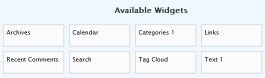
Do not forget to save your changes and the widget will be updated. You can drag and drop as many widgets as you like. Clicking on the widget will pop up a set of options which you can modify to further customize the widget.
Step3: Add Dynamic Sidebar to Template
Now you need to place a php code in the sidebar to enable a dynamic sidebar that that will function to display the saved widgets. Paste this code anywhere while editing sidebar.php.
<?php if ( !function_exists('dynamic_sidebar')
|| !dynamic_sidebar() ) : ?>
<?php endif; ?>
Save the changes and the new sidebar will now display your widgets! That all there is to it.
See the sidebar at work on our tumblelog (that is a recent posts and RSS widget!). Now go and find new widgets to add to your blog.
Update: Here is a tutorial on how to add multiple dynamic sidebars to wordpress template and support multiple combinations of widgets.
Updated Code for WP3
The latest versions of WordPress already have widgetized sidebars enabled in the core. So you just need to call the dynamic sidebars.
In functions.php, add this code
function quickchic_widgets_init() {
register_sidebar(array(
'name' => __( 'Sidebar 1', 'quickchic' ),
'id' => 'sidebar-1',
'before_widget' => '',
'after_widget' => '',
'before_title' => '<h4>',
'after_title' => '</h4>',
));
}
add_action( 'init', 'quickchic_widgets_init' );
In sidebar.php you need to add this code to call it
<?php if ( is_active_sidebar( 'sidebar-1' ) ) : ?>
<?php dynamic_sidebar( 'sidebar-1' ); ?>
<?php endif; ?>