
How to Add Gravatars to WordPress Themes
Add Gravatars to your WordPress theme. Gravatars are a quick way to add a personal touch to your blog comments by displaying the avatar of the commenters alongside their comment. The latest WordPress versions incorporate Gravatar support by default (you don’t need a plugin anymore!). This article will show you how to add gravatars / avatars to your WordPress theme in a few minutes.
1. Show Avatars in WordPress
First you need to enable your WordPress theme to display avatars. After logging into WordPress admin, go to Settings > Discussion and for the Avatars.

2. Add Gravatars to WordPress Theme
Then you will have to set the php code in your comments.php in the appropriate area where you want the avatars to appear (usually after the individual comments li tags). Add this code there.
<?php if(function_exists('get_avatar')) { echo get_avatar($comment, '40'); } ?>
If gravatars are enabled from your WordPress Admin settings, then this code will show avatars or will disappear. The “40” signifies a avatar size of 40px by 40px square, you can edit this to suit the size of your theme template.
3. How to style the Gravatar
You basically need to style the .avatar class displayed by the php code. Try some css examples below and edit it to blend with your blog design.
#comments .avatar {
float: left;
margin: 0;
padding: 0 4px 0 0;
}
or the position can be fixed to the top-left of the individual comments.
#comments .avatar{
position: absolute;
top: 1px;
left :1px;
}
You can also use img .avatar to style the tags. Using different CSS styles, you can position or align avatars wherever you like.
4. Optimizing Blank Avatars
Not all your commenters would have signed up for Gravatars. So what do you do with the blank avatar spaces? Showing the default mystery man or gravatar logo is not a good idea.

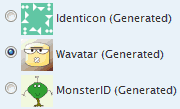
Instead you can opt to display Identicons, Wavatars and MonsterID to get some automated visually appealing avatars. This will automatically generate some cool avatars for all your comments. I personally like the Wavatar.
5. Hide NSFW / Adult Avatars
Gravatars are rated and you can opt to show family safe gravatars on your site only from the Avatar settings

Well that’s it. Your blog theme is now gravatar enabled.
Get a Gravatar – If you don’t have a gravatar already, Sign up for it today. With so many blogs supporting gravatars, it will give your comment better visibility. Get the new version of QuickPress theme, now supporting Gravatars.