
How to Fix Corrupted User Profile in Windows 7
Want to fix corrupted user profile in Windows 7? The user profile is set of settings that make the computer work and look the way you want. The desktop settings and other similar settings that include desktop backgrounds are all associated with the user profile. User profiles are responsible to make sure that you get the same appearance every time you log in to your system.
There are instances where you might get your user profile corrupted or damaged while using Windows 7. You will have the option to repair the profile by making a fresh profile and them moving all your settings to the new one.
Creating a Fresh User Profile:
You need to create a new user account through the temporary profile that automatically creates once your profile is corrupted. On the creation of a new account, a new profile is created.
The next set of setup depends on whether your computer is part of a domain or a workgroup. You can manually check that out on your own and move to the steps that suit you the best.
A. Steps for computers on domain
Follow the steps below to get the rest of the task sorted out:
Go to the Start Menu and type mmc. This is going to open the Microsoft Management Console. You might be prompted for password of the computer’s administrator or a confirmation dialogue box.

Locate the Local Users and Groups link in the left pane of the console. There might be instances where you are not going to have Local Users and Groups in the left pane. In such a situation, you will be required to add the snap-in to the Microsoft Management Console. Follow the steps below to install the snap-in:
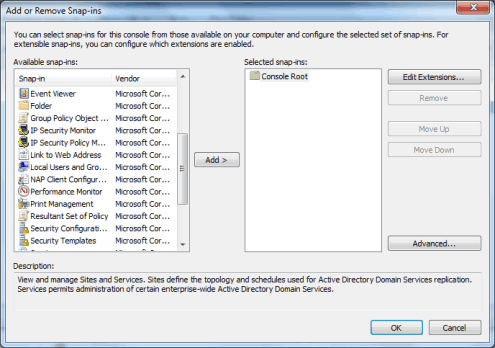
Click file and then Add/Remove Snap-in. Click Local Users and Groups, and Add. Click Local computer then and Finish and OK afterwards. Click on the Users folder and then the Action menu. Click to add New User and type the information in the box that appears. Create and finish using the Close button.
B. Steps for computers on Workgroup
Follow the steps below to get the rest of the task sorted out:
Click on the Start button and then Control Panel. Click on User Accounts and Family Safety and then User Accounts.

Click on Manage another account. You will be prompted for administrative password or administrative confirmation, type or confirm according to the dialogue box. Click on Create a new account. Type the details that you want the account to hold and select the account type. Click Create Account to finalize the details.
Copy files to new user profile:
You will have to move the files to the new profile in order to repair everything completely. You need to have at least three user accounts on your system in order to complete the final steps. The three accounts must include the new account that you have created. Follow the instructions below to make the changes:
- Log in through the user that you have recently created or even the user that is corrupted and lands you in the temporary profile.
- Click on the Start Menu >folder with personal files /downloads > My Documents
- Click on Tools >Folder Options. Hidden ribbon can be revealed by pressing ALT
- Click on the View tab > Show hidden files, folders and Drives.
- Un check the Hide protected operating system files box > Confirm > OK
- Locate the C:Users”username” folder. Asssuming C drive is where your Windows 7 is installed. username” the corrupted profile
- Select everything that exists in the folder except for Ntuser.dat, Ntuser.dat.log, Ntuser.ini.
- Copy everything by either using the shortcut or going to Copy option through the Edit menu on the top ribbon.
- Now locate the folder for the new user that you have created in your computer on the partition where you have installed your Windows.
- Paste all the files in the new users’ folders by either using the shortcut or using the Paste option available through the Edit menu.
- Log off the current user and the log in through the new user.
Your profile information will all be restored this way getting importing everything that exists there. You must cater a few more details before you delete the old user profile from the root directory.
In case you have been using any email program with the previous user, locate the database and import everything that is stored there including messages and contacts. Once you are done with the import and everything seems to work smooth, you can easily remove the old profile from the list.
Guest author Daniel is a writer for iGadgetLife.com, a website about gadgets and technology. You can also share computer tips and write guest articles here.