
How to Fix Errors and Format USB Flash Drives
How can you quickly fix and format your USB flash drives and make it functional again for optimal use. USB flash drives are a great data storage and safe data transfer gadget. But if you believe that flash memory is secure and stable forever, you are wrong.
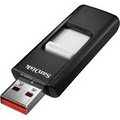 Flash memory is considered insulated from jerks and related damage. However, these USB pen drive do get corrupt as I noticed. I use a top branded USb pen drive and am using it for the last 6 months and it worked very well. (Never rely on cheap unbranded usb drives – you never know when your data is lost)
So of late, when I started to open my powerpoint presentations, they would not open. Some error had occurred during transfer or storage as the main file from which it was transferred worked well. So the problem was in a data storage as the transfer was smooth.
Fix USB Flash Drives
An important precaution is not to remove the pen drive while the data is being transferred. Always remove the pen drive after stopping it. Go to ‘Safely remove hardware’ (green arrow icon art bottom right corner).

Stop the usb mass storage drive and when it says it is safe to remove it, then remove it.

Always check by opening your important files before that important presentation. If it does not open now, probably it will not open there also. If it works now, it should work there also.
If for some reason your file does not work. Transfer another copy of the file with a renamed version – it may work..
If you delete the file and retransfer the same file with the same name and size, it probably gets written to the same area and will not work. A different name with a different size gets written to another area and can work. Its better to transfers 2 copies of your file anyway.
If you want the presentation to work on older computers (like Windows 98), do not forget to take the drivers CD which will allow such computers to recognize your plug and play usb drive. Always keep this invaluable CD handy, you never know when you encounter an older computer. I also keep a copy of the Wind 98 driver on the USB drive, can become useful one day.
Flash drive data still getting corrupted
After going to My Computer, Right click the Removable drive, Go to Properties >Tools. Run Error Checking and Scan for errors and fix them. The files that are corrupt or in bad sectors already will not work but at least the new transferred files should work.
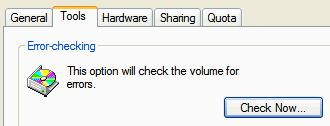
Format USB drive.
Remember formatting flash drives will delete all the data from your USB drive and make it fresh and hopefully remove all errors. The software for formatting comes on the CD or available on support sites for your branded usb drive on the net. For some reason, when I ran this formatting software, it would say the USB drive is not connected.
How did I format my flash drive?
Right click removable drive and select and format the drive. Then scan and fixes all errors.
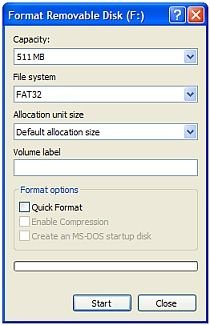
In the File System drop down, you will see FAT and FAT32. So which one to select?
If you right click Removable Drive >Properties

The General Properties of the USB drive reveals it is FAT, so I use FAT in the format utility. Then just select “Quick Format” and “Start” and all data will be deleted and hopefully all errors are now gone.
If still none of these tips work – Get hold of the warranty and get it fixed from customer support. If all fails…. its time to buy a new high memory storage USB drive !
WARNIN: Please try this at your own risk. You may land up deleting all data or making your drive unusable. Seek professional help if needed.