
How to Restore the Show Desktop Icon in Windows 11, 10, 7 and XP
Missing the Show Desktop icon? Clicking it minimises every open window so you can reach your desktop in one go. In 2006 ours vanished from the Windows XP Quick Launch toolbar, and we rebuilt it with a tiny Show Desktop.scf file. Windows has changed a lot since then. Here is how to get Show Desktop back in Windows 11 and 10, plus the classic fix for Windows 7 and XP.
Quick answer: Press Windows key + D to show the desktop instantly in any version of Windows. In Windows 11, the Show Desktop button is the thin strip at the far right of the taskbar; if clicking it does nothing, right-click the taskbar, open Taskbar settings, expand Taskbar behaviors and tick Select the far corner of the taskbar to show the desktop.
Table of Contents
Show Desktop in Windows 11
- Right-click an empty part of the taskbar and choose Taskbar settings.
- Scroll down and expand Taskbar behaviors.
- Tick Select the far corner of the taskbar to show the desktop.
- Now click the far bottom-right corner, just right of the clock, to show or hide the desktop.
Windows 11 no longer has a Quick Launch toolbar, so the old .scf trick cannot be pinned there. The corner button and keyboard shortcuts replace it.
Show Desktop in Windows 10
The Show Desktop button is the small rectangle at the far right of the taskbar. To make it preview the desktop when you hover, right-click it and tick Peek at desktop. If the button seems missing, check that the taskbar is not set to auto-hide in Taskbar settings.
Keyboard shortcuts to show the desktop
| Shortcut | What it does |
|---|---|
| Windows + D | Shows the desktop; press again to restore your windows |
| Windows + M | Minimises all windows (Windows + Shift + M restores them) |
| Windows + comma | Peeks at the desktop while you hold the keys |
| Windows + Home | Minimises all windows except the active one |
More handy shortcuts: shut down Windows with a shortcut.
Recreate the Show Desktop icon in Windows 7 and XP
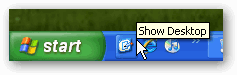
On older Windows with a Quick Launch toolbar, you can rebuild the icon exactly as we did in 2006. A normal shortcut to the Desktop folder only opens a folder window; this special file toggles the desktop instead.
- Open Notepad.
- Paste these lines exactly:
[Shell] Command=2 IconFile=explorer.exe,3 [Taskbar] Command=ToggleDesktop - Choose File, Save As, set “Save as type” to All files, and save it as Show Desktop.scf (not .txt).
- Drag the file onto the Quick Launch toolbar.
To turn on Quick Launch in XP, right-click the taskbar, choose Toolbars and tick Quick Launch. In Windows 7, add a new toolbar pointing to %AppData%\Microsoft\Internet Explorer\Quick Launch.
Make your own Show Desktop shortcut in Windows 11 and 10
If you really want an icon to click, save the .scf file above to your desktop or Documents folder and double-click it whenever you need it. You cannot pin .scf files directly to the Windows 11 taskbar, but you can create a normal shortcut with the target explorer.exe shell:::{3080F90D-D7AD-11D9-BD98-0000947B0257}, name it Show Desktop, change its icon and pin that shortcut to the taskbar.
Using Show Desktop with a touchpad or touchscreen
On most laptops you can also swipe down with three fingers on the touchpad to show the desktop, and swipe up with three fingers to bring your windows back. You can change these gestures in Settings, then Bluetooth and devices, then Touchpad. On touchscreen PCs, tap the far right corner of the taskbar. These gestures are often quicker than reaching for the keyboard.
FAQ
Why does Windows + D not work?
Some full-screen games and apps block it. Check that a keyboard utility or remote-desktop window is not capturing the Windows key.
Where is Show Desktop in Windows 11?
It is the far right corner of the taskbar, after the clock and notifications. Turn it on under Taskbar behaviors if clicking does nothing.
Is there still a Quick Launch toolbar?
Windows 10 can still add one as a custom toolbar. Windows 11 removed custom toolbars completely.
Get our free weekly email: new tech guides and tools, no spam.
New and updated tech guides, a free tool worth bookmarking and one useful pick, once a week. No spam, unsubscribe anytime.
One email a week. Unsubscribe anytime. See our privacy policy.

Thank you for helping me restore my missing quick launch desktop icon. Cheers !
Many thanks. Worked a treat. My icon – after years of having the facility on several computers – had disappeared.
OK so it drags to the quick launch bar, but the original show desktop file I created stays on my desktop. If I delete it the quick launch shortcut stops working. What is the point of a show desktop shortcut on my desktop?? meh, it works so it’s good enough…
Genius! I deleted mine by mistake. Thanks!
You can move the file some place other than your desktop after you drag it to the quick launch task bar and it will still work.
You can right click and delete the icon. Someone might have done that.
I found that I had to do this also, I had the icon but it was not working:
Go to My Computer->Tools->Folder Options->File Types
click New
type “SCF” (no quotes)
Click Advanced
For @ssociated File Type type “Windows Explorer Command” (no quotes)
Thank you so much! My computer at work was replaced, and it didn’t have any icons in the Quick Launch bar any more. Now I do again!
Thank you so much. I accidently deleted my shortcut and could not find how to get it back. The keyboard shourtcut was cumbersome. I live by my “show desktop” icon. Thank you for helping me get it back!
Fantastic…what grief when I lost the “Show Desktop” Icon…and now it has very simply been restored, thanks.
Useful. But it isn’t a complete solution. Taskbar icon stops working if you delete the file you created. Registry tweak would have been a better solution. Thanks for the post.
i have check times without a number but my quicklaunch isnt coming up in the taskbar if i go to taskbar and startup and click it,it will select when i click apply too but when i click ok and go back to the properties it is uncheck again. am so mad in need of this cos the quicklaunch does more than enough for me.how can i make it work again,how can i make the arrow sign reappear on my taskbar am in trouble pls help.
The repository for the “Quick Launch Taskbar” is : “C:\Documents and Settings\[your_username]\Application Data\Microsoft\Internet Explorer\Quick Launch”.
So Cut & Paste the file “Show Desktop.scf” there if you want. No link needed.
Many thanks; had somehow lost quicklaunch icons and now retored thanks to your simple right click instructions.
Instead of dropping more clutter on your desktop, save this to C:/ and then link it from there.
Thanks for the tip though man, worked like a charm!
Hi- your article was the first I found in google when searching for “my show desktop icon has disappeared” so I gather you’re very popular- cos you work!
Thanks.
THANKYOU!!!! i have been going nuts trying to figure out how to restore that thing….your article was easy to understand..AND IT WORKED!
thanks alot.
I tried all of above and the icon is back in Q/L. However it just did not work. This link fixed it. Took awhile to find it . This fixes the Registry entry
Hey, thanks a million for the code above. I lost my shortcut somehow and couldn’t find it in the system.
My first icon is, in quick launch, Internet Explorer and it also disappears and soon coming back and soon also disappers. Also disappears the second icon, when first is already dissapeared.
This have to be some windows problem, not just “show desktop” problem and how to solve this problem.
Thank you for the simple shortcut of Windows Key + M. Why the microsoft website couldn’t bring itself to offer this simple solution will always puzzle me. We should all be thankful for technical savy people who are actually interested in helping those of us technically challenged.
Thanks for this how to file, it saved me a bit of mental anguish trying to figure out how to restore it. Thanks.
Windows Key + M minimizes all windows, but Windows Key + D actually does the same thing as hitting that shortcut.
“Windows + D” can also be used to hide/show all windows on desktop.