
How to Block Adult Content on Amazon Prime Video in 2026 (Parental Controls Guide)
Learn how to block adult content on Amazon Prime Video in 2026 using parental controls, PIN protection, and profile settings. If you share your Amazon Prime Video account with family or children, you’ve probably wondered how to restrict adult or inappropriate content. With so much content available, it’s easy for something unsuitable to appear unless proper controls are in place.
Amazon Prime Video also pushes content in various categories depending on the viewer’s maturity profile. By default adult content is activated for all viewers. so basically it is dependent upon you to browse into your Amazon Prime video settings and change the maturity settings and Parental Control settings manually if you decide to block adult content. This is similar to blocking Netflix or blocking Youtube.
The good part is that Amazon has improved parental controls significantly. With a few settings, you can control what can be watched, prevent accidental purchases, and make the experience safer for everyone using your account.
Why You Should Enable Parental Controls
Amazon Prime Video has content across all age groups, including mature and adult-rated titles. Without restrictions, anyone using your account can access everything.
Parental controls help you:
- Restrict content based on age rating
- Prevent unauthorized purchases
- Control viewing access across devices
If you’re managing a shared household account, these settings are essential.
Block adult content on Amazon Prime Video
You can configure parental controls directly from your account settings.
Go to: https://www.primevideo.com/settings/parental-controls
Log in to your Amazon Prime Video account. Typically it will be the same Amazon Username and Password, and it is assuming you have to subscribe to the Amazon Prime Membership (which has a host of shopping benefits like free delivery, etc.)
Choose Account & Settings

Then choose the Parental Controls option to access options to restrict content by age

Then you get these large number of parental control options. Typically A will be selected. A rating means movies and videos suitable for adult viewing (18 years and above). You can choose to click on a lower category. I like to keep U/A 16+ for my grown-up young adults/children.
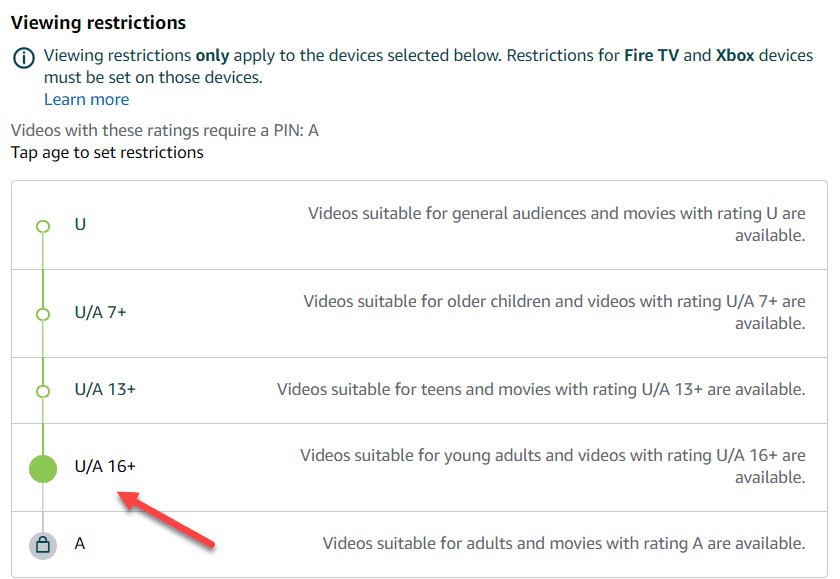
Age Viewing Restriction for Amazon Devices
The best part is these settings apply to all your devices with Amazon Prime Video service. If you prefer to view adult content on selected devices, you can tweak settings on individual devices however you like. So you can have a U/A 13+ rating access to the living room fire TV stick on your big TV, while keeping A rating on your personal Amazon Prime app in your Android phone!

Amazon Prime Video PIN
You can configure who can change the settings by enabling a PIN in the parental control settings.
So when you go to view a ratings-restricted video, it will display ‘Viewing restrictions enabled’.

And if you click Play or View Video, It will ask the viewer to enter the Prime Video PIN, and if you keep the Amazon Prime PIN secret, users cannot access the blocked adult content.
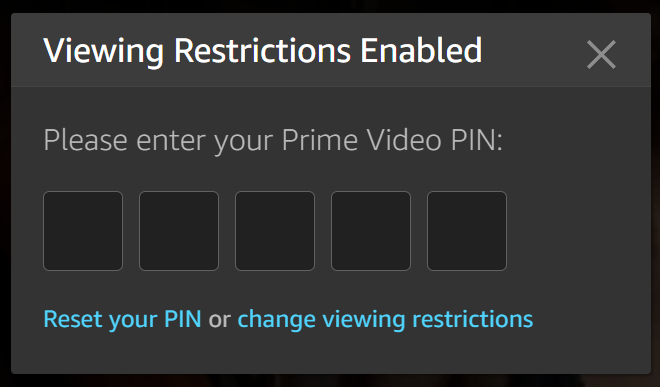
Using Profiles for Better Control
Amazon now allows multiple user profiles, which helps in managing viewing preferences.
You can:
- Create a separate child profile
- Limit content based on age
- Keep recommendations clean
Profiles are especially useful if multiple family members share the same account. It’s always a good idea to use a separate profile for your children and use a strong PIN for your own account. Once these are in place, accidental exposure to adult content becomes very unlikely. Profiles alone are not enough. You need both profile settings and parental controls enabled.
You can also control which devices require the PIN. Enable restrictions on TVs and tablets, while allowing more flexibility on personal devices.
Additional Safety Tips
- Regularly review viewing history
- Update restrictions as children grow
- Monitor new profiles added to the account
If you use multiple streaming platforms, it’s a good idea to apply similar controls everywhere.
So do try this tip out and block adult content on your Amazon Prime Subcription today and protect your children from viewing adult movies or adults videos by mistake. You can also enable Safe Search on Google, or tweak Bing settings and block adult content on your browser as well.