
How to Restore Show Desktop Icon on Windows Quick Launch Toolbar
How can you restore “Show Desktop” Icon on Windows Quick Launch Toolbar if it has been deleted by mistake or is missing. I use the handy Quick Launch toolbar on my windows lower navigation bar to quickly open programs that I use very often. It has quick launch shortcuts to notepad, firefox, messenger, media player etc… and my favourite and most useful shortcut is “Show Desktop”.
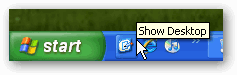
Restore “Show Desktop” Icon
Clicking on the “Show Desktop” icon minimizes all open windows to show you the desktop. For some unknown reason, the Show desktop icon disappeared from my Quick Launch toolbar. I realized this is not like any other simple shortcut to a program. Of course I found a keyboard shortcut – pressing Windows key + M does the same job of minimizing all windows too.
In case you do not have a Quick Launch toolbar. Right click on the lower navigation bar, select Toolbars, check Quick Launch and the Toolbar should appear beside your start button. Drag and drop as many quick launch software’s as you want. Easily drag them to realign the order. Limit the length of the toobar by right click and selecting “Lock the Taskbar”.
I created a shortcut to “C:\Documents and Settings\Owner\Desktop” on my desktop and dragged it to the quick launch toolbar. The same icon appeared. But when I clicked on it opened a new window showing the desktop contents. I could tweak the settings in Properties such that it opened minimized. But that is not what I wanted.
Then I found this Microsoft support article and which instructed on how to recreate the Show Desktop icon. And here are the simple steps.
1. Open Notepad
2. Copy and Paste this exactly (in multiple lines)
[Shell]
Command=2
IconFile=explorer.exe,3
[Taskbar]
Command=ToggleDesktop
3. Save the file on Desktop as Show Desktop.scf (not with a .txt extension)
4. Drag the file to the Quick Launch toolbar
Click the Show Desktop Icon and it works!