
How to Select Vertical Text in Microsoft Word
Can you select vertical text in Microsoft Word. Of course. How many times do you select text, cut and paste in Microsoft Word. I do it hundreds of times over a week. But I always select a line or two and the selection is always horizontal. Then I stumbled upon this wonderful way to select vertical text in Microsoft Word.
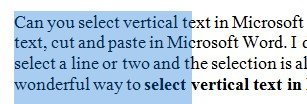
If you select text in Word, it selects horizontally by default like this

Select Vertical Text
Why do you need vertical text selection in Microsoft Word?
The simplest example is what if you want to bold the first word on each line? You can select and bold each word individually or you can make a vertical selection. What if you want to select a particular column of text from a Microsoft Word table (otherwise it will select rows by default). Wow!
Here is how to select vertical text. Pretty simple actually… if you read the Microsoft Office manual well enough. Press ALT key as you drag the mouse pointer to select the text. Drag the mouse up and down till you get your choice of text selection. See the same text as above with vertical selection!
You can make a vertical selection anywhere in your document. I tried it in my Microsoft Office Word 2003-2007 and it works perfectly. I am sure you are wondering why you never knew this Microsoft Office tip before.