
How to Increase WordPress Security: 12 Steps That Work (2026)
How can you increase WordPress security? WordPress runs a huge share of the web, so bots attack every WordPress site daily, mostly with automated scripts aimed at weak passwords and outdated plugins. The good news: a few easy steps stop almost all of them. Here is how to increase WordPress security in 2026, updated from Thomas Frank’s original guest guide.
Quick answer: Keep WordPress core, themes and plugins updated (turn on auto-updates), delete what you don’t use, use strong unique passwords with two-factor authentication, limit login attempts, add a firewall such as Wordfence or Cloudflare, run HTTPS, take automatic off-site backups, and never use the username “admin”.
Table of Contents
Common WordPress attacks
- Brute-force logins: bots try thousands of username and password pairs on
wp-login.phpandxmlrpc.php. - Vulnerable plugins and themes: most hacked sites today are hacked through an outdated or abandoned plugin, not WordPress core.
- SQL injection and XSS: malicious input sent through forms, search boxes or URLs.
- Stolen credentials: passwords reused from other leaked sites, or phished admin logins.
- Spam comments: link spam and malicious URLs posted by bots.
12 steps to increase WordPress security
1. Keep everything updated
WordPress installs minor security releases automatically. In Dashboard > Updates and on the Plugins and Themes screens, turn on auto-updates for plugins and themes you trust. Also run a supported PHP version (8.2 or newer); your host’s control panel lets you switch.
2. Delete unused plugins and themes
A deactivated plugin can still be exploited if its files are on the server. Delete anything you don’t use and keep one default theme as a fallback. Avoid plugins that haven’t been updated for a year or more.
3. Never use “admin” as a username
Brute-force bots try “admin” first. Create a new administrator with a different username, log in as that user, then delete the old “admin” account and assign its posts to the new user. No SQL is needed.
4. Use strong passwords and two-factor authentication
Use a password manager to create long unique passwords, and add two-factor authentication (2FA) for every admin and editor. The free Two Factor plugin from WordPress contributors, Wordfence and Jetpack all offer authenticator-app codes.
5. Limit login attempts
Plugins such as Limit Login Attempts Reloaded block an IP after a few failed tries. Many hosts, including Hostinger, also rate-limit logins at server level.
6. Add a firewall
- Wordfence: free plugin firewall and malware scanner.
- Cloudflare: free plan blocks many bad bots before they reach your server.
- Sucuri: paid cloud firewall and malware clean-up.
Compare more options in our list of the best WordPress security plugins.
7. Use HTTPS everywhere
Install a free Let’s Encrypt SSL certificate from your host and make sure every page loads over https, so logins and cookies are encrypted.
8. Hide login error details
By default WordPress says whether the username or the password was wrong. The old create_function() snippet no longer works on PHP 8, so use this in a code snippets plugin or your child theme’s functions.php:
add_filter( 'login_errors', function () {
    return 'Login failed. Please try again.';
} );
9. Harden wp-config.php
- Change your WordPress secret keys after any incident.
- Add
define( 'DISALLOW_FILE_EDIT', true );to switch off the built-in theme and plugin file editor. - WordPress also looks for
wp-config.phpone folder above the site root, which keeps it out of the public folder on some hosts. - Set file permissions to 644 for files and 600 or 640 for
wp-config.php.
10. Turn off XML-RPC if you don’t need it
XML-RPC is used by some apps and Jetpack, but bots abuse it for brute-force attacks. If you don’t use it, block it with your security plugin or Cloudflare.
11. Take automatic off-site backups
Backups are your safety net when everything else fails. Use UpdraftPlus, Jetpack VaultPress Backup or your host’s daily backups, and keep a copy off the server. Here is how to back up websites on your hosting server.
12. Give users only the role they need
Writers should be Authors or Contributors, not Administrators. Remove accounts of people who no longer work on the site.
What about changing the wp_ table prefix?
The original guide recommended renaming database tables. It adds little protection today and can break a site if done wrong. If you are installing fresh, pick a custom prefix during setup; on an existing site, focus on the steps above instead.
FAQ
Is WordPress secure?
Yes. WordPress core has a dedicated security team. Most hacks come from outdated plugins, weak passwords and poor hosting.
Do I need a security plugin?
Not strictly, but a firewall and login protection make attacks much harder. Use one good suite rather than several overlapping plugins.
What should I do if my WordPress site is hacked?
Restore a clean backup, update everything, change all passwords and secret keys, and scan for malware. If unsure, use a professional clean-up service.
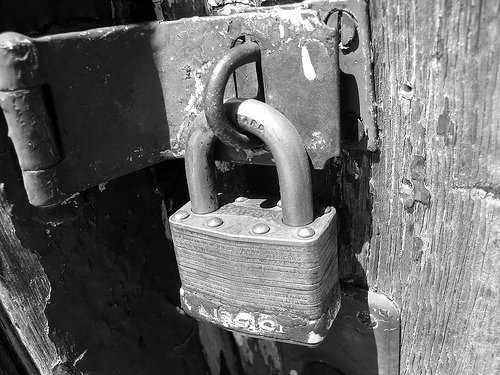
Originally written by guest author Thomas Frank, founder of College Info Geek, a student success blog. Updated for 2026 by QuickOnlineTips. Image courtesy of Flickr user Max Klingensmith.
Get our free weekly email: new tech guides and tools, no spam.
New and updated tech guides, a free tool worth bookmarking and one useful pick, once a week. No spam, unsubscribe anytime.
One email a week. Unsubscribe anytime. See our privacy policy.

If you ask me, i never paid intention in these things. Really these are matter of few hours. If you give this time looking into these points, it can save you in future. I realized that when i got attacked on my blog. This is a hard way of learning.
There are so multiple comments here that are really attractive and conducive to me thanks for sharing a link especially for sharing this blog. I was guessing if You Could write a little more on this subject? I’d be very gratified if You Could elaborate a little bit more.
We all know that the concept of blogging is very famous. For that purpose, WordPress is on top of selection. I already faced few issues due to the reason “Spam Comments” and “bad plugins”. I can also work on the suggestion you mentioned like “Move wp-config.php up one directory”.
I’ll add AntiVirus plugin, thanks for share :)
What a great page of useful tips, my question relates to the database tables. Will wordpress have a problem with any of your tips when you update.
Cheers
I always keep my WordPress installations up to date, and I’ve never had a problem with any of these. However, certain themes don’t play nice with “Blocking access to unneeded information”, such as some of the Elegant Themes.
fabulous post man! Even bookmarked it its that good!
Cheers for posting this – i run wordpress sites all over the web – love the CMS, but indeed a few have been hacked in my time – malware was a big one at one point – so really interested in this article!
Thanks Thomas! great work
These days I am security conscious and using some methods discussed in this post but this post has advance security tips and if one applies this it will be tough for intruders.
This is an excellent summary of essential security measures for WordPress to protect against all kinds of attacks. I’ve worked with WordPress for quite some time and I have to say that you’ve really covered all bases from a security standpoint. Excellent article.
Thanks, Dave! I’ve been put in charge of all things WordPress at my job, so I’ve really been digging into its security features lately.