
WP Super Cache Not Working? How to Fix No Cached Pages
Is WP Super Cache not working on your WordPress site? You install it, switch caching on, the site loads fine, but no pages are ever cached. That is exactly what happened to me in 2008 when I moved from the old WP-Cache plugin to WP Super Cache. Here is how I fixed it then, and a complete 2026 checklist to fix WP Super Cache errors when it will not create cached pages.
Quick answer: If WP Super Cache shows no cached pages, check that define( 'WP_CACHE', true ); is in wp-config.php, that wp-content/advanced-cache.php belongs to WP Super Cache (not another cache plugin), and that wp-content/cache is writable. Then turn caching on, use Test Cache, and check pages while logged out, because logged-in users are not served cached pages by default.
Table of Contents
What WP Super Cache does
WP Super Cache is a free caching plugin from Automattic. It saves static HTML copies of your pages so most visitors get a fast page without WordPress running database queries. On busy sites or shared hosting, that saves a lot of server load.
WP Super Cache not working? Checklist
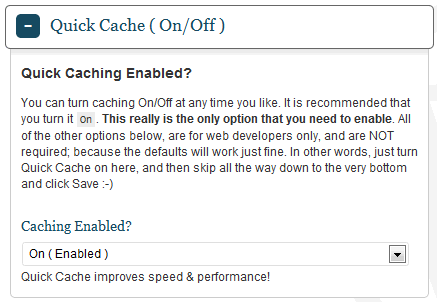
- Turn caching on: go to Settings > WP Super Cache > Easy, select Caching On and click Update Status.
- Run Test Cache: on the same screen, click Test Cache. It fetches your homepage twice and compares timestamps.
- Test while logged out: by default the plugin does not cache pages for known users (logged-in users and recent commenters). Open your site in a private window to test.
- Check WP_CACHE: wp-config.php must contain
define( 'WP_CACHE', true );above the line that says “That’s all, stop editing”. - Check advanced-cache.php: wp-content/advanced-cache.php must be the WP Super Cache version. If another cache plugin created it, delete it and deactivate and reactivate WP Super Cache to recreate it.
- Check folder permissions: wp-content and wp-content/cache must be writable by the web server. The plugin creates wp-content/cache/supercache/ for cached files.
- Look at the page source: view the source of a page while logged out and scroll to the bottom. A comment like “Cached page generated by WP-Super-Cache” confirms it is working.
- Use Expert mode carefully: in Advanced settings, Expert mode serves files with mod_rewrite rules in .htaccess. If those rules are missing or your server is Nginx, use Simple mode instead.
Common causes of WP Super Cache errors
- Two cache plugins: running WP Super Cache with LiteSpeed Cache, W3 Total Cache or WP Rocket causes conflicts. Use only one page cache.
- Host-level caching: some hosts already cache pages at the server. Use the host’s cache instead, or ask your host before adding a plugin.
- Leftover files from an old plugin: as in my case below, an old advanced-cache.php can point to the wrong plugin.
- Pages excluded: check the Rejected URLs and Rejected User Agents lists in Advanced settings.
- Cookies and query strings: pages with GET parameters or certain cookies are not cached by design.
- Expired pages not clearing: see our fix for WP Super Cache not deleting expired pages.
How I fixed WP Super Cache in 2008
The old WP-Cache plugin kept bringing this site down, so I switched to WP Super Cache. Activation went smoothly, but no pages were cached. I went through the official troubleshooting list: wp-content was writable, wp-cache-config.php was recreated, WP_CACHE was back in wp-config.php, and there were no PHP errors. But the supercache folder did not exist.
- Created the folder: I used FileZilla to create wp-content/cache/supercache/ by hand. Still nothing.
- Tried other settings: half-on mode, compression on and off, and checking the .htaccess mod_rewrite rules. Nothing worked.
- Deleted advanced-cache.php: I had not been able to delete the old WP-Cache advanced-cache.php over FTP. It still pointed to wp-cache/wp-cache-phase1.php instead of wp-super-cache/wp-cache-phase1.php. I logged in over SSH with PuTTY, ran
rm wp-content/advanced-cache.php, then deactivated and reactivated the plugin so it created a fresh file.
It started working straight away. The lesson still applies in 2026: when switching cache plugins, always remove the old advanced-cache.php.
FAQ
How do I know if WP Super Cache is working?
Log out, load a page twice and view the source. The bottom should show a WP Super Cache comment with the time the page was cached.
Is WP Super Cache still maintained?
Yes. It is maintained by Automattic and listed on WordPress.org.
Should I use Simple or Expert mode?
Simple mode is the safe default. Expert mode can be slightly faster on Apache servers with mod_rewrite, but needs correct .htaccess rules.
Can I use WP Super Cache with LiteSpeed hosting?
On LiteSpeed servers, the LiteSpeed Cache plugin is usually the better choice. Do not run both page caches together.
Get our free weekly email: new tech guides and tools, no spam.
New and updated tech guides, a free tool worth bookmarking and one useful pick, once a week. No spam, unsubscribe anytime.
One email a week. Unsubscribe anytime. See our privacy policy.


Almost 2 hours searching what was wrong with my config… I was missing the define(“WP_CACHE”,true). Man, you seriously rocked my world on this one. Many thanks !
kool. It works.
I was facing the same issue as I got a new VPS server.
Your detailed steps really helped me solve the issue, Thank you so much..
I had to do a manual reinstall to fix it.
Thank you for posting this, it saved my skin! Super cache was disabled for some odd reason, and it was only through following your advice that I managed to unblock the issue.
Key to this was deleting advanced-cache.php through SSH and then letting super cache rebuild it on plugin reactivation.
Great check-list, I’ll be saving this.
Thanks you!
Ian
This what i looking for. I fail to install super cache, thanks for info. Ill try step by step.
Great troubleshooting on super-cache. I was not going to upgrade because of similar problems but now I may just go ahead.
Thanks for the info,
Richard
My website is running under a Windows server and cannot link the advanced-cache.php to wp-cache-phase1.php. Also when I just copy wp-cache-phase1.php to my Content folder and rename it to advanced-cache.php the supercache setting in the WP-admin is finaly working, but supercache is not caching pages. Any suggestions anyone?
Brett – you have to check the write permissions if the file is not being created.
I don’t even have an advanced-cache.php file. It’s not being created. Any ideas on why this might be?
Hey the tips helped!
Thanks a million for the tips. It’s really works for my blog! I’m glad that I found this post. :D
Superb in-depth article you’ve written. I’ve been visiting your blog for a long time, but never really commented. I can see that you are so happy after you figured out ways to balance your blog on DH and learn putty. In a way, the downtime has actually helped you in many other ways. Right?
As you said, super cache generates html pages-do you think in anyway it’ll affect SEO? Does that also mean that every entry of yours now would also have a static html page?
wp-supercache is working great after these fixes and I personally find the site is much faster. DH tells me the server load is also much better.
I did not try renaming the php file when I could not delete it, but that sounds like a good idea.
Donncha – There was no warning after the wrong symlink. The plugin was not able to overwrite it.
I faced some issues when i was moving my site with wp cache plugin..and in a hurry to sort out things and site down issue i commented every things there in wp-config and wp-settings.
But now i will take a fresh look again considering all the steps u have just mentioned.
good post..neways
That’s something I must watch out for. It would be easy enough to catch if I added a global variable to wp-cache-phase1.php
Do you remember if there was a warning in the backend page? It should have warned you about the wrong symlink.
Great tips, I have been using WP-Cache for a while and was thinking about moving to Super Cache, when I do I’m sure this will be a great reference.
But, for now, I’m going to be sticking with WP-Cache, my site isn’t under too much load and if I don’t have to install a new caching plugin then I won’t.
Seems you are trying every possible measure to minimize server load :) …a bit of a suggestion…[I hope you are already doing that]….it seems from one of your yesterday posts that you touched putty for the first time… in all probability you are not taking your hosting account regular back ups…if thats the case started doing right away…you never know when your host can ban you for no fault of yours…that was quite evident in the last sentence of that mail you sharedin your blog…
my 2 cents
I had the exactly the same problem a few days ago and I too was unable to delete the advanced-cache.php file.
Hence I went ahead and renamed it to something different using FTP and then deleted the other cache files, uninstalled and reinstalled the plugin completely to make it work.
But today I learnt a new trick. Thanks to you ! I hope the way in which I resolved the wp-super cache issue doesn’t create any further problems for me. What do you say ?
If you were not able to delete it you could have tried renaming it….but yes you were able to delete it finally…gud luck…
one more thing i notice your site loading slowere these days…earler it use to be super fast…you could check that as well…may be it is related to the heavy load as you mention…