
Facebook Timeline in 2026: 7 Tips to Set Up Your Profile
The Facebook Timeline launched in 2011 and turned profiles into a scrolling story of your life. Facebook no longer uses the Timeline name much, but your profile is still that timeline: a cover photo, a list of past posts, life events and a featured section at the top. These 7 tips help you set it up well in 2026, keep old posts private and control what people see first.
Quick answer: Your Facebook Timeline is now simply your profile. To set it up, add a good cover photo and profile picture, write a short bio, pin your best posts or photos to the Featured section, limit the audience of old public posts, review your activity log, add life events you want to share, and use View as to check what the public sees.
Table of Contents
1. Add a cover photo that fits

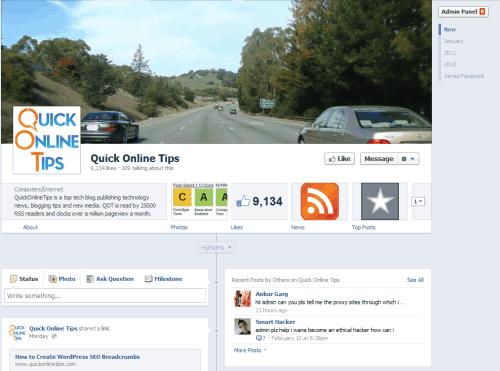
The cover photo is the large banner at the top of your profile, like a magazine cover for your timeline. It is cropped differently on phones and computers, so keep faces and text in the middle. Our Facebook cover photo size guide has the current dimensions and safe zone. Free design tools such as Canva have ready-made Facebook cover templates.
2. Hide your past posts with Limit Past Posts

Everything you posted years ago is still on your timeline. If some of it was public, you can make all old posts visible to friends only in one step. Open Settings and privacy, go to the privacy settings for posts, find Limit Past Posts and confirm. This changes old public and friends-of-friends posts to Friends. It can’t be undone in one click, so you would need to change posts back one at a time.
3. Review your activity log
The Activity log lists everything you have posted, liked, commented on and been tagged in. Use it to delete or archive old posts in bulk, remove tags and hide items from your profile. Search for it in Settings or from the three-dot menu on your profile.
4. Add life events you want to share

Life events such as a new job, graduation, moving city or a relationship milestone appear on your timeline and in your About section. You can add them when creating a post or from the About section, and choose who can see each one. Only add what you are comfortable sharing, since dates and places can be used by scammers to guess security answers.
5. Use the Featured section instead of starring posts
The 2011 Timeline let you star a post to make it stretch across both columns. That two-column layout is gone. Today you can pin a post to the top of your profile and add photos or Stories to the Featured section near your bio, which is the first thing visitors see.
6. Choose who sees your profile details
In the About section, set the audience for each item, such as your birthday, phone number, workplace and hometown. Use the Privacy Checkup in settings for a guided review. For more privacy steps, see our list of hidden Facebook features.
7. Check your timeline with View as
From the three-dot menu on your profile, choose View as to see your timeline as the public sees it. If anything shows that you didn’t expect, change that post or detail’s audience.
What changed since 2012
This article first appeared in January 2012, when Facebook was moving everyone to the new Timeline and many users found it confusing. It suggested cover tools like CoverCanvas, limiting old posts, adding life events, starring posts to feature them across two columns and changing album cover photos. CoverCanvas is long gone, the two-column layout and star button were dropped in later redesigns, and photo albums now have their own edit menu. The core ideas, a strong cover, private old posts and selective life events, still apply.
FAQ
Does Facebook still have Timeline?
Yes, in practice. Facebook now mostly calls it your profile, but it is the same timeline of posts, photos and life events.
How do I hide old posts on Facebook?
Use Limit Past Posts in your privacy settings to switch all old public posts to Friends, or use the Activity log to delete or archive specific posts.
Can I hide my Facebook timeline from everyone?
You can set future posts to Only me or Friends, limit past posts, and hide profile details, but your name and profile picture remain visible.
How do I see what my profile looks like to others?
Open your profile, tap the three-dot menu and choose View as.
Originally written by guest author Ashish Mundhra, an editor at WorkYourOffice and technology enthusiast. Updated for 2026 by QuickOnlineTips.
Get our free weekly email: new tech guides and tools, no spam.
New and updated tech guides, a free tool worth bookmarking and one useful pick, once a week. No spam, unsubscribe anytime.
One email a week. Unsubscribe anytime. See our privacy policy.



what not dangerous to my facebook accuont
get a new timeline n my profile
Get Started With my Facebook Timeline
I want to sign up.
get new timeline
I am totally agree with Harsh. Thanks for your post.
For professionals: It’s a good idea to show case their best of updated with bit of personal life and their work..!!
Though, make sure to change all old posts visibility to friends only for better privacy and security of your account and personal life…
True sir, Agree