
How to Create a One-Click Shutdown Shortcut in Windows 11 (and 10)
Tired of clicking Start, then Power, then Shut down every time? A shutdown shortcut lets you turn off your PC with one double-click from the desktop, taskbar or a keyboard shortcut. I first set this up on Windows 8, where shutting down meant digging through the Charms bar, and the same trick works perfectly in Windows 11 and Windows 10 today. Here’s how to create a one-click shutdown shortcut in Windows 11, plus restart, sign-out and hibernate shortcuts.
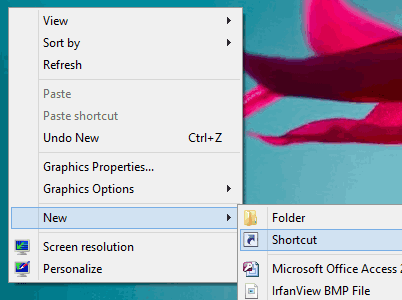
Quick answer: Right-click the desktop, choose New → Shortcut, type shutdown /s /t 0, click Next, name it Shut down and click Finish. Double-click it to shut down instantly.
Table of Contents
How to create a shutdown shortcut in Windows 11
- Right-click an empty area of the desktop and choose New → Shortcut.
- In Type the location of the item, enter the shutdown command (the last character is a zero):
shutdown /s /t 0
- Click Next, type a name like Shut down, and click Finish.

Your shortcut appears on the desktop. Double-click it to close all apps and shut down immediately, so save your work first.
Other useful power shortcuts
Create more shortcuts the same way with these commands:
- Restart:
shutdown /r /t 0 - Shut down after 60 seconds (gives time to cancel):
shutdown /s /t 60. Cancel withshutdown /a. - Sign out:
shutdown /l - Restart to advanced startup options:
shutdown /r /o /t 0 - Hibernate:
shutdown /h(if hibernation is enabled) - Fast startup shutdown:
shutdown /s /hybrid /t 0uses Windows fast startup for quicker boot. Plain/sdoes a full shutdown, which is better when troubleshooting.
See all options in Microsoft’s shutdown command reference.
Change the shortcut icon
- Right-click the shortcut and choose Properties.
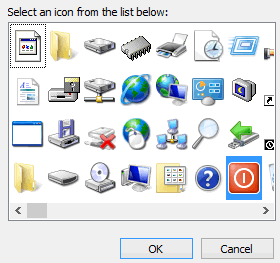
- Click Change Icon. If Windows says the file has no icons, click OK.
- Enter
%SystemRoot%\System32\shell32.dll, pick the red power icon, and click OK → Apply.

Pin the shutdown shortcut to the taskbar or Start
Right-click the shortcut and choose Show more options → Pin to taskbar or Pin to Start. Now you can shut down with a single click from the taskbar.

Add a keyboard shortcut
Open the shortcut’s Properties, click in the Shortcut key box and press a combination like Ctrl + Alt + S. Click OK. Pressing those keys now shuts down your PC, so choose something you won’t hit by accident.
Built-in ways to shut down Windows 11 quickly
- Alt + F4 on the desktop opens the Shut Down Windows dialog. Press Enter.
- Windows + X, then U, then U again to shut down.
- Ctrl + Alt + Delete, then the power icon at the bottom right.
- Set the laptop power button to shut down in Control Panel → Power Options → Choose what the power buttons do, or disable the keyboard power key to avoid accidental shutdowns.
Frequently asked questions
Is it safe to use shutdown /s /t 0?
Yes. It’s a normal Windows shutdown. Windows closes apps and may prompt you to save; use /f only if you want to force apps to close.
Why does my PC restart instead of shutting down?
A pending Windows Update may install and restart. Let updates finish, then try again.
Does this work on Windows 10?
Yes. The same steps and commands work on Windows 10, 11 and even Windows 8.
Get our free weekly email: new tech guides and tools, no spam.
New and updated tech guides, a free tool worth bookmarking and one useful pick, once a week. No spam, unsubscribe anytime.
One email a week. Unsubscribe anytime. See our privacy policy.





Superb stuff and article. I just loved reading it. Keep writing. Good one. Keep it up
Great tips now i am also going to add these shortcut icon on my desktop and free from a long process of shutting down.
Ohh… Really amazing tricks that we can shut down Windows 8 with single click. When I used Windows 8 at that time I really confusing about the “How to shut Down?”.. But today you made easier than easy. :)
I never shut down the Windows 8. I prefer you all to hibernate the Windows. But, it can create a massive restart when you try to restart it :P
It is a really amazing trick that i have used in my windows 8. Just 1 click and your system is shut down. Thanks for share some information like this.
Good thanks for your suggestion. This is really helpful to save time by creating the Shortcut. I like this really.
wow thank you for helping us by suggesting us how to create a shortcut for shut down/