
How to Set Up Gmail 2-Step Verification to Secure Your Google Account
A password alone isn’t enough to protect your Gmail any more. Your Google account holds your email, photos, Drive files, YouTube channel and saved passwords, and the password is often the only thing guarding all of it. Gmail 2-Step Verification adds a second check when you sign in from a new device, so a stolen password isn’t enough to break in. Here’s how to set up Gmail 2-Step Verification in 2026, which methods to choose, and how to avoid getting locked out.
Quick answer: Go to myaccount.google.com/security, click 2-Step Verification under “How you sign in to Google”, and follow the steps to turn it on. Add at least two second steps, such as Google prompts on your phone and an authenticator app, and save your backup codes somewhere safe.
Table of Contents
What is 2-Step Verification?
2-Step Verification (2SV), also called two-factor authentication, means signing in needs two things: something you know (your password) and something you have (your phone or a security key). Even if a hacker steals your password through phishing or a data breach, they can’t get in without that second step.
Many people whose email was hacked wish they’d turned it on. Google now turns on 2-Step Verification automatically for many accounts, but it’s worth checking yours and choosing the best methods.
How to set up Gmail 2-Step Verification
- Go to your Google Account security page and sign in. You can also run Google’s Security Checkup, which walks you through every security setting.

- Under How you sign in to Google, click 2-Step Verification.
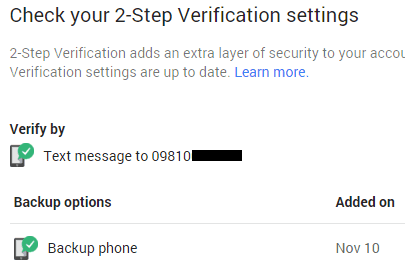
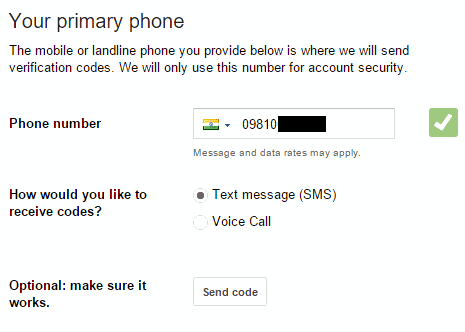
- Click Turn on 2-Step Verification and follow the steps. Google will ask you to confirm a phone number or use a phone where you’re already signed in.
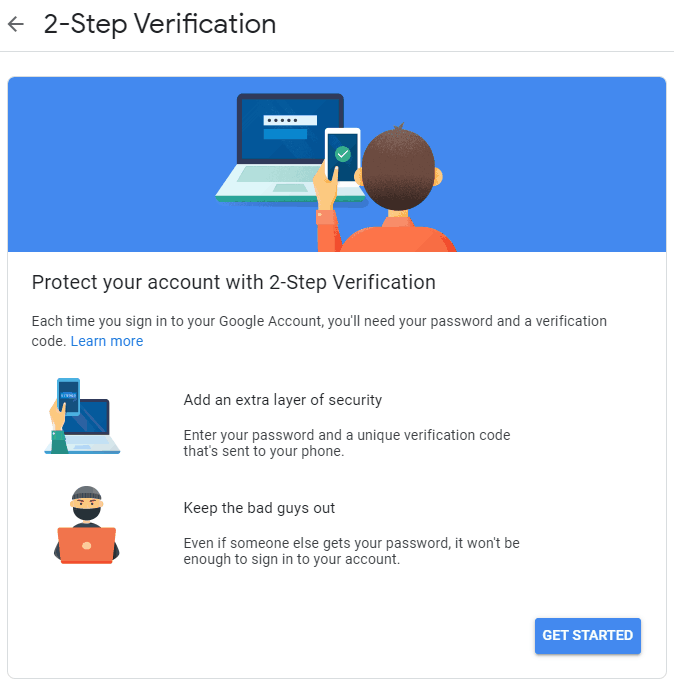
- Add more second steps on the same page, as explained below, so you’re never stuck without one.
Choose your second steps
- Google prompts: tap Yes, it’s me on your phone. The easiest option, and it works on any phone signed in to your Google account.
- Authenticator app: a 6-digit code from Google Authenticator or Microsoft Authenticator. Works without a signal. I use it for my Zerodha logins too.
- Passkeys and security keys: sign in with your phone’s fingerprint or face unlock, or a physical key like a YubiKey. These are the most resistant to phishing.
- Text message or voice call: a code sent to your phone number. Fine as a backup, but the weakest option, because SIM-swap scams can intercept it.
Trusted devices: why it’s not a hassle
I turned this feature on several times in the early days, then switched it off, because entering an OTP at every login was tedious. What changed my mind was trusted devices. On your own computer and phone, tick “Don’t ask again on this device”, and Google won’t ask for the second step there. A hacker on a new device still needs your phone. If you keep passwords in Chrome, you can also export your Chrome passwords as a backup before switching to a password manager.

Never trust a shared or public computer.
What if you lose your phone?
Plan for this before it happens:
- Backup codes: on the 2-Step Verification page, generate 10 one-time backup codes. Print them or store them in a password manager.
- A second method: add an authenticator app, a security key, or a backup phone number in addition to Google prompts.
- Recovery email and phone: keep them up to date in your Google account.

A one-time setup worth doing today
Turning on Gmail 2-Step Verification takes about five minutes, and then it protects your account for years. It’s far stronger than security questions, which are easy to guess or forget. While you’re at it, protect your website the same way with these domain name security tips.
Frequently asked questions
Can I use Gmail 2-Step Verification without a phone?
Yes. Use a security key or backup codes. But a phone with Google prompts or an authenticator app is the most convenient option.
Do I need 2-Step Verification if I use a passkey?
A passkey already combines your device and your fingerprint, face or PIN, so it counts as strong two-factor protection by itself. Keep 2-Step Verification turned on for sign-ins that still use a password.
Can I turn off 2-Step Verification?
You can on most personal accounts, from the same settings page, but it’s not recommended. Work or school accounts may require it.
Get our free weekly email: new tech guides and tools, no spam.
New and updated tech guides, a free tool worth bookmarking and one useful pick, once a week. No spam, unsubscribe anytime.
One email a week. Unsubscribe anytime. See our privacy policy.


Hi P Chandra,
Great Information.
Google is best for their security services, its really safe.
Thanks for sharing this article.
I use 2 step verification system When i made a Gmail account for my online service .It is the best way to save my email.
Thanks for sharing this very informative article. Now we already know how to secure our google account.
I highly recommended 2 step verification.actually,It’s a mobile verification process.another one is recovery email.whenever login in using public pc,don’t forget to sign out.thanks for the tips.really useful stuff :)
Hello,
Gmail account security is a very important for all of us because many hackers are hacking your Gmail account and missuses of some personal mail. I used to Gmail account and thanks to giving tips how to secure my Gmail account I follow to 2 step and secure my Gmail account.
Awesome and informative article. I have already, run the 2 steps verification on my gmail account. Thanks for share.
Hi, I’m from Indonesia came here to look for the most obvious and safe way. every time I do I remain way above account is hacked, what further steps, if there are other safe ways ??
sorry if my language is poorly understood. I’m using google translate
thank you
By this two-step verification, accounts are very secure. Thanks for the great post.
Google has made a masterpiece as Gmail. No doubt, 2 step verification makes it the most secure application. Thanks for sharing.
i was looking for this since long time because once my gmail hacked. This computer registration seems secure, i will try this. thanks
I have tried this, it really works. I’m just wondering how secure it really is, does it stop hackers?
Great post. really very informative. all are using gmail these days but securing it is very important.
Great post here. I believe that 2-Step verification is a great way to secure one’s Gmail account. I think that the security of our gmail account is essential and because of that, I am going to go beyond that, trying other security measures.
I sincerely appreciate this important information.
Good read! Google made a masterpiece as Gmail and gave the security to your fingers. The automatic process for backup and recovering is awesome.
That was perfectly explained informative article. It really helped me to secure my gmail account. Im a new computer person i dont know much.
This is something great i found here to secure my gmail account. Previously is the best way to secure gmail account but its annoying if you are frequently using from different devices. I tried this feature and finally fed up and eventually disabled it. Google still have a lot feature to secure gmail account.
Keep sharing good tips.
I use the 2 step method for google mail just as an extra precaution even though I’ve never had any problems. My blog however was hacked recently and it just makes you more aware. Prevention is better than cure!
Excellent article. Thanks for sharing such an important post. I have a Gmail account. It is really an important account. So I want to increase the security of this account.
I like two-step verification. I will try it for my account.
The Two step verification is enough to provide complete security to a gmail account.
Hi,
I am using phone OTP verification. If i lost my phone, how can i login my account?
Great post but will this mean my Gmail account is 100% safe? Who knows but will still give it a try.
It is very important info to all who access the Gmail account and i am one of them. I have a personal Gmail account. It is really good post.
Thanks
cheers
Abhishek Sharma
Very useful information and it works but not sure for how long. Hackers always found alternative way… Thanks for sharing.
Really a great info! now i have completed all the major steps required. Thanks for sharing the process.Most often i use Gmail account for mailing to my co-workers and upper management. Security and safety of the mailing content is always required and because of that reason i think; you have done a great favor for especially for me.
Thanks. Just finish doing all the steps for my gmail. Before I just back up my gmail with another gmail account but after read your post I’m done set up mobile verification.
great information! hope this will really help in protecting my gmail account against hackers.
Your post is very useful to those who use google mail as their personal account. Thanks for your kindly sharing!
We, being the top web designing company in Delhi uses the two step verification method, and its awesome.
Yea.. I totally agree with you. I have been using the the two step verification method. Guess I have to try other methods as well.
Thanks for the info
I agree with you. Am using the two step verification method and it’s been of good help ever since. Guess am gona try other security steps as well.
Your account security is very important and with this OTP option, it ensures to make your gmail account completely safe and secure. I just now enabled the 2 step verification.
Second Step verification is most powerful security Step for any email account.
Thanks for the great information. I have always planned to secure my gmail email but I always tend to forget but after reading this I have finally secured my gmail email.
This was really good that was the best way to stay secure with your Gmail account
Thanks for sharing this very informative article. Now we already know how to secure our google account.
Yes, Good one post!! Google mail users also feel secure after reading this post.
Hi Chandra,
Thanks for share about How to secure my gmail account. I think, currently google brings awesome and interesting security system for users. I love google’s services.
Hi, it is a very useful guide. The software was developed more for all programs and features. So the account gets hacking easily, it was very important that each one should know to protect their accounts. This is really a valuable one to all and you have explained those steps in a clear way. So, thank you so much for this nice guide!
i have read and applied this post and i have applied the tips given.. i can now proudly say my gmail is protected.. thanks for sharing this. #smiles
Having a mobile phone number on your account is one of the easiest and most reliable ways to help keep your account safe. For example, Google can use the phone number to challenge people if they try to break into your account, and send you a verification code so you can get into your account if you ever lose access. Giving a recovery phone number to Google won’t result in you being signed up for marketing lists or getting more calls from telemarketers.
I always use mobile phone verification. after all, my all the important accounts are connected to my email. Very good tips. Thanks
This was really better for gmail security purpose what i had seen idea shared here.
Thanks a lots
Regards
Rama Krishna
I am using OTP for my gmail account.