
How to Add Free Stock Images in Google Docs and Slides (2026)
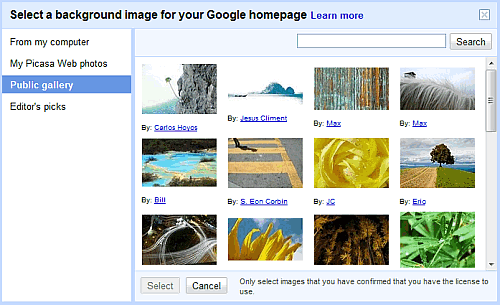
You can add free stock images in Google Docs and Slides without leaving the document. Google first added 5,000 free stock photos to Google Drive in December 2012, picked with help from users from the Thinkstock collection. That old Drive search is gone, but in 2026 the same idea lives on as the Stock & web image panel, and paid Google plans can even create images with Gemini.
Quick answer: In Google Slides or Docs, click Insert > Image > Stock & web, search for a word such as “office” or “mountains”, and click a stock photo, GIF or sticker to add it. Other options in the same menu are Upload from computer, Drive & Photos, Camera and By URL. In Slides with an eligible Gemini plan, use Insert > Help me visualize > Image to generate a new picture.
Table of Contents
How to add free stock images in Google Slides
- Open a presentation in Google Slides and click the slide where you want the picture.
- Click Insert > Image > Stock & web. A panel opens on the right.
- Type what you need, for example “teamwork” or “beach”.
- Leave the filter on All, or switch it to show only stock images, GIFs or stickers.
- Click an item to drop it on the slide, then drag a corner to resize it.

How to add stock images in Google Docs and Sheets
Open the file from Google Drive, click Insert > Image and pick Stock & web (some apps and older menus call it Search the web). Search, click the image you want, and click Insert. In Sheets you can place the image over cells or inside a cell. Google’s help page on inserting images lists every option.
Other ways to insert images
- Upload from computer: your own photos or screenshots.
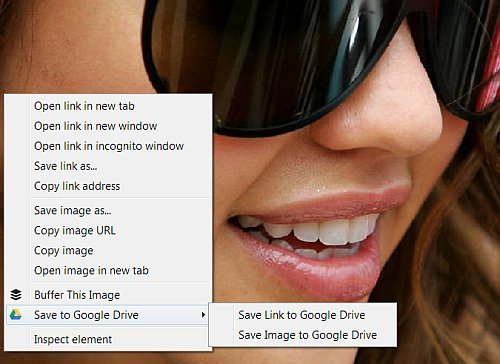
- Drive & Photos: pictures already saved in Google Drive or Google Photos. You can also save images and screenshots from websites to Google Drive first.
- Camera: take a photo with your webcam or phone camera.
- By URL: paste the link of an image, including a GIF.
Create images with Gemini in Google Slides
If your Google Workspace or Google AI plan includes Gemini, Slides can make an image for you: click Insert > Help me visualize > Image, describe the picture, choose a style and aspect ratio, and click Create. See Google’s guide to generating images with Gemini in Slides.
Can you use these stock images freely?
Stock & web results are meant for use inside your documents and presentations. Web results come from other sites and may be copyrighted, so check the source before you reuse an image in a blog post or ad. For pictures you can publish anywhere, use the best free stock photo sites, which offer images under free licenses.
Tips for using stock images in Docs and Slides
- Search in simple words: one or two nouns (“laptop desk”, “city night”) give better results than long phrases.
- Keep one style: use photos with similar colours and lighting across a deck so the slides look like one set.
- Crop instead of stretching: click the image, then use the crop tool or Format options so faces and objects are not distorted.
- Add alt text: right-click the image and choose Alt text, so screen readers can describe it.
- Compress big decks: many large photos slow down a presentation; use only the images that support your point.
FAQ
Does Google Drive still have 5,000 free stock images?
No. The 2012 Drive stock image collection was replaced by the Stock & web panel inside Docs, Sheets and Slides.
Where is the stock images option in Google Slides?
Click Insert > Image > Stock & web. Search results show stock photos, GIFs and stickers.
Are Google Slides stock images free?
Yes, they are free to add to your files. For use outside Google Docs and Slides, check each image’s license.
Stuck on a gift? Try our free Gift Idea GeneratorIdeas for anyone by age, job, interests and budget, with Amazon.com and Amazon.in linksFind gifts →Get our free weekly email: new tech guides and tools, no spam.
New and updated tech guides, a free tool worth bookmarking and one useful pick, once a week. No spam, unsubscribe anytime.
One email a week. Unsubscribe anytime. See our privacy policy.



Nice Post before i used to upload images on Microsoft Sky drive but i’ll check now again, thanks anyways
There is a huge risk of using these pictures. The model release is not alowing google to use it this way. The contract with the photographer is also not alowing this kind of free commercial use of the pictures. Thousands of photographer are now realy angry at both getty and google for this!!
Google, this is absolutely awful! You are taking advantage in the most unscrupulous way.
There are two of my images in this “free” pool. You bought them from Getty Images for $60 each. That is the normal price for use on a company’s website – NOT FOR FREE WORLDWIDE DISTRIBUTION!!!!!!
I have never agreed to this and have had to discover this on a forum.
These images are now worthless. Shame on you, Google.
If you want to buy images for free, everlasting, worldwide distribution, then you should pay the photographer a decent price and and NOT go about this in such an underhand manner.
Caution:
there is a dispute about the use of these images, model releases may have been compromised. if you use images from this collection, you may be involved in legal action.
Using those images is illegal as photographers have not agreed to participate. You risk getting sued both by photographers and models.
I learn from this article.
Nice tip. Will try searching images from G Docs next time I write on a topic of general interest.
Thanks for the share. Can I use these images in my blog posts instead of Google docs?
That’s really cool! I am going to check them now. If it is possible to use them for commercial purpose too, that will be fantastic.
Nice trick to use stock images using google drive.Now use these stock images in our blogs and this is alternative to flickr for getting stock images.