
Google Images Site Search: See All Your Website Images on Google (2026)
Want to see every image Google has indexed from your website? A Google Images site search shows them all on one page, including pictures from old posts you’ve long forgotten. It’s a quick way to check your image SEO, find images worth reusing, and spot pictures that shouldn’t be public. We first shared this trick in 2012; here’s how it works in 2026, with Google’s current filters and Search Console data.

Quick answer: To do a Google Images site search, go to Google Images and search site:yourdomain.com. Google shows the images it has indexed from your site. Click Tools to filter by size, colour, type, time and usage rights, and click any image to see the page it appears on.
Table of Contents
How to do a Google Images site search
- Open Google and type
site:yourdomain.com(no space after the colon). - Click the Images tab (it may be under More).
- Scroll to browse all indexed images from your site.
- Add words to narrow results:
site:yourdomain.com wordpressshows only images Google links to that topic.
You can also limit the search to one section, such as site:yourdomain.com/archives/2012/, or one subdomain.
Filter your site’s images with Tools
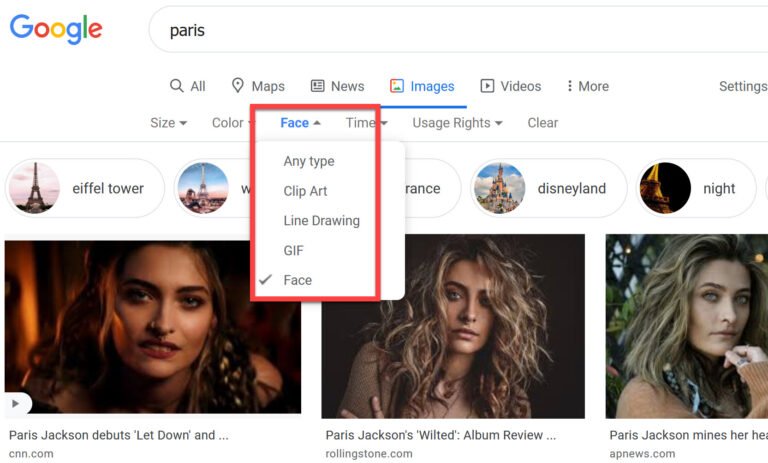
Click Tools below the search box for these filters:
- Size: Large, Medium or Icon. Use Large to find images good enough for Discover and social sharing.
- Colour: black and white, transparent or a specific colour.
- Type: clip art, line drawing or GIF.
- Time: past day, week, month or year, to see how quickly Google indexes new images.
- Usage rights: Creative Commons or commercial licences, if you’ve added licence details.
Check your image traffic in Search Console
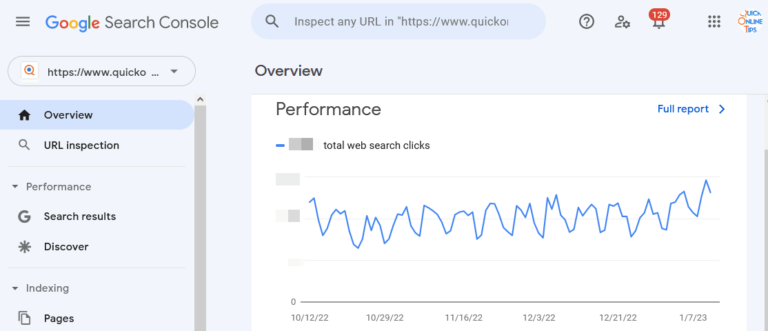
A Google Images site search shows what’s indexed, but not what brings visitors. In Google Search Console, open Performance > Search results, click Search type and choose Image. You’ll see the queries and pages that earn clicks from Google Images.
Why some site images don’t appear
- Blocked by robots.txt: make sure your uploads folder isn’t disallowed.
- Images loaded only by JavaScript or CSS backgrounds: Google indexes images in
<img>tags with a realsrc. - Tiny or decorative images: icons and small thumbnails rarely appear.
- Missing context: use descriptive file names, alt text and nearby captions.
WordPress and SEO plugins like Rank Math include images in your XML sitemap automatically, which helps Google find them. For more ways to find great pictures, try these image search engines, free stock photo sites or AI art generators.
Find where your images are used elsewhere
Curious whether other sites copy your pictures? Open an image in Google Images and click Search with Google Lens (or use Lens’s Exact matches option) to find other pages using the same photo.
Frequently asked questions
How do I see all images from a website on Google?
Search site:example.com and switch to the Images tab.
Why does the site: search show fewer images than my media library?
Google only shows images it has crawled, indexed and considers useful. Small, duplicate or blocked images are left out.
Can I remove my images from Google Images?
Yes. Delete or block them with robots.txt or a noimageindex robots tag, then use Search Console’s Removals tool for urgent cases.
Does Google Images traffic help my site?
Yes, image clicks send visitors to the page where the image appears, and good images also help in Google Discover.
Get our free weekly email: new tech guides and tools, no spam.
New and updated tech guides, a free tool worth bookmarking and one useful pick, once a week. No spam, unsubscribe anytime.
One email a week. Unsubscribe anytime. See our privacy policy.


Wow, I’ve heard of this method before but now I know thanks to you.
Its indeed fun to see all your images in one page … on Google.
This is a new tool for me. I knew there was something like this but o did not try to search about it. I should try it from now onwards.
Never tried this to search images before this,Just saw that about 60% of my blog images are still not indexed.
I have already try this trick in google and it is useful to know whether the site images are indexed in google are not.Nice post.