How to Get Better Answers from ChatGPT: 9 Tips (I Asked ChatGPT Itself)
How can you get better answers from ChatGPT? When ChatGPT arrived in late 2022, I spent weeks chatting with it and was impressed, but many answers were vague or wrong. So I asked ChatGPT itself how to ask better questions, and shared its tips here in January 2023. ChatGPT has grown a lot since then, with web search, file uploads, memory and custom instructions. Here are the tips that still work in 2026, plus the newer features that make the biggest difference.
Quick answer: To get better answers from ChatGPT, give clear and specific prompts with context, say who the answer is for and what format you want, share examples or files, ask it to use web search for current facts, and keep refining with follow-up questions. Set Custom Instructions once so every chat knows your preferences, and always check important facts.
Table of Contents
1. Write clear, specific prompts
This was ChatGPT’s first tip in 2023 and it is still the most important. Instead of “What is the weather today?”, ask “What is the weather in San Francisco this afternoon?” Instead of “Write about SEO”, ask “Write a 300-word introduction to on-page SEO for small business owners in India, with three practical tips.” Specific detail works for AI image generators too.
2. Give context and a role
Tell ChatGPT who you are and who the answer is for: “I run a tech blog for beginners. Explain DNS to a reader who has never heard of it.” The same question gets a very different answer for a developer.
3. Ask for a format
Request a table, bullet points, a step-by-step list, an email draft or a short summary. You can also set length limits: “Answer in under 100 words.”
4. Use the right tone and language
ChatGPT mirrors your tone. Ask for “friendly and simple” or “formal and concise”. It also works well in many languages, so you can ask and answer in Hindi, Spanish or others.
5. Share examples and files
Paste a sample of the style you want, or upload a document, spreadsheet or image and ask questions about it. Examples beat long descriptions.
6. Turn on web search for current facts
ChatGPT’s built-in knowledge has a cut-off date. For news, prices or anything recent, ask it to search the web and check the sources it links.
7. Iterate with follow-ups
Patience was another of ChatGPT’s 2023 tips. If the first answer misses, say what to change: “shorter”, “more examples”, “explain step 3”. Use Edit on your prompt to try a different angle, or regenerate.
8. Set Custom Instructions and use Memory
In Settings, Custom Instructions lets you tell ChatGPT once about you and how you like answers. Memory lets it remember useful details across chats; you can view, delete or turn it off. Projects keep related chats and files together. To clear old chats and saved memories, see how to delete ChatGPT history.
9. Always fact-check
ChatGPT can still state wrong facts confidently. Verify numbers, quotes, medical, legal and financial information with reliable sources.
What changed from our 2023 tips
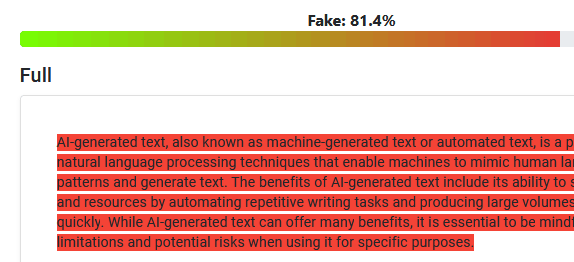
In 2023 ChatGPT also suggested adjusting the “temperature” and sampling methods like beam search and top-p. Those are settings for developers using the OpenAI API, not options in the ChatGPT app, so most people can ignore them. Also, I used to voice type blog posts; today ChatGPT’s voice mode makes talking to AI natural. If you publish AI-assisted writing, read our guides on AI generated content and AI detector tools, and compare plans in our ChatGPT Plus guide.
Try these tips on ChatGPT, and they work just as well with other assistants like Google Gemini and Claude. OpenAI also publishes a prompt engineering guide for deeper reading. For more choices, see our list of the best free ChatGPT alternatives.
FAQ
Why does ChatGPT give wrong answers?
It predicts likely text rather than looking up facts, unless it uses web search. Vague prompts and recent topics increase errors.
Is there a best prompt for ChatGPT?
No single prompt. Combine role, context, task, format and examples, then refine.
Can ChatGPT remember my preferences?
Yes. Use Custom Instructions and Memory in Settings, and turn them off any time.
Get our free weekly email: new tech guides and tools, no spam.
New and updated tech guides, a free tool worth bookmarking and one useful pick, once a week. No spam, unsubscribe anytime.
One email a week. Unsubscribe anytime. See our privacy policy.