
How to Fix Google “We’re Sorry” Error Pages, Automated Queries
Fix Google “We’re sorry…” error in 2026. Learn why it happens and how to remove CAPTCHA blocks and restore normal search access. Are you getting Google Sorry and ‘We’re Sorry’ automated queries error pages and blocked all search results?
I tried Google search today from a college friend’s computer. They labeled it as an automated search, banned the IP, and only after correctly answering the captcha twice, the normal Google search could be restored... temporarily. If you’ve ever been interrupted by a “We’re sorry…” page while searching on Google, you know how frustrating it is. One moment you’re browsing normally, and the next, Google blocks you with a CAPTCHA or warning message.
This issue is still very much relevant in 2026. In fact, with increased bot detection and stricter traffic monitoring, it shows up more often now than it did earlier. The good news is that this error is usually temporary and fixable. Once you understand why it happens, you can resolve it quickly and prevent it from coming back.
Google We’re Sorry Error Page
Here is what the complete error message looks like
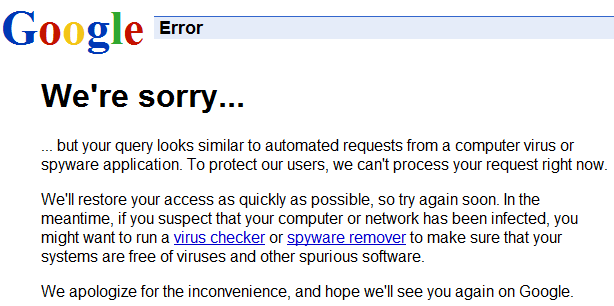
We’re Sorry … but your query looks similar to automated requests from a computer virus or spyware application.
Another similar message is
We’re Sorry … but your computer or network may be sending automated queries. To protect our users, we can’t process your request right now.
Google advises that they error so because they think it is similar to automated queries like those from viruses or spyware! They advise that users should run antivirus software or spyware remover, but it the error persists then deleting Google cookies will help.
Well, it was not over yet, after a few search results, the Google search was blocked again. I was tested again for the captchas twice, and the cycle continued like this over till I was online.
Remembering how Google search had marked the entire web as malware earlier, first I thought maybe it was a new bug affecting Google search. But the We’re Sorry error page is a well-identified spam blocking technique from Google Search.
Google Automated Queries and IP ban
This message appears when when Google detects unusual traffic from your network, in form of automated queries from an IP address, which causes a quick traffic spike on google.com and temporarily blocks access. Google explains some possible ways to fix the issue, remove the IP address ban, and restore Google search results as usual.
When a computer in the network runs automated queries, it violates Google’s Terms of Service. This includes using any software that sends queries to Google to determine how a website or webpage ranks on Google for various queries, ‘Meta-searching’ Google, or performing ‘offline’ searches on Google.
Why This Error Still Happens in 2026
Google’s systems are much more sensitive now. Even normal users can trigger this error under certain conditions.
Common reasons include:
- Too many searches in a short time
- Using VPNs or shared networks
- Automated tools or browser extensions making requests
- Malware or unwanted software generating traffic
- Shared office or public IP addresses
In many cases, the issue is not caused by you directly. It may be someone else on the same network.
How to fix Google Sorry Errors
1: Complete the CAPTCHA, Solve ReCAPTCHA
Mostly now Google will show you see a reCAPTCHA and you will need to solve it to show you are a human and not a robot. It will basically show you a pop up of images and you need to identify some object in it. Don’t worry if you are wrong because the CAPTCHA can be difficult to solve sometimes, as that is the way it is meant to be to trick bots vs intelligent humans. If you fail, it will give you a new test. Therefore, if Google shows a CAPTCHA, solving it usually restores access instantly. This is the quickest fix.
2. Restart Your Internet Connection
Restarting your router assigns a new IP address in many cases. This helps if your current IP has been flagged.
3. Disable VPN or Proxy
VPNs often use shared IP addresses, which can trigger Google’s filters. Turn off your VPN temporarily and try searching again.
4. Check for Suspicious Extensions
Some browser extensions send automated requests in the background. Go through your extensions and disable anything unnecessary, especially SEO tools or scraping plugins.
5. Scan Your System for Malware
Malware can generate automated traffic without your knowledge. Use a trusted tool like Malwarebytes to scan your system and remove threats. Run a full system scan to find and remove spyware and malware which could be triggering those automated queries to Google.
Here are some older fixes which you might try…
6. Deleting Cookies
Sometimes the easiest way of fixing the error might be to delete cookies from the web browser.
If you use Firefox – Go to Tools > Options > Private Data > Clear Now > Check Cookies > Clear Private Data Now
And behold, all the errors were gone and the issue was fixed for me.
7. Google Feedback
If you tested and your computer and network are secure, but you continue to get the Google errors, then send feedback to Google about the “Unusual traffic from your computer network” and they will investigate your report and fix the issue.