
Quick Online Tips
Home     About     Popular     Photoblog     Themes     Advertise     Shop     Jobs     Contact

How to Fix Error 0X80070052 on USB Flash Drives

September 24th, 2007
ADVERTISEMENTS

I use a 2GB Transcend USB Flash drive or memory stick to store my office data. Today when I tried to copy some data from my Computer to the memory stick, an alert popped up with Error 0X80070052, and “the directory or file can not be created”. Here is my experience in fixing the error…

Checking my USB Flash Drive

I had shared my experience about fixing flash drive errors earlier, but I was determined to try all means to figure out what went wrong before I would format the pen drive (and all data is deleted forever!). I googled some forums for support and the problem was not uncommon. Most people suggested some FAT to NTFS problem, something about not correctly formatting your disk when used the first time, fake pen drives (standard tech support answer) and the ultimate (and simplest) solution to format your disc and erase all data.

Here is what I did, and maybe you would have too – I used the “Safely remove hardware” option, stopped the flash drive, reinserted it into the USB port. All my files were listed well and could be opened. I could easily transfer data from the USB drive to the computer (So I transfered all data, just incase all data got corrupted by my experiments – always back up your data, ALWAYS while it is still working).

When I tried creating a new folder, it did manage to create some corrupted folder, which would not open, nor could it be deleted. Here is a comparison of the corrupted new folder on the left and the way a normal new folder displays in Window Vista.

Corrupt New FolderNormal New Folder

The first thing that struck me was that since more data was not getting stored on the pen drive, the maximum storage capacity must have been reached. But the usb drive was only at 25% capacity. So the problem has to be something else.
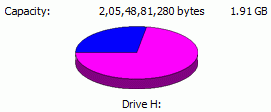
Free Disk Space

Maybe it was a bad virus which had infected the pen drive. I went to My Computer and right clicked to right clicked to scan with Norton Internet Security (my trusted antivirus tool, though these free antivirus software would work as well). No Viruses or malware.

Maybe it was bad sectors on the disk. Then I right clicked the Removable drive, went to propeties, then tools and I scanned the drive for bad sectors and selected the error checking option.

Scan for Errors

Then I selected both options to Automatically fix file system errors and also scan and attempt recovery of bad sectors. But there were no errors.

Check Disk for Errors
However, I could still not create any folder on the pen drive, nor could transfer any data from the computer to the flash drive. I looked around the fiorums where most of them suggested to back up all data and format flash drives.

Fixing Error 0X80070052

When I looked into the contents of my usb flash drive, I had around 15 folders and over a 120 word documents, 30 Pdf files and a few zip and image files stored in the root of the pen drive. Since new folders were not being created, I thought maybe there were too many files in the root area, so I moved all these individual files to a pre-existent folder (remember we cannot create a new folder). Now I had 15 folders and no single files in the root of the flash drive.

And guess what happened (I would not be writing this had it not worked!) – The flash drive is back to normal (I do not need to format it after all, though I was getting prepared for it). Now the Error 0×80070052 is gone, I can easily create new folders (that strange corrupted folder is still there!) and easily transfer files to and fro from the computer. So maybe it has something to do with keeping files in folders… maybe some geeky person can share their knowledge about the issue.

I hope you try this simple solution to Error 0×80070052 before formatting your flash drive. It worked for me, may work for you.

RSS Subscribe RSS feed     Bookmark and Share


221 Responses to “How to Fix Error 0X80070052 on USB Flash Drives”

  1. BigAl says:

    Created folders, works a charm.Thanks.

  2. zak says:

    that was great all done. thanks for the effort u put in!!!

  3. Kharen says:

    After trying everything else posted on this page, I formatted the memory card from FAT to NTFS and presto – it worked like a charm! (Ofcoarse I made a backup of the files first!)Great tip!
    THANK YOU SOOOOOOOOO MUCH!!!! You are a computer GOD!

  4. ND says:

    Hey dude !! Thanks a lot. It indeed is a great tip. Saved me the hassle of formatting the disk. I use a 2 GB imation and the data was super critical. Thanks again. God bless.

  5. Tony says:

    THANK YOU! Had same problem but with a mp3 player and music. I couldn’t put any more music on and it was only half full. I went to make a new folder to put it in like you said, and it wouldn’t let me.. so I removed one song, made the folder, put all my music in… and it worked fine! Thanks!

  6. Roberto says:

    I have another method:

    I had this same problem with my thumbdrive and after read this forum and having the same idea about some corrupted folder or file.

    I listed all files from my USB drive using the “Windows Explorer” with the “Date modified” view, and based on the date I deleted the latest 2 files that were created (I’m not sure which one was the problem) but after that I can create again folder & files.

  7. Brett says:

    Thanks for the help!

  8. Nathan says:

    Excellent! It worked perfectly, cheers mate.

  9. Kelly says:

    I think I love you! Same thing with technika mp3 player from tescos, was about to take it back…luckily I found your advice,

    Thankyou so much for taking the time to do this!

  10. shoaib says:

    hi thanks for the tip it solved the problem when i formated my flash drive with FAT32 formate.i created a folder after formate then all files got easly copied in it.

  11. angel says:

    great job;)

  12. Ben says:

    Thank You!!!!!

  13. eko says:

    good job my friend got exactly the same problem and thank to you i figured it out. Thanx a lot man

  14. Yanir says:

    Thank you so much – exactly what I needed to fix the problem like magic!
    A well written great solution!

  15. Scott says:

    Bought another flsh drive as reformatting didn’t work when I first had this problem. Was so frustrated as I had the same problem with the new drive. This solution was fantastic. Such a simple solution. Thanks for sharing. Wish I had googled this in the first place.

  16. Bruno Lana says:

    WOW! Thank, really, really much!!

    I created the new folder and transfered some archives, and the pen drive is working again!!!

  17. Suzy Garrison says:

    BOY>>>>Does this work!!!! THANK YOU THANK YOU It was late and needed those files for work. I searched for a solution, but your solution was the easiest and quickest of the lot. Cannot thank you enough. YAY!!!!

  18. Deon says:

    BIG thank you – It worked like a bomb. I moved the files to a folder and now I can add more data.

  19. Alyssa says:

    thank you so much! My small HD size means I don’t want a bunch of music files on it so I’ve been using a USB & it stopped working, but now that I moved it all into a “music” folder it works like a dream. Thanks!!!

  20. DJ Jazzy L says:

    Wow! A miracle happened! What had become a minor irritant is a thing of the past. You’re a genius! All other “fixes” in other forums should be “unGoogled”! :-))
    Thanks for doing the legwork.

  21. Calogero Algeri says:

    This was exactly the same problem that i had. thankyou heaps!

  22. Mrk says:

    Awesome – thanks for this!

  23. zeke says:

    Thanks for this dude. Worked perfectly for me. Now my girlie thinks I’m a frikking genius….time for me to collect my prize :) cheers!!

  24. A.Anand Srinivasan says:

    it is a cool solution… it worked for me… i copied a lot of mp3s to the usb and it was giving this error… i created a folder called song and moved the files… and the usb became normal…

  25. fadi aoun says:

    hi please i need help
    i have many photos about 500 on my usb and still have many space durint a travel trip
    everything was ok until suddenly an error occured and said that it must be formatted and i dont have back up
    the strange thing is that on apple pc it shows items but with error and it shows the capacity as it is with the photos
    please i need help urgent urgent urgent

  26. Renesisapex says:

    Thanks for your solution, “No Worries” it makes perfect sense…reformat to a better File System.
    Same error code for me: I had 170 items in the root of my 1GB Flashdrive. If I removed one file/folder I could insert another but no more, limit therefore is 170, in my case the FAT format was used. I backed up the contents of the drive to a temp location and reformatted using NTFS, and hey, Presto! problem solvered!
    So why do these drives come formatted in anything other than NTFS? According to one suggestion it’s, as usual, a matter of time and money during production/testing. FAT is the simplest to format and easiest to test…..!
    So even if you haven’t yet encountered this problem but want to avoid it, backup the drive data and reformat to NTFS (Providing your system is capable of handling it – anything less than 10 years old should be OK).
    If you want to read the techie stuff about this try this URL: http://tinyurl.com/b5ovn

  27. Leah says:

    I reformatted the Flash drive, but that didn’t solve the problem, either.

    I don’t have any folders on my drive, but got the same error when I had both 1 and 2 folders. About 1/3 of the files would transfer, and the rest generate the error code.

    Suggestions?

  28. Leah says:

    Sorry – I read through more of the comments and reformatted in FAT32. That solved the problem.
    Thanks!

  29. BM says:

    I have been facing this same problem, repeatedly receiving the0×80070052 error on both my Transcend JetFlash 4G and Transcend SD 2G.

    In the case of the latter it was a 150 root file limit.

    Thought it was a problem with Vista, perhaps a permissions issue, since I had no such problem with XP.

    Nothing worked. Though, as the author of this thread discovered, creating a subdirectory and copying all the music there, or copying a subdirectory, from another source, with all files worked.

    But I wanted to have all the files on root, not in any subdirectories. So followed those who advised formatting with FAT32 and it worked no problem!

    I have little doubt that formatting with NTFS will work just as well.

    Thanks to all who assisted.

  30. Juli says:

    thank you thank you! This was driving me crazy and this fixed the error in a flash…pun intended! Thanks again :)

  31. xeraboo says:

    this was brilliant – worked immediately!! i was just about to start checking out file formats… thank god i thought of googling this up first! thanks mate ;)

  • Subscribe free daily email newsletter Why?
  • RSS   Feed readers   Add to Google Reader or Homepage   Twitter
writeWrite a guest article - Showcase your site to our active community of bloggers, technology experts, and geeks. Now read 100+ guest articles
Jobs
Jobs on SEO | Blogging | SEM | Marketing | Software | More...
Jobs in Google | Yahoo | Microsoft | Adobe | Ebay | Cisco | Intel
Post a job - only $50 for 30 days! | 8 more reasons

Must Buy Software