
How Page Caching Saved Our Traffic During 500 Internal Server Errors
Can a website keep its traffic while the server throws 500 Internal Server Errors? Ours did. In April 2009, QuickOnlineTips was down on and off for days with 500 errors on our shared hosting, yet we still served over 20,000 pageviews a day. The secret was page caching. Here’s what happened, why it worked, and how to protect your own site from 500 internal server errors in 2026.
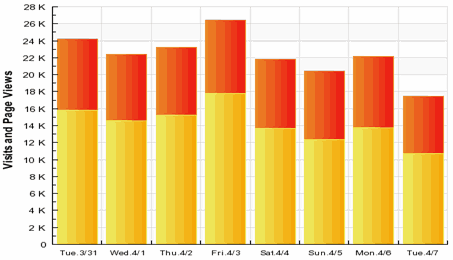
Quick answer: A page cache saves ready-made HTML copies of your pages, so visitors can still see them when PHP or the database fails. To stay online during server errors, use a caching plugin plus a CDN that can serve stale pages (such as Cloudflare’s Always Online or “serve stale” settings), set up uptime monitoring, keep backups, and fix the root cause by checking error logs, plugins, PHP limits and .htaccess.
Table of Contents
What happened to us
For several days most pages returned 500 errors while we exchanged support tickets with our host. We expected a big traffic drop, but daily pageviews stayed close to normal. The WP Super Cache plugin had already turned our most popular pages into static HTML files. When the database failed, the plugin itself stopped working, so those cached pages never expired and kept being served. Comments couldn’t be posted, so the pages didn’t change and stayed cached.
Our most visited pages, the ones people reached from Google and links, were all cached. Less popular pages showed errors, but they mattered less. We also replaced the PHP front page with a plain index.html so the homepage and subscribe links kept working. Most visitors never noticed. In the end, traffic and ad revenue were 20% to 30% lower for those days instead of collapsing.
How to stay online during server errors
- Use page caching: LiteSpeed Cache, WP Rocket, W3 Total Cache or WP Super Cache serve static copies. Preload the cache so popular pages are always ready. See how to make WordPress faster and safer.
- Add a CDN with stale serving: Cloudflare and other CDNs can keep showing cached pages when your origin server is down.
- Monitor uptime: free monitors such as UptimeRobot alert you within minutes.
- Keep backups so you can restore quickly; here’s how to schedule a daily WordPress database backup.
- Choose reliable hosting and upgrade if your site regularly outgrows its plan.
How to fix a 500 internal server error in WordPress
- Check the error log in your hosting panel or turn on
WP_DEBUG_LOGto see the cause. - Deactivate plugins by renaming the
wp-content/pluginsfolder via FTP or File Manager, then re-enable them one by one. - Switch to a default theme by renaming your theme folder.
- Regenerate .htaccess: rename it, then save Settings > Permalinks to create a fresh one.
- Raise PHP limits (memory_limit, max_execution_time) or switch to a supported PHP version.
- Ask your host, with the error log details, if none of this helps.
Search engines handle short outages well, but long ones can hurt. If you must take the site down on purpose, use a maintenance mode page that returns a 503 status.
FAQ
What causes a 500 internal server error?
Usually a faulty plugin or theme, a corrupt .htaccess file, PHP memory limits, or a server problem at the host.
Will a 500 error hurt my Google rankings?
Short outages rarely do. If errors last for days, Google may reduce crawling and drop some pages until they return.
Does caching hide server problems?
It can mask them from visitors, which is helpful, but always fix the cause and check pages while logged out.
Stuck on a gift? Try our free Gift Idea GeneratorIdeas for anyone by age, job, interests and budget, with Amazon.com and Amazon.in linksFind gifts →Get our free weekly email: new tech guides and tools, no spam.
New and updated tech guides, a free tool worth bookmarking and one useful pick, once a week. No spam, unsubscribe anytime.
One email a week. Unsubscribe anytime. See our privacy policy.




@QOT – Dreamhost is overgrown, you might think of switching host. You can try mediatemple, eleven2 hosting or something reliable. I don’t want to recommend hosting it’s up to you, but I tried mediatemple grid server, our sites(3 combined ) has more than 20K page views daily, because of GPU usage it didn’t work. We are with eleven2.
So what ended causing your internal server error? I had the same thing happen.. i think mine was caused by popular posts plugin.. but i’m not sure.. I removed super-cache just to be safe.
I think admins don’t see cached pages, which could explain why you saw server errors only in Firefox (assuming you were logged in only in it).
@Sumesh – admins don’t see cached pages >> that would explain it for Firefox.