
How to Add PHP Files to a WordPress Theme Without FTP
Do you need to add a new PHP file to your WordPress theme, like share-buttons.php or loop.php, but don’t want to log in with FTP every time? We experiment with theme designs a lot, and connecting by FTP just to create a blank file was tedious. Here’s how to create WordPress theme files without FTP: the quick PHP trick we used, and safer modern options like your host’s File Manager, all updated for 2026.
Quick answer: The safest way to add PHP files to a WordPress theme without FTP is your hosting control panel’s File Manager (cPanel, hPanel or Plesk): open wp-content/themes/your-child-theme/ and click New File. Then edit it in WordPress under Appearance > Theme File Editor. You can also create a file from the theme editor with a one-line PHP touch() trick, as shown below.
Table of Contents
Method 1: Use your host’s File Manager (recommended)
Almost every web host includes a browser-based file manager, so you never need an FTP client:
- Log in to your hosting panel and open File Manager.
- Go to
public_html/wp-content/themes/your-child-theme/(your WordPress folder may differ). - Click + File or New File, name it, for example
share-buttons.php, and create it. - Edit it right there, or open it in WordPress’s Theme File Editor.
Always work in a child theme. Files you add to a parent theme are deleted when the theme updates.
Method 2: The PHP touch() trick in the theme editor
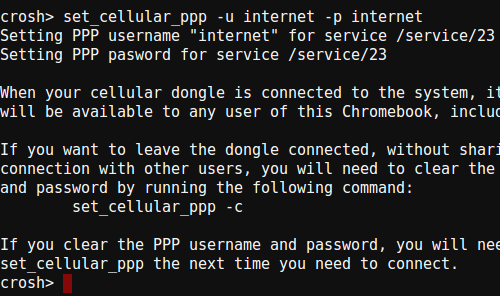
This is the trick we used when we first wrote this tutorial. PHP’s touch() function creates an empty file if it doesn’t exist. You can run it once from a theme file you can already edit.
- Go to Appearance > Theme File Editor (in block themes, Tools > Theme File Editor) and open
functions.phpof your child theme. - Add this line at the end, changing the file and folder names:
touch( get_stylesheet_directory() . '/share-buttons.php' ); - Click Update File and load any page of your site once. The empty file is created.
- Remove the line and save again. Don’t leave it in your theme.
Here’s what it looked like in the old theme editor, where we added it to header.php:

And the new blank file appeared in the theme’s file list:

get_stylesheet_directory() points to your active (child) theme folder, so you don’t need to type the full path as we did in the original version.
Call the new file with get_template_part()
We like breaking long theme templates into smaller files that are easier to edit and reuse. To load share-buttons.php inside single.php, use:
<?php get_template_part( 'share-buttons' ); ?>Note there’s no .php extension and no spaces inside the quotes. For files in a subfolder, use the path, such as get_template_part( 'template-parts/share-buttons' );. Changes to that one file now apply everywhere it’s used. We used this approach for features like comments on a new page and a custom login page.
Be careful with the theme editor
- Back up first. A PHP mistake can break your site. WordPress now checks edits and refuses to save changes that cause a fatal error, but it’s not foolproof. Keep a backup of your website.
- The editor may be disabled. Many hosts and security plugins set
DISALLOW_FILE_EDITto true inwp-config.php, which hides the editor. That’s a good security practice; use the File Manager instead. - Avoid file manager plugins. Plugins that add a full file manager inside WordPress have had serious security holes. Your host’s File Manager is safer.
Frequently asked questions
Where is the Theme File Editor in WordPress?
In classic themes, it’s under Appearance > Theme File Editor. In block themes, it’s under Tools > Theme File Editor.
Can I upload files to my theme without FTP?
Yes. Use your host’s File Manager to upload files, or upload a whole theme as a ZIP under Appearance > Themes > Add New > Upload Theme.
Is SFTP better than FTP?
Yes. If you do use a file transfer client, choose SFTP, which encrypts your login and files. Plain FTP sends passwords unencrypted.




You can easily create or delete any wordpress file if you have cPanel access.
I find it diffult to understand, i think i need to read it again
Thank you for posting your blog. I had not any idea about this but you given smart idea for me. I will definitely follow your tips.
themes are really important as far as appearance is concerned. i am new to wordpress i am trying out for a theme which is simple in appearance and loads faster
Well, this thing does really helps when you are testing different themes. I will try it for sure on my new wordpress blog as I have still not decided which theme to use. Thank You for sharing.
I have created isolated php file PHPTest.php and accessed using path similar to above mentioned one. Its working perfectly. However my query still open i.e. when the same code is pasted in template related php file it is not even showing the controls.
is this really help in exporting the hosting & username detailed?
Just Awesome Tips. But When i am Trying to Upload 50 MB WordPress Theme, Then how i can Upload it without FTP ?
This works to create empty files in the themes folder. Fresh install need to be done by FTP or in one click via Softalicious or Fantastico in your cpanel.
Thanks for the tips. It is very useful for the newbies like me..
wow! Bravo P Chandra,
Am a wordpress wrangler but i never knew of this method. To sincere you make my day with this article post.
This is really a great way to create a new PHP file/template inside a wordpress theme.
I have always create my php file/template offline and connect through FTP in order to upload it. I never knew of this method.
Thanks for sharing this wonderful trick with us, it shows our geeky you are towards wordpress development and i will urge you to keep up the good writing.
BUT PLEASE, AFTER CREATING THE FILE, WILL YOU HAVE TO REMOVE THE “” from header.php ???? (await your response)
I already bookmark this blog because i see alot of interesting articles on it.
Have a nice weekend
Once you have created your file, you do not need the line in the header.php. It has to be removed.
what id i want to continue creating the theme without using FTP access !?