
How to Fix MP3 Metadata (ID3 Tags) on Windows, Mac and Phone
Do your songs show up as “Track 1” by “Unknown Artist”, play in the wrong order, or split one album into three? The fix is clean MP3 metadata. Every MP3 carries ID3 tags for title, artist, album, year, track number, genre and cover art, and music players, phones and car stereos use them to sort and display your library. Here’s how to fix MP3 metadata in 2026 on Windows, Mac and phones, updated from Brenda Hineman’s original guest guide.
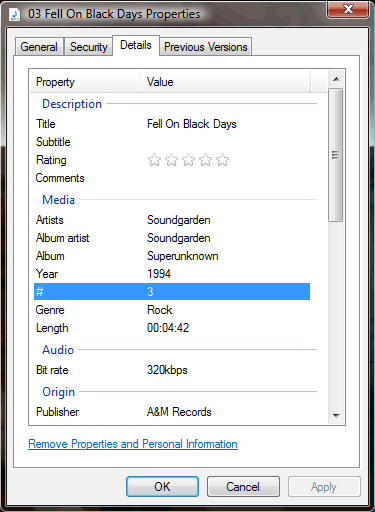
Quick answer: For a few files, right-click an MP3 in Windows File Explorer, choose Properties > Details and edit the fields. For whole albums, use a free tag editor such as Mp3tag or MusicBrainz Picard, which can fill in titles, track numbers and cover art automatically from online databases. Keep Album Artist identical across an album so it stays together.
Table of Contents
The MP3 metadata fields that matter
- Title: the song name, without the track number in front.
- Artist (Contributing artists): the performers of this track, including featured artists. Separate several with a semicolon in Windows.
- Album Artist: one name for the whole album, such as “Santana” even when a track features another singer, or “Various Artists” for compilations. This is what keeps an album together.
- Album: spelled exactly the same on every track.
- Track number (#) and Disc number: so albums play in order instead of alphabetically.
- Year: lets you sort or build playlists by era.
- Genre: use the standard ones or create your own, from “Jazz” to “Bebop”.
- Cover art: embedded album artwork shows on phones, cars and smart speakers.
Watch out for small differences: “The Ramones” on one album and “Ramones” on another will show as two artists.
How to fix MP3 metadata
Windows File Explorer (a few files)
- Right-click the MP3 and choose Properties > Details.
- Click a value to edit it, then click Apply.
- Select several files first to change a field, such as Album, on all of them at once.
Mp3tag (best for bulk edits)
Mp3tag (external site) is free for Windows (paid on Mac). Load a folder, edit many files in a grid, rename files from tags (or tags from file names), and use Tag sources to pull track lists and cover art from MusicBrainz or Discogs.
MusicBrainz Picard (automatic matching)
MusicBrainz Picard (external site) is free for Windows, Mac and Linux. It identifies songs by audio fingerprint, then fills in correct titles, track numbers and artwork from the MusicBrainz database. Great for messy collections.
Apple Music, iTunes and other players
- Apple Music (Mac) or iTunes (Windows): select songs, right-click > Get Info, edit the Details and Artwork tabs.
- foobar2000 (external site): free player with powerful tag editing.
- Android: apps such as Automatic Tag Editor can edit tags on the phone.
Tips for a tidy library
- Back up your music folder before bulk edits.
- Save as ID3v2.3 for the widest compatibility with car stereos and older players.
- Embed cover art at about 500 x 500 to 1000 x 1000 pixels to keep files small.
- After editing, rescan or refresh the library in your player.
Want to use a tidy track as a ringtone? Here’s how to create custom iPhone ringtones.
FAQ
Why does my album show up split into several albums?
The Album or Album Artist fields differ slightly between tracks. Make them identical.
Why do songs play in alphabetical order?
The track number field is empty. Fill it in, or let Picard or Mp3tag do it from an online database.
Can I edit metadata for streaming songs?
No. Only files you own and store locally can be edited.
Originally written by guest author Brenda Hineman, a self-confessed audiophile. Updated for 2026 by QuickOnlineTips.
Stuck on a gift? Try our free Gift Idea GeneratorIdeas for anyone by age, job, interests and budget, with Amazon.com and Amazon.in linksFind gifts →Get our free weekly email: new tech guides and tools, no spam.
New and updated tech guides, a free tool worth bookmarking and one useful pick, once a week. No spam, unsubscribe anytime.
One email a week. Unsubscribe anytime. See our privacy policy.



I have lost my nokia handset, how to block such that the handset cannot be used by anyone