
How to Disable the WordPress Admin Bar (for You or All Users)
Want to disable the WordPress admin bar? When WordPress 3.1 introduced the admin bar (now called the Toolbar) in 2011, many bloggers found it obtrusive on the front of their sites, and we went looking for a way to turn it off. The options have improved since. You can hide it just for yourself in your profile, for all non-admins with one line of code, or with a lightweight plugin. Here is each method for 2026.
Quick answer: To hide it for yourself, go to Users > Profile and untick Show Toolbar when viewing site. To hide it for everyone except administrators, add if ( ! current_user_can( 'manage_options' ) ) { show_admin_bar( false ); } to your child theme’s functions.php or a code snippets plugin. The Toolbar on the dashboard itself cannot be fully removed without hiding admin menus.
Table of Contents
What is the WordPress admin bar?
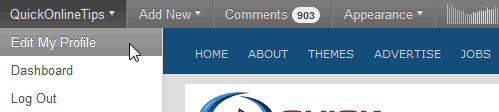
The admin bar, or Toolbar, is the dark strip at the top of your site when you are logged in. It gives quick links to the dashboard, new posts, comments, updates and plugin menus such as Rank Math or LiteSpeed Cache. Visitors who are not logged in never see it.
Method 1: Turn it off for yourself
- Go to Users > Profile.
- Untick Show Toolbar when viewing site.
- Click Update Profile.
This only affects your own account. Each user can choose for themselves.

Method 2: Disable it for all non-admins (code)
Membership sites, shops and forums often hide the bar for subscribers and customers. Add this to your child theme’s functions.php, or better, to a snippets plugin such as Code Snippets or WPCode:
add_action( 'after_setup_theme', function () {
    if ( ! current_user_can( 'manage_options' ) ) {
        show_admin_bar( false );
    }
} );
To hide it for everyone, including administrators, use:
add_filter( 'show_admin_bar', '__return_false' );Method 3: Use a plugin
If you prefer settings to code, small plugins such as Hide Admin Bar Based on User Roles let you choose roles in a settings page. Some membership and WooCommerce plugins include the same option. The old plugins from our 2011 list, like WP Admin Bar Removal and WP Custom Admin Bar, are no longer maintained, so avoid them.
Customize the admin bar instead
Often the problem is clutter, not the bar itself. Many plugins add their own menus; check their settings for a “show in admin bar” option and turn it off. Developers can remove individual items with $wp_admin_bar->remove_node() in the admin_bar_menu hook. Fewer items also mean fewer scripts on the front end for logged-in users.
Why keep it?
For site owners, the Toolbar is handy: one click to edit the post you are viewing, purge the cache or see pending comments. If you write a lot, it saves trips to the dashboard. Hide it only where it gets in the way, such as when checking your design as visitors see it.
More WordPress tweaks: delete post revisions, create multiple sidebars, and increase WordPress security.
Hide the admin bar on mobile only
On phones the Toolbar takes a bigger share of the screen, and its menus are harder to tap. If you only want it gone on small screens, a little CSS in Appearance, Customize, Additional CSS does the job: @media (max-width: 782px) { #wpadminbar { display: none; } html { margin-top: 0 !important; } }. This hides the bar visually for logged-in users on phones while keeping it on desktop, where it is most useful.
FAQ
Why is there a gap at the top of my site?
WordPress adds 32px of space for the Toolbar when you are logged in. It disappears for visitors and when you disable the bar.
Can visitors see the admin bar?
No. Only logged-in users see it.
Will disabling the admin bar affect my dashboard?
No. These methods hide it on the front of the site only; the dashboard still works normally.
Stuck on a gift? Try our free Gift Idea GeneratorIdeas for anyone by age, job, interests and budget, with Amazon.com and Amazon.in linksFind gifts →Get our free weekly email: new tech guides and tools, no spam.
New and updated tech guides, a free tool worth bookmarking and one useful pick, once a week. No spam, unsubscribe anytime.
One email a week. Unsubscribe anytime. See our privacy policy.


Simply write this
add_filter( 'show_admin_bar', '__return_false' );in your theme’s function.php file to get rid of Admin bar.No need to hack or do anything geeky :)
For those of you who are looking for a quick fix without a plugin, open you functions.php, add this line inside your THEME_NAME_setup:
show_admin_bar(false);
so if you are using twentyten for example :
it would be
function twentyten_setup() {
//Disable the admin bar
show_admin_bar(false);
This is a bit of a faux pas made by the WP development team. I see this kind of poorly thought out design mistake made time and time again by young developers.
The admin bar should be OFF by default for all users, not ON by default.
Then no-one would have a gripe with it. Maybe they’ll have sense to do this in the next bug fix release.
-Frank Haywood
I find the admin bar annoying too! Thanks for the tips, now I know how to remove it. :)
I feel the admin bar is a cool feature. Its non intrusive. Don’t like it logoff from the admin panel.
Thanks very much Kevin Newman,
really easy fix, my point is I really dont understand why anyone would want this ugly grey unformatted box anywhere near their site?
But isn’t anyone really annoyed at wordpress adding this without giving the option to turn off globally not just individually for users?
Add a plugin? another? why do we have to! c’mon guys let them know its naff.
Thanks again kev
It’s not annoying, in fact very useful. But it seem to eat up some resource so I decided to turn it off.
The most valuable thing is the built-in option. The plugins are useful to disable the admin bar for all user though.
Thank you for sharing all those.
:)
You only need one line of code in functions.php to turn the bar off for all users
show_admin_bar(false);
via https://codex.wordpress.org/Function_Reference/show_admin_bar
WordPress Source
https://core.trac.wordpress.org/browser/tags/3.1/wp-includes/admin-bar.php
I find it bulky and ugly, I get why the people behind WordPress.com like it there but personally I’m glad there’s a way to quickly turn it off.
I too feel that the Admin bar is very useful.
“Stick Admin Bar To Bottom ” is good idea. Thanks for share.
I too find the bar extremely irritating, being a WP theme developer I have absolutely no use for it at all, although I can see how helpful it can be to some people, just not me.
Thanks for this post ;)
I actually find it a bit useful. :)
I actually have the opposite problem: I can’t get the admin bar to display on my site! The 28px margin is added to the top of the page when I am logged in, but nothing is displayed there — it’s just blank space. Any ideas? I think it has to be a problem with my theme, but don’t know where to start looking…
You can try the Always Show Admin Bar wordpress plugin.
It’s pretty easy. Just make sure the WordPress footer function is in footer.php:
So I’m not the only one who thinks this thing is obnoxious?
nope, you’re not alone. its super annoying. who needs that bar anyway?