
WordPress Comments on New Page: Show Them Separately in 3 Easy Steps
Posts with hundreds of comments can become very long and slow. One solution is to show WordPress comments on a new page, separate from the post content, with a button like “Read 120 comments” that opens them on their own URL. We ran this WordPress comments on new page setup on our own blog for a while. The original method relied on WordPress’s old pop-up comments script, which has since been removed, so here’s the updated way to do it in 3 easy steps, plus simpler alternatives.
Quick answer: Register a /comments/ endpoint for posts with add_rewrite_endpoint(), load a small single-comments.php template when that endpoint is visited, then remove comments_template() from single.php and add a link to get_permalink() . 'comments/'. Save your permalinks once to activate it.
Table of Contents
Why show WordPress comments on new page URLs?

- Faster posts: the article loads without hundreds of comments and avatars.
- Focused content: readers and search engines see the article first, without a long tail of short or off-topic comments.
- Still accessible: anyone who wants the discussion is one click away.
We first tried pop-up comments, then moved to this separate-page approach.
Step 1: Remove comments from the post template
In your child theme’s single.php (or the template part your theme uses), find and remove the line that loads comments:
<?php comments_template(); ?>This avoids showing the comments twice.
Step 2: Add a link to the comments page
In the same place, add a button that links to the new comments URL and shows the comment count:
<a href="<?php echo esc_url( trailingslashit( get_permalink() ) . 'comments/' ); ?>" class="btn btn-primary">
  <?php comments_number( 'Post a comment', 'Read 1 comment', 'Read % comments' ); ?>
</a>
The three text options cover no comments, one comment, and many comments; change them to suit your site. We styled ours as a Bootstrap button.
Step 3: Create the comments page
Add this to your child theme’s functions.php to create a /comments/ endpoint on every post and load a special template for it:
add_action( 'init', function () {
    add_rewrite_endpoint( 'comments', EP_PERMALINK );
} );

add_filter( 'template_include', function ( $template ) {
    global $wp_query;
    if ( is_singular( 'post' ) && isset( $wp_query->query_vars['comments'] ) ) {
        $custom = locate_template( 'single-comments.php' );
        if ( $custom ) {
            return $custom;
        }
    }
    return $template;
} );
Then create single-comments.php in your child theme (you can even create theme files without FTP):
<?php get_header(); ?>
<?php while ( have_posts() ) : the_post(); ?>
  <h1>Comments on: <a href="<?php the_permalink(); ?>"><?php the_title(); ?></a></h1>
  <?php comments_template(); ?>
<?php endwhile; ?>
<?php get_footer(); ?>
Finally, go to Settings > Permalinks and click Save Changes to refresh the rewrite rules. Now every post has a comments page at yourpost/comments/, styled like the rest of your theme.
The original 2014 version of this tutorial adapted WordPress’s comments-popup.php file. WordPress removed the pop-up comments feature in version 4.5, so use the endpoint method above instead.
SEO considerations
Comments can add useful long-tail keywords to a post, so moving them affects SEO both ways. Separating them was one of the ideas we tried to keep thin user-generated content separate from posts. If you’d rather Google not index the comment pages, add a noindex robots tag to single-comments.php pages with your SEO plugin or the wp_robots filter.
Simpler alternatives
- Paginate comments: in Settings > Discussion, tick Break comments into pages. No code needed.
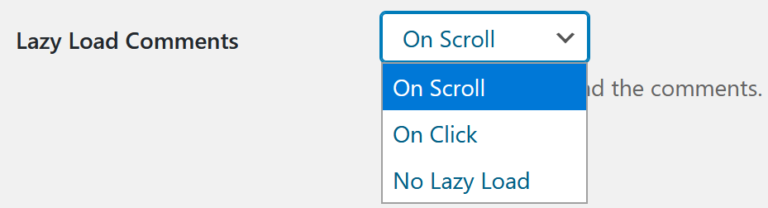
- Lazy load comments: load them only when the reader scrolls down. See how to lazy load comments in WordPress.
Frequently asked questions
Will the comment form still work on the new page?
Yes. comments_template() loads the normal comment list and form, and new comments are saved to the same post.
Why does the /comments/ URL show a 404?
Rewrite rules need refreshing. Visit Settings > Permalinks and click Save Changes.
Does this work with block themes?
Block themes use HTML templates, so use a hybrid approach: keep the PHP template above, or use comment pagination or lazy loading instead.
Get our free weekly email: new tech guides and tools, no spam.
New and updated tech guides, a free tool worth bookmarking and one useful pick, once a week. No spam, unsubscribe anytime.
One email a week. Unsubscribe anytime. See our privacy policy.




This is what I have been looking for. Thanks a lot. it works perfectly!
its a really great tips. let me give it a test
yeah really awesome tip.
Thanks for sharing.
I am applying this on my blog.
Your article made the steps so easy to follow. Thanks for the guidance and reducing the effort.
How about appending the URL to qot.com/wordpress-comments-on-new-page/comments/ You can drop blog post ID in the URL. Find the idea here: https://stormconsultancy.co.uk/blog/techtips/how-to-show-comments-on-a-separate-page-in-wordpress/
I have tried this before but it always opened a pop-up window. I am surely try it this way and BTW this looks great..
Normally with a tool like wordpress or otherwise… you have comments on your blog. Well I happen to know it’s possible to have comments on other pages that are built within WordPress.
However I’ve googled it, I asked (never got a reply) WordPress forums and searched their site and I couldn’t find anything… but I’ve seen it (I forget the site I saw it on!!) and I wondered whether anyone could help me out?
Someone who I asked said I need to call the comments page but i don’t know how to do that. Help?