How to Clear Cache on Android (Chrome, Apps, Samsung)
Is an app crashing, freezing or eating up storage? Here is how to clear cache on Android: open Settings > Apps, tap the app, then Storage & cache (on Samsung, Storage) and tap Clear cache. For the Chrome browser, tap More (three dots) > Delete browsing data. Clearing the cache won’t delete your account, logins or saved games, and it takes seconds per app.
Quick answer: Pixel and most Android phones: Settings > Apps > See all apps > choose app > Storage & cache > Clear cache. Samsung Galaxy: Settings > Apps > choose app > Storage > Clear cache. Chrome: More (⋮) > Delete browsing data > More options > tick Cached images and files > Delete data. Don’t tap Clear storage or Clear data unless you want to reset the app.
Table of Contents
Clear cache vs Clear storage: know the difference first
Every app page in Android Settings has two buttons, and they do very different things:
| Button | What it deletes | Will you lose anything? |
|---|---|---|
| Clear cache | Temporary files the app downloads to load faster | No. Logins, settings and saved games stay. The app rebuilds the cache as you use it. |
| Clear storage (Pixel) / Clear data (Samsung) | Everything the app has stored on the phone | Yes. The app goes back to a fresh install: you sign in again and lose settings and any data that isn’t backed up. |
Start with Clear cache. Only use Clear storage if an app still won’t work properly afterwards.
How to clear cache on Android (Pixel and stock Android)
- Open Settings.
- Tap Apps, then See all apps.
- Tap the app you want to fix.
- Tap Storage & cache.
- Tap Clear cache. The cache figure drops to zero.
Shortcut: touch and hold the app’s icon on your home screen or app drawer, then tap the App info (ⓘ) option to jump straight to step 4. Menu names vary a little on phones from other brands, but every Android phone has the app list in Settings with these two buttons.
How to clear cache on Samsung Galaxy phones
- Open Settings > Apps.
- Scroll to the app or use the search icon to find it, then tap it.
- Tap Storage.
- Tap Clear cache at the bottom right. (Clear data, at the bottom left, resets the app, so leave it alone unless you mean it.)
Samsung Internet browser
- Open Samsung Internet, tap More options (the menu icon), then Settings.
- Tap Personal browsing data > Delete browsing data.
- Select Cached images and files. Leave cookies unticked if you want to stay signed in to websites.
- Tap Delete data and confirm.
How to clear the Chrome cache on Android
Chrome stores a lot of web data, so it’s often the biggest cache on the phone.
- Open Chrome.
- Tap More (three dots) to the right of the address bar, then Delete browsing data.
- Choose a time range. The default is a short one, so pick a longer range to clear the whole cache.
- Tap More options and select Cached images and files. Untick cookies and history if you want to keep them.
- Tap Delete data.
Google’s help page on clearing cache and cookies in Chrome for Android explains what each option removes. If you delete cookies, you’ll be signed out of most websites, though Google says you stay signed in to your Google Account. Before a big clean-up, it’s worth taking a backup of your saved passwords; see how to export passwords from Chrome.
Can you clear all app cache at once on Android?
Not with one tap on current phones. Android used to have a “cached data” option that wiped every app’s cache together, but it’s no longer there, so you clear apps one by one. In practice you only need to do the few apps using the most space:
- Open Settings > Storage (on Samsung, Settings > Device care > Storage) to see what is filling your phone.
- Note the apps you use most heavily. Social media, browsers, streaming and messaging apps usually hold the biggest caches.
- Clear the cache of those apps using the steps above.
A factory reset does clear everything, but it also erases all your data. It isn’t worth it just for cache.
When clearing the cache helps (and when it doesn’t)
- Helps: an app that crashes, freezes, shows old content, has broken images, or a phone that’s short of storage.
- Might help: a sluggish app after a big update.
- Doesn’t help much: a phone that’s slow all the time or a battery that drains fast. For battery problems, our tips to extend phone battery life are a better place to start.
We don’t recommend third-party “cleaner” or “booster” apps. The built-in Clear cache buttons do the job, and these apps often ask for broad permissions and show a lot of ads.
Parents: a quick note
Clearing Chrome’s history and cache also removes the record of what was browsed. If you manage a child’s phone, filtering is more reliable than checking history; see our guide to blocking websites on Chrome, including on Android.
FAQ
Is it safe to clear cache on Android?
Yes. The cache only holds temporary files, and the app recreates them as needed. Your logins, photos, messages and settings aren’t affected. Just avoid the Clear storage or Clear data button unless you want to reset the app.
Will clearing cache delete my photos or WhatsApp chats?
No. Clear cache doesn’t touch your photos or chat history. Clear storage on a messaging app can remove chats stored on the phone, so make sure the app is backed up before you ever use that button.
How often should I clear the cache on my Android phone?
Only when an app misbehaves or you need storage space. Clearing it all the time makes apps slower, because they have to download the same files again.
Why does the cache come back after I clear it?
That’s normal. Apps rebuild their cache as you use them, which is what makes them load faster. If one app’s cache grows very large again and again, check that app’s own settings for a storage or download option.
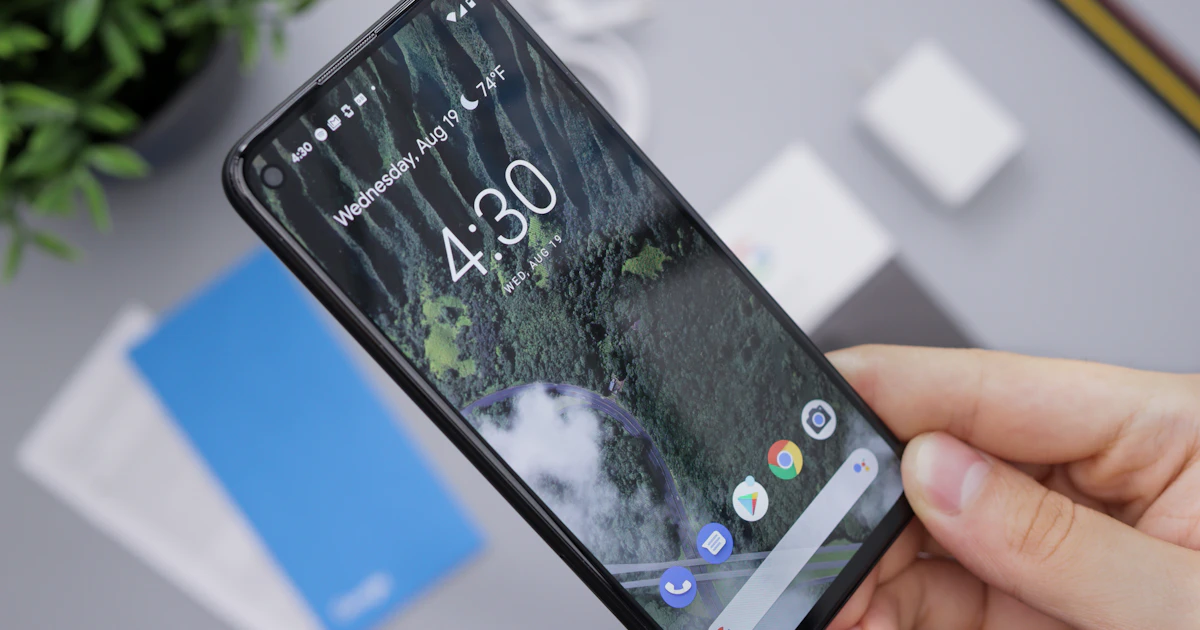
Photo by Daniel Romero on Unsplash
Get our free weekly email: new tech guides and tools, no spam.
New and updated tech guides, a free tool worth bookmarking and one useful pick, once a week. No spam, unsubscribe anytime.
One email a week. Unsubscribe anytime. See our privacy policy.