How to Block Websites on Chrome (Desktop, Android, iPhone)
Chrome has no simple “block this site” button, but you can still block websites on Chrome in a few minutes. Here is how to block websites on Chrome the right way for your situation: Google Family Link for a child’s account, a free blocker extension to stop yourself wasting time, or the hosts file, a Chrome policy or a DNS filter to block a site for everyone on a computer or home network.

Quick answer: For kids, open the Family Link app, choose your child, go to Controls > Google Chrome and Web > Manage sites > Blocked sites and add the site. For yourself on a computer, install a blocker extension such as BlockSite or LeechBlock NG and add the site to its block list. To block a site in every browser on a PC, add it to the hosts file.
Table of Contents
Which method should you use?
| Goal | Best method | Works on | Easy to bypass? |
|---|---|---|---|
| Protect a child | Family Link | Android, Chromebook (Chrome on other devices while signed in) | Hard on Android/Chromebook |
| Stop distractions | Blocker extension | Chrome on Windows, Mac, Chromebook | Yes (you can remove it) |
| Block for every user and browser on one PC | Hosts file | Windows, Mac | Needs admin rights |
| Lock Chrome on a family or office PC | Chrome URLBlocklist policy | Windows, Mac | Needs admin rights |
| Block on every device at home | DNS filter or router | Whole Wi-Fi network | Mobile data or VPN gets around it |
Method 1: Block websites on Chrome with Family Link (best for kids)
If your child has a supervised Google Account, Family Link controls which sites open in Chrome. According to Google’s Family Link help page:
- Open the Family Link app on your phone and select your child.
- Tap Controls > Google Chrome and Web.
- Under Manage sites, tap Approved sites and Blocked sites (shown as Blocked sites).
- Tap Add a website and type the address.
Type a full address such as www.example.com to block one website, or just the base name (example) to block the whole domain, including its country versions and subdomains.
In the same screen you can pick a filter for everything else: Allow all sites, Try to block explicit sites or Only allow approved sites (the strictest, good for young children).
One catch: on iPhone, iPad, Windows and Mac a child can sign out of Chrome or use another browser, and Family Link rules no longer apply. On those devices combine it with the device’s own controls (below).
Method 2: Use a free Chrome extension (best for focus)
To block time-wasting sites for yourself on a laptop, a blocker extension is the quickest option:
- BlockSite: add sites to a block list, set schedules and use a focus mode. A paid plan unlocks extra features.
- LeechBlock NG: free and open source. Create up to 30 block sets with time limits, schedules and a lockdown mode that stops you changing the rules early.
How to set one up:
- Open the extension’s Chrome Web Store page and click Add to Chrome.
- Click the puzzle-piece icon in the toolbar and pin the extension.
- Open its options and add the sites you want to block (for example youtube.com or reddit.com).
- Optional: set the hours when the block applies.
- Go to chrome://extensions, open the extension’s Details and turn on Allow in Incognito so the block also works in private windows.
Extensions are easy for the person using the computer to remove, so they suit self-control better than parental control. If you only need a break from social media a few hours a day, see our guide to blocking Facebook, X and email for a few hours daily.
Method 3: Block a website in every browser with the hosts file
The hosts file tells your computer where to find a site. Pointing a site at your own machine blocks it in Chrome, Edge, Firefox and every other app.
On Windows 11
- Search for Notepad, right-click it and choose Run as administrator.
- Click File > Open and go to C:\Windows\System32\drivers\etc. Change the file type to All files and open hosts.
- Add a line at the bottom for each site, for example:
0.0.0.0 www.example.com0.0.0.0 example.com - Save the file and restart Chrome.
On a Mac
- Open Terminal and type
sudo nano /etc/hosts, then enter your Mac password. - Add the same
0.0.0.0 example.comlines. - Press Ctrl + O to save, Enter, then Ctrl + X to exit. Restart Chrome.
Add both the plain and www versions of each address. Only an administrator can change the hosts file, so a child using a standard account cannot undo it.
Method 4: Lock Chrome with the URLBlocklist policy (family or office PC)
Chrome’s built-in enterprise policies also work on home computers. The URLBlocklist policy blocks the sites you list, and users see a “blocked by your administrator” page. On Windows:
- Press Windows + R, type regedit and press Enter.
- Go to HKEY_LOCAL_MACHINE\SOFTWARE\Policies. Create the keys Google, then Chrome, then URLBlocklist inside each other if they don’t exist.
- Inside URLBlocklist, create a String Value named 1 with the site as its data (for example example.com). Add 2, 3 and so on for more sites.
- Restart Chrome and check chrome://policy to confirm the list loaded.
Editing the registry wrongly can cause problems, so only change these keys. The full list of settings is on the Chrome Enterprise policy list.
Method 5: Block sites for the whole home network
A filtering DNS service blocks adult or chosen sites on every phone, tablet and laptop on your Wi-Fi, in any browser. Set it once in your router. Our step-by-step guide shows how to filter your home internet free with OpenDNS. Many routers also have a parental-controls page where you can type sites to block.
How to block websites on Chrome on Android and iPhone
Android
Chrome for Android doesn’t support extensions, so use Family Link for a child (Method 1). Android phones also have Digital Wellbeing in Settings, where you can set app timers for Chrome, and the BlockSite app is available on Google Play for adults who want a site blocker.
iPhone and iPad
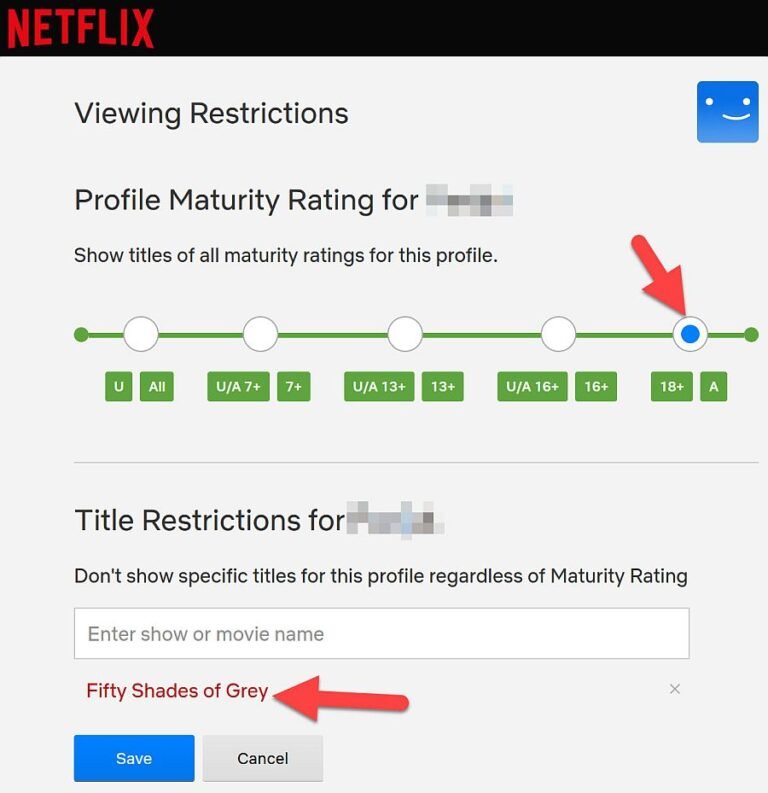
Use Apple’s Screen Time: go to Settings > Screen Time > Content & Privacy Restrictions, turn it on, then tap App Store, Media, Web & Games > Web Content > Limit Adult Websites and add sites under Never Allow. Set a Screen Time passcode so it can’t be changed. Our guide to blocking adult content on iPhone walks through every screen. Test the block in Chrome as well as Safari after setting it up.
Extra protection: lock SafeSearch
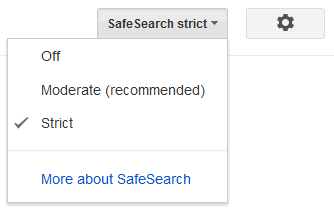
Blocking a few addresses won’t stop explicit results in Google Search. Turn on SafeSearch’s Filter setting too; here is how to lock SafeSearch to protect kids online.
FAQ
Does Chrome have a built-in website blocker?
Not for ordinary users. Chrome only blocks sites through Family Link for supervised accounts or through administrator policies such as URLBlocklist. Everyone else uses an extension, the hosts file or a DNS filter.
How do I block a website on Chrome without an extension?
Use Family Link for a child’s account, add the site to your computer’s hosts file, or set the URLBlocklist policy on Windows. All three work without installing anything.
Do blocked websites stay blocked in Incognito mode?
Family Link, the hosts file, Chrome policies and DNS filters all apply in Incognito. Extensions only work there if you turn on Allow in Incognito.
How do I unblock a website on Chrome?
Remove it from the list where you added it: the Family Link Blocked sites list, the extension’s block list, the hosts file line or the URLBlocklist value. If a school or office network blocks a site, see our guide to unblocking websites.
Can I block a website on Chrome on my phone?
Yes. On Android use Family Link or Digital Wellbeing; on iPhone use Screen Time’s Web Content setting with Never Allow, protected by a Screen Time passcode.
Photo by Thomas Park on Unsplash