How to Screen Record on Windows 11 (Free, With Audio)
Need to capture a tutorial, a bug or a video call? You don’t have to install anything. This guide shows how to screen record on Windows 11 for free with the built-in Snipping Tool and Xbox Game Bar, how to include system sound and your microphone, and which free app to use for longer recordings.
Quick answer: Open Snipping Tool (press Windows + Shift + S, or Windows + Shift + R on recent versions), switch to the video camera icon, choose an area, turn on the microphone and system audio buttons, and click Start. Click Stop to save an MP4 in Videos, Screen Recordings. To record a game or a single app, press Windows + Alt + R to start Xbox Game Bar recording. For long recordings with webcam overlays, use the free OBS Studio.
Table of Contents
Method 1: Screen record with Snipping Tool (best for most people)
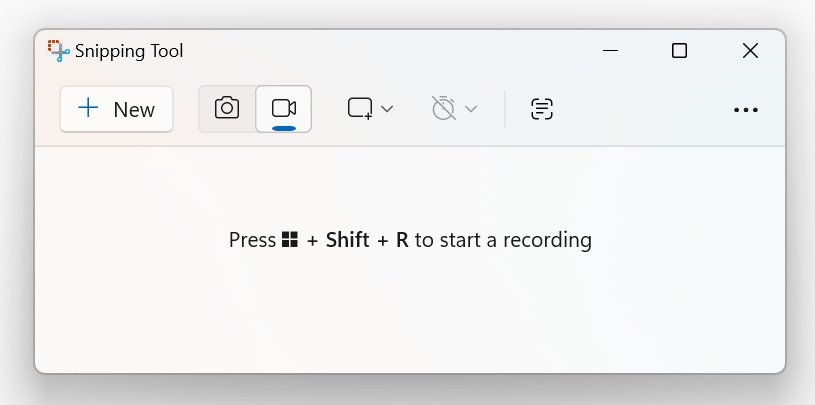
Snipping Tool in Windows 11 records any part of the screen, including the desktop and File Explorer, and saves an MP4 file.
- Press Windows + Shift + S or open Snipping Tool from Start. On recent versions, Windows + Shift + R jumps straight to recording.
- Click the video camera icon to switch from screenshots to recording.
- Drag to select the area you want, or choose full screen or a window.
- Turn on the microphone button to record your voice and the system audio button to capture sound from the PC (videos, apps, calls).
- Click Start. After a three-second countdown, recording begins.
- Click Stop (the red square) when you’re done. The video opens in a preview window.
By default, the recording saves automatically to Videos, Screen Recordings. You can change this in Snipping Tool’s settings. From the preview you can also trim the clip or open it in Clipchamp to edit.
Only need a still image? See how to take screenshots on Windows 11 with the Print Screen key.
Method 2: Record with Xbox Game Bar (games and single apps)
Xbox Game Bar is built into Windows 11 and records one app or game at a time, with system audio.
- Open the app or game you want to record.
- Press Windows + Alt + R to start recording. Press it again to stop.
- For more control, press Windows + G, open the Capture widget and click the record button.
- Press Windows + Alt + M to turn your microphone on or off while recording.
Recordings save to Videos, Captures. Game Bar can’t record the desktop or File Explorer, and it needs a graphics card that supports it. If the shortcut does nothing, check that Game Bar is turned on in Settings, Gaming.
Method 3: Clipchamp and PowerPoint
- Clipchamp, Microsoft’s free video editor that comes with Windows 11, has a screen and camera recorder. It’s handy if you want to edit, add captions or combine the recording with webcam video in one place.
- PowerPoint (Microsoft 365) has Insert, Screen Recording. It records the full screen with audio and drops the video into a slide; right-click it and choose Save Media As to keep the file.
Method 4: OBS Studio for long or professional recordings
OBS Studio is free, open source and has no time limit or watermark. It’s the best choice for long tutorials, gameplay, webinars and live streaming.
- Install OBS Studio and run the auto-configuration wizard (choose “Optimize just for recording”).
- Under Sources, click + and add Display Capture (whole screen) or Window Capture.
- Check that Desktop Audio and Mic/Aux show levels in the Audio Mixer.
- Click Start Recording, then Stop Recording. Files save to your Videos folder by default.
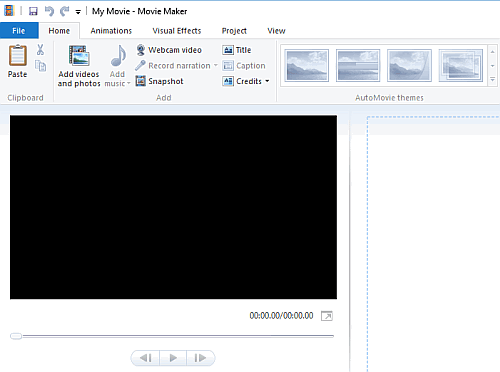
Want to edit the result? Here are free Windows Movie Maker alternatives for Windows 11.
Which screen recorder should you use?
| Tool | Records | System audio + mic | Best for |
|---|---|---|---|
| Snipping Tool | Any area, desktop, windows | Yes | Quick clips and tutorials |
| Xbox Game Bar | One app or game | Yes | Gameplay |
| Clipchamp | Screen and webcam | Yes | Recording and editing in one |
| OBS Studio | Anything, multiple sources | Yes | Long recordings and streaming |
Screen recording has no sound? Quick fixes
- In Snipping Tool, make sure both the microphone and system audio buttons are switched on before you click Start.
- Check Settings, Privacy & security, Microphone and allow access for Snipping Tool or the app you use.
- Pick the right output device. If sound plays through Bluetooth headphones, some recorders capture only the default speaker.
- Update Snipping Tool from the Microsoft Store; newer versions add audio options.
FAQ
Does Windows 11 have a built-in screen recorder?
Yes. Snipping Tool records any part of the screen with audio, and Xbox Game Bar records apps and games.
What is the shortcut to screen record on Windows 11?
Windows + Alt + R starts Xbox Game Bar recording. Windows + Shift + S opens Snipping Tool, and recent versions use Windows + Shift + R to go straight to video recording.
Where do screen recordings go in Windows 11?
Snipping Tool saves to Videos, Screen Recordings. Xbox Game Bar saves to Videos, Captures.
How do I screen record on Windows 11 with audio?
In Snipping Tool, turn on the microphone and system audio buttons before you start. Xbox Game Bar and OBS Studio record system audio by default.
Photo by Marcel R on Unsplash