How to Upgrade PHP Version in WordPress (2026)
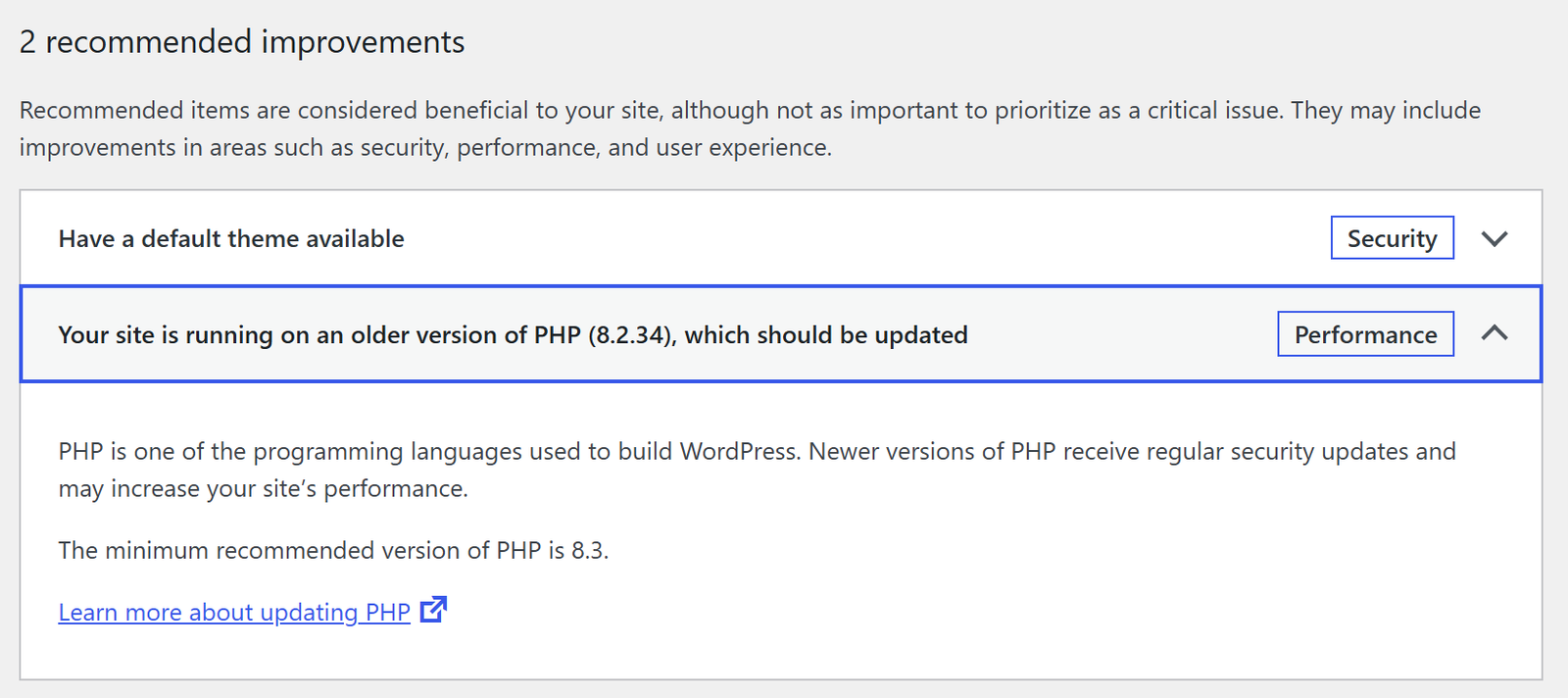
Want to upgrade PHP version in WordPress without breaking your site? I was visiting Site Health in my WordPress admin when it flagged a potential issue with my website: my PHP version was old at PHP 8.2 and needed an upgrade to PHP 8.3 to meet current security standards and stay compatible with current plugins. I upgraded to PHP 8.3 first, and when Hostinger then offered PHP 8.5, I moved straight to the latest version. Here is exactly how I did it in a couple of minutes, and how you can do it safely too.
Quick answer: Check your current version under Tools → Site Health → Info → Server. Back up your site, update WordPress, your plugins and theme, then log in to your hosting panel (on Hostinger: Websites → Dashboard → PHP Configuration), select PHP 8.3 or newer (the latest version your host recommends, PHP 8.5 in my case) and save. Recheck Site Health and test your site. If anything breaks, switch back to the old version.
Table of Contents
Why you should upgrade PHP in 2026
PHP is the programming language WordPress runs on, and every PHP branch has a fixed support life. According to the official PHP supported versions page:
- PHP 8.2 gets security fixes only until 31 December 2026, after which it is end of life.
- PHP 8.3 gets security fixes only, until 31 December 2027.
- PHP 8.4 is actively supported until 31 December 2026 and gets security fixes until 31 December 2028.
- PHP 8.5, released in November 2025, is the newest stable version. It is actively supported until 31 December 2027 and gets security fixes until 31 December 2029.
WordPress itself now recommends PHP 8.3 or greater, and PHP 8.5 has been supported since WordPress 6.9. Newer PHP versions are faster, get security patches and are what plugin developers test against, so an old PHP version slowly turns into a security and compatibility problem.
How do you find that your PHP needs an upgrade?
WordPress has an excellent built-in tool called Site Health, which tells you about potential security issues and the general health of your website. It points out critical issues and suggests improvements that help secure your site better. You’ll find it under Tools → Site Health.
While I was checking Site Health during my recent website upgrade, it flagged this issue, which was not there earlier. It clearly said that PHP needed an upgrade. When a PHP version is close to end of life, Site Health shows it as a recommended improvement; once the version is out of support, it becomes a critical security issue.
Site Health is part of WordPress core, so there’s nothing to install. It is maintained by the WordPress team and is useful for every webmaster running a self-hosted WordPress site. (The separate Health Check & Troubleshooting plugin adds a troubleshooting mode if you need to test plugin conflicts.)
How do you check the PHP version of your website?
There are a few easy ways to check your PHP version:
- WordPress Site Health: go to Tools → Site Health → Info and open the Server section. The PHP version is listed there.
- Your hosting panel: most hosts show the current PHP version on the website dashboard or in the PHP settings page.
- A phpinfo file: upload a file containing
<?php phpinfo(); ?>to your server, open it in the browser, then delete it straight away, since it exposes server details.
Before you upgrade: a quick safety checklist
- Back up your site (files and database). See how to back up websites on your hosting server.
- Update WordPress, plugins and themes first, since older versions are the usual cause of PHP errors. You can auto-update WordPress plugins and themes to stay current.
- Check plugin compatibility: look at “Requires PHP” and recent update dates on each plugin’s page. Replace abandoned plugins.
- Use a staging site if your host offers one, especially for ecommerce or membership sites.
Where do you find this option to change the PHP version?
I logged into my Hostinger hosting account, went to the website dashboard and opened the PHP Configuration option. There I found an option to upgrade from PHP 8.2 to 8.3. Hostinger explains the same steps in its guide to changing the PHP version.
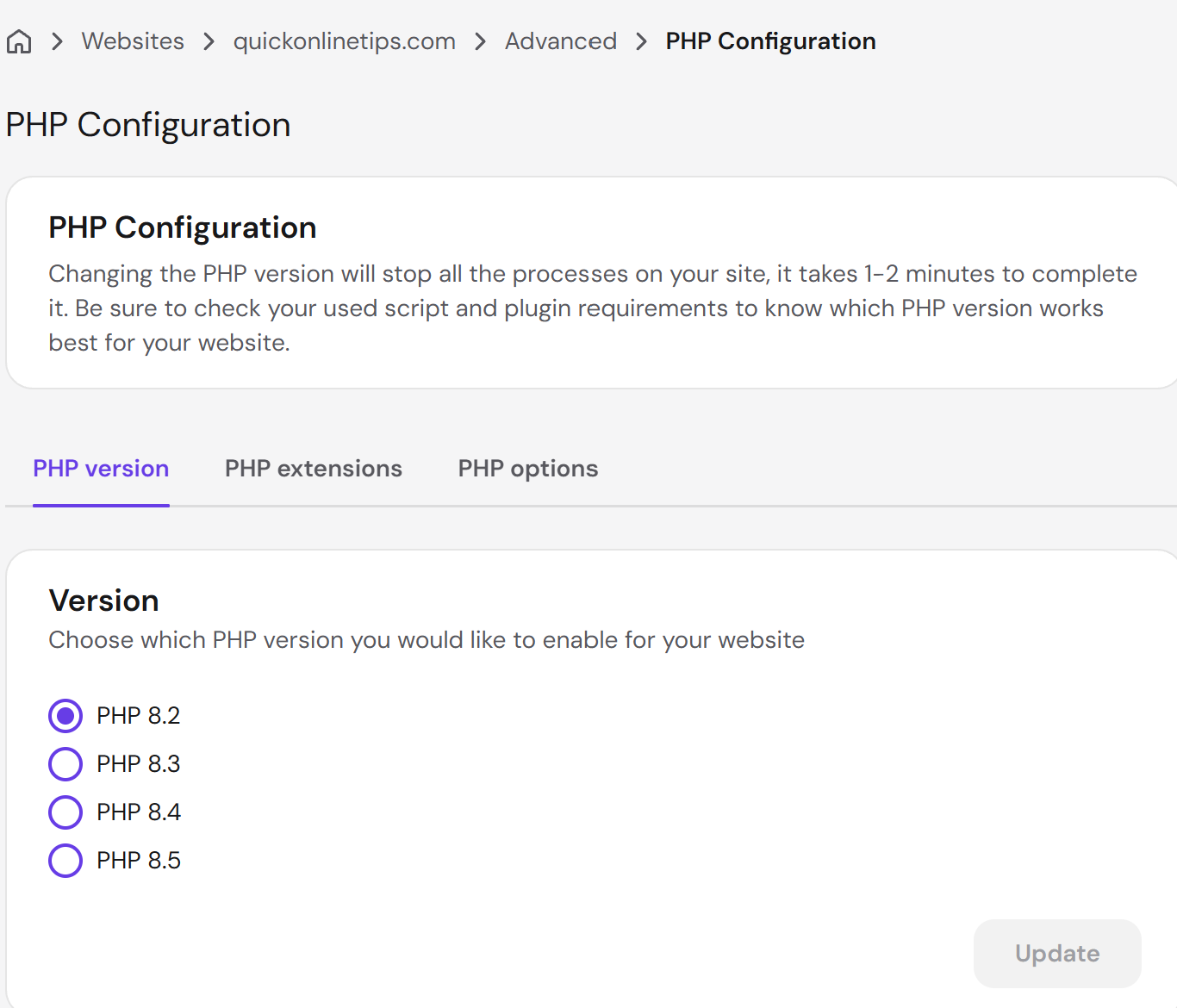
As I clicked the option, it reminded me to check that all my plugins and themes are compatible with the newer version of PHP.
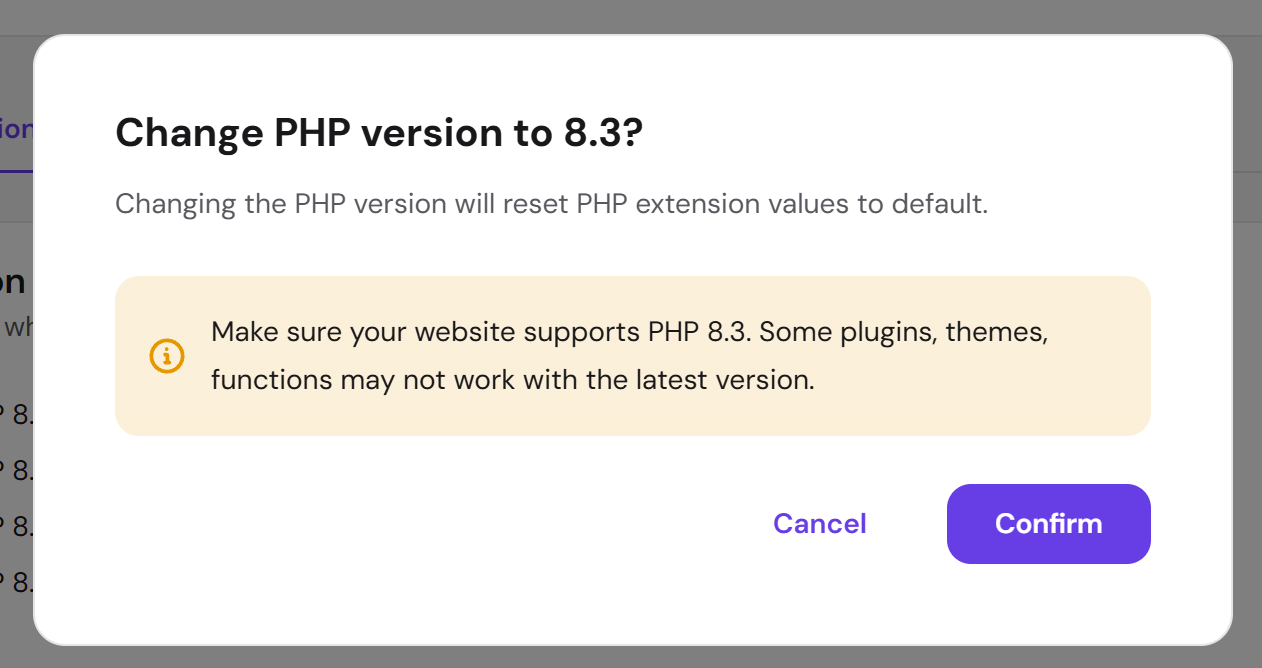
After that I selected PHP 8.3 with the radio button and clicked the confirm button. In less than 30 seconds PHP was upgraded.
When I checked the Site Health dashboard again, the alert was gone and my site was running PHP 8.3.
However, when I checked Hostinger again, it suggested that I could upgrade PHP even further.
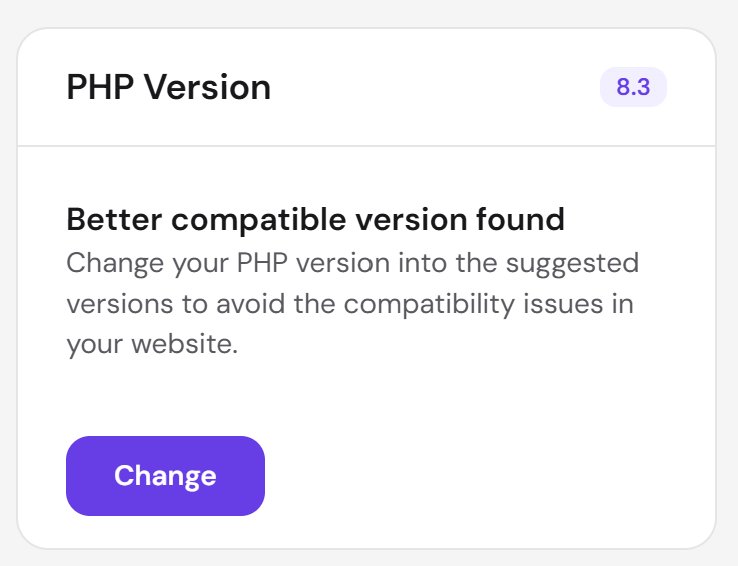
Clicking the Change button showed more versions, up to PHP 8.5, which Hostinger marked as the recommended version for our server.
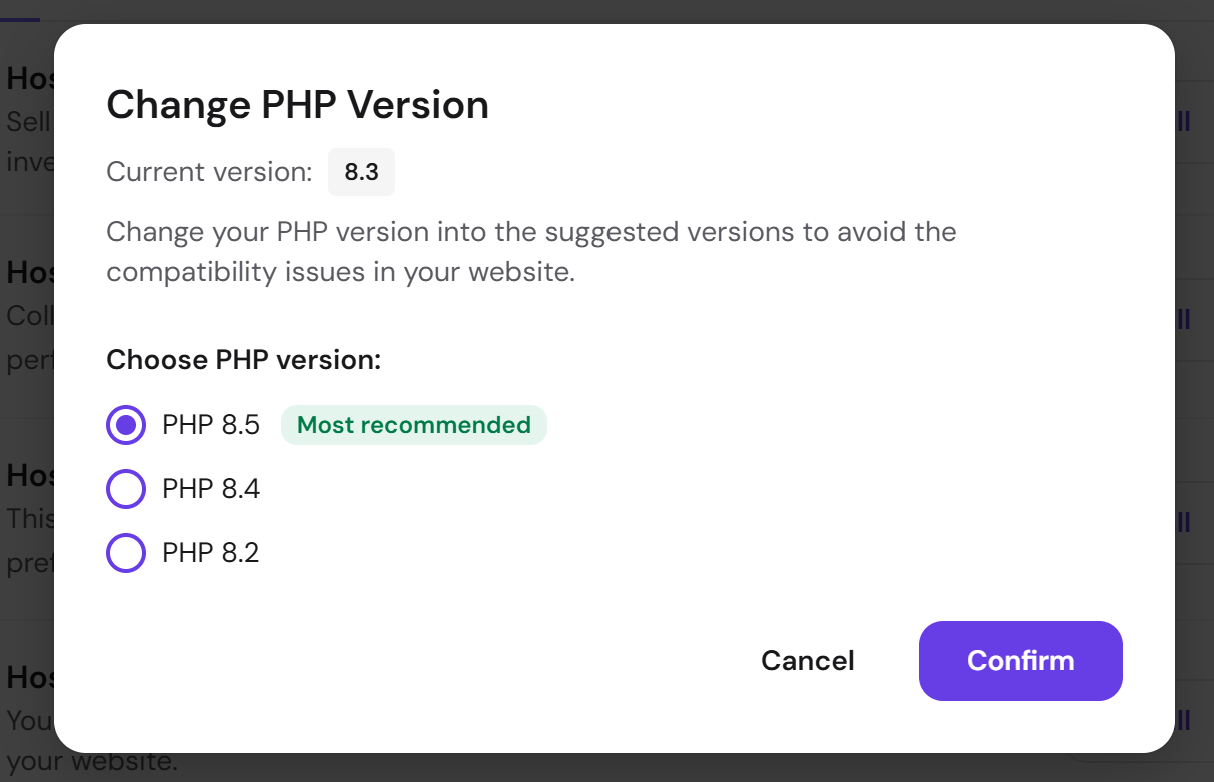
PHP 8.5 was the latest version available on the server, so I went ahead and upgraded to it.
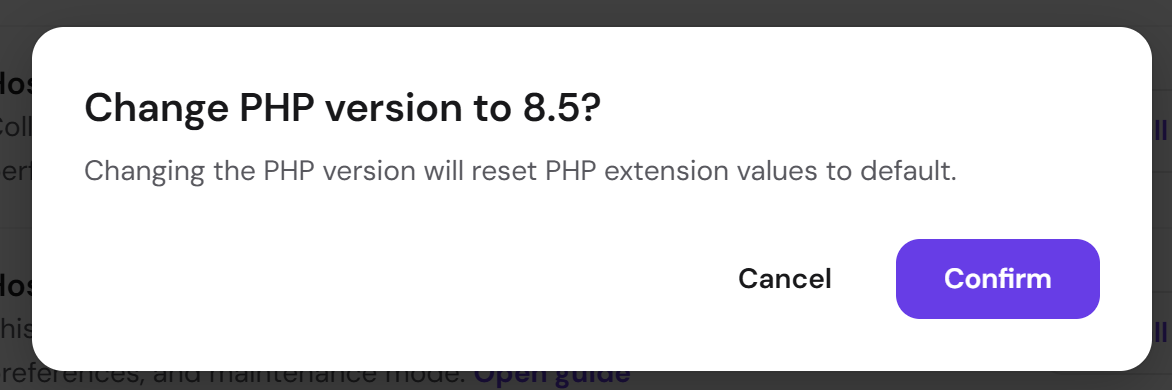
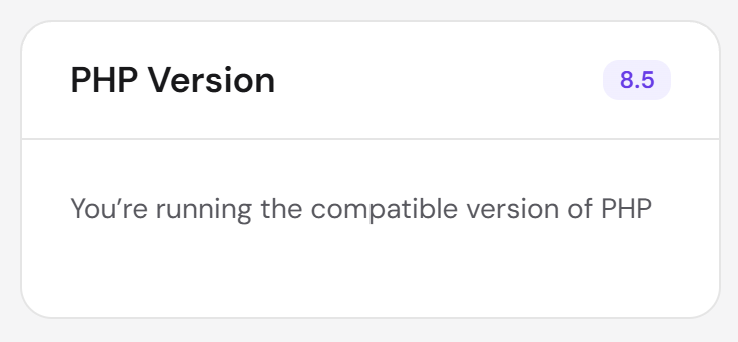
Within a few seconds, our site on Hostinger was running PHP 8.5, the latest version.
Steps to upgrade PHP version in WordPress
- Check your current PHP version in Tools → Site Health → Info → Server.
- Back up your website files and database.
- Update WordPress core, all plugins and your theme.
- Log in to your hosting control panel and open the PHP settings (PHP Configuration in Hostinger hPanel, “Select PHP Version” or “MultiPHP Manager” in cPanel).
- Choose PHP 8.3 or newer and save. If your host recommends PHP 8.4 or 8.5 and your plugins support it, pick the newest version.
- Clear your cache plugin and CDN cache.
- Open your homepage, a few posts, the admin area and any forms or checkout pages to confirm everything works.
- Recheck Site Health to confirm the warning is gone.
What to do if your site breaks after a PHP upgrade
If you see a blank page or a “There has been a critical error on this website” message, don’t panic. WordPress usually emails the admin a recovery mode link that lets you log in and deactivate the faulty plugin or theme. You can also switch back to the previous PHP version in your hosting panel, then update or replace the plugin causing the error before trying again. If you get locked out of the admin, you can change your WordPress password with phpMyAdmin.
For the history of how PHP versions have changed over the years, see our older guide on how to upgrade PHP from PHP4 to PHP5 to PHP 8.
Frequently asked questions
Which PHP version should I use for WordPress in 2026?
WordPress recommends PHP 8.3 or greater. PHP 8.3 and 8.4 are safe choices for most sites. PHP 8.5 is the newest and is supported from WordPress 6.9; I now run it on this site, but check that your plugins support it first.
Will upgrading PHP break my WordPress site?
Usually not, if WordPress, your plugins and theme are up to date. Old or abandoned plugins are the most common cause of errors. Keep a backup and you can switch back if needed.
Can I upgrade PHP from the WordPress dashboard?
No. WordPress only shows your PHP version; you change it in your hosting control panel. If your host doesn’t offer the option, ask their support team.
How long does a PHP upgrade take?
On Hostinger, my upgrade took less than 30 seconds. Most hosts apply the change within a few minutes.
What happens when PHP 8.2 reaches end of life?
After 31 December 2026, PHP 8.2 stops getting security fixes, and WordPress Site Health will flag it as a critical issue. Upgrade before then.
Get our free weekly email: new tech guides and tools, no spam.
New and updated tech guides, a free tool worth bookmarking and one useful pick, once a week. No spam, unsubscribe anytime.
We will email you a link to confirm your subscription. See our privacy policy.