
How to Separate Trackbacks from Comments and Style Comments in WordPress (2026)
How do you separate trackbacks from comments in WordPress, hide pingbacks, and style your comments so they are easy to read? Pingbacks and trackbacks are automatic notices from other blogs that linked to your post, and mixed in with real comments they clutter the discussion. Here are the easy settings, the CSS-only fix and the classic theme code that still work in WordPress in 2026.

Quick answer: To stop new pingbacks, untick “Allow link notifications from other blogs (pingbacks and trackbacks) on new posts” in Settings > Discussion. To hide existing ones, add CSS that hides the pingback and trackback classes. In a classic theme, call wp_list_comments() twice with type comment and type pings to show them in separate lists, and style comments with the classes WordPress adds to each one.
Table of Contents
Pingbacks and trackbacks vs comments
- Comments are written by your readers.
- Pingbacks are sent automatically when another WordPress site links to your post.
- Trackbacks are an older, manual version of the same idea.
Today most pings are self-pings (your own internal links) or spam, which is why many site owners turn them off or keep them out of the comment thread. Spam and thin comments can also make pages look low quality; see our post on WordPress comments and SEO.
Method 1: Turn off pingbacks and trackbacks (no code)
- Go to Settings > Discussion.
- Untick Allow link notifications from other blogs (pingbacks and trackbacks) on new posts.
- Optionally untick Attempt to notify any blogs linked to from the post if you don’t want to send pings yourself.
- For existing posts, open Posts, select posts, choose Bulk actions > Edit and set Pings to Do not allow.
Pingbacks already approved stay on your posts; delete them from Comments (filter by type Pings) or hide them with Method 2.
Method 2: Hide pingbacks with CSS
WordPress adds the class pingback or trackback to each ping in the comment list in most themes, so one CSS rule hides them without touching theme files. Add it in Appearance > Customize > Additional CSS (classic themes) or the Site Editor’s custom CSS (block themes):
.comment-list .pingback,
.comment-list .trackback {
  display: none;
}
The pings are still stored; they are just not displayed. Check the class name of the list in your theme (often comment-list or commentlist) and adjust the rule if needed. Note that the comment count in your theme may still include the hidden pings (see Method 3).
Method 3: Show comments and pings separately in a classic theme
This is the method from our original 2009 tutorial, still valid in classic (PHP) themes. Use a child theme so updates don’t overwrite your changes. In comments.php, replace the single comment list with two lists:
<?php if ( have_comments() ) : ?>
  <h2 class="comments-title">Comments</h2>
  <ol class="comment-list">
    <?php wp_list_comments( array( 'type' => 'comment', 'style' => 'ol' ) ); ?>
  </ol>

  <h3 id="pings">Trackbacks and pingbacks</h3>
  <ol class="ping-list">
    <?php wp_list_comments( array( 'type' => 'pings', 'short_ping' => true ) ); ?>
  </ol>
<?php endif; ?>
To hide pings completely instead, simply leave out the second list: they are still recorded, just not displayed.
Count only real comments
Your theme’s comment count includes pings. This filter in your child theme’s functions.php makes the front-end count show real comments only:
add_filter( 'get_comments_number', 'qot_count_real_comments', 10, 2 );
function qot_count_real_comments( $count, $post_id ) {
  if ( is_admin() ) {
    return $count;
  }
  return (int) get_comments( array(
    'post_id' => $post_id,
    'status'  => 'approve',
    'type'    => 'comment',
    'count'   => true,
  ) );
}
Full options for the comment list are in the wp_list_comments() reference.
How to style comments in WordPress
WordPress adds useful classes to every comment, so you can style them with CSS alone:
.comment,.pingback,.trackback: the type of each item..evenand.odd: alternate comments, for zebra stripes..bypostauthor: comments by the post’s author, so you can highlight your replies..childrenand.depth-2,.depth-3: replies in threaded comments..comment-meta,.comment-author,.reply: the parts of each comment.
For example, this CSS adds spacing, alternate backgrounds and a highlight for the author’s replies:
.comment-list { list-style: none; margin: 0 0 1em; padding: 0; }
.comment-list .comment { border-bottom: 1px dotted #999; padding: 1em; }
.comment-list .even { background: #fff; }
.comment-list .odd { background: #f6f6f6; }
.comment-list .bypostauthor > article { border-left: 4px solid #F28C1E; padding-left: 0.75em; }
Use your browser’s Inspect tool on a post with comments to see the exact classes your theme outputs. In block themes, you can also style the Comments block and its inner blocks (author name, date, content, reply link) in the Site Editor under Styles > Blocks.
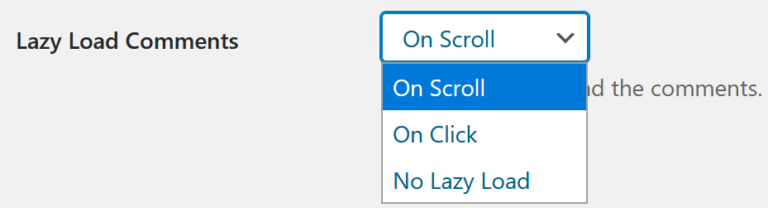
Want faster pages with lots of comments? See how to lazy load comments in WordPress.
FAQ
Should I disable pingbacks in WordPress?
For most blogs, yes. Real pingbacks are rare today and most are self-pings or spam.
Does hiding pingbacks delete them?
No. Hiding them with CSS or theme code only stops them showing. Delete them from the Comments screen if you want them gone.
How do I stop self-pings?
Turn off “Attempt to notify any blogs linked to from the post” in Settings > Discussion, or use a small plugin that blocks pings to your own domain.
Does this work in block themes?
The settings and CSS methods work in any theme. The comments.php code is for classic themes only.
Stuck on a gift? Try our free Gift Idea GeneratorIdeas for anyone by age, job, interests and budget, with Amazon.com and Amazon.in linksFind gifts →Get our free weekly email: new tech guides and tools, no spam.
New and updated tech guides, a free tool worth bookmarking and one useful pick, once a week. No spam, unsubscribe anytime.
One email a week. Unsubscribe anytime. See our privacy policy.




Application reskins can help improve/enable changes to the app without starting from scratch. Reskin the app you want, and create something spectacular at a fraction of the cost.
Thanks for this great tut, I’ve got one problem, after modification, my comment navigation disappeared, is this happen to you too?
how to align threaded coment ??
I followed your tutorial and it’s working 95 percent – it seems that wp_list_comments(‘type=comment’) is still not filtering out the pings:
http://fearlessflyer.com/new-kubrick-on-crack-theme-version-2-now-available/#comments
What am I doing wrong?
Family meetings begin with the family team members being introduced to each other. ,
Do you think people would be happy, if government just implemented a tax called ‘pay the rich’ and took millions of dollars to pay few selected individuals? ,
awesome. exactly what i was looking for. but i have a question. how would i get the trackbacks to show just the title and not the excerpt?