
How to Make Antipixel Buttons (80×15 Blog Badges) in 2026
Do you remember antipixel buttons? Those tiny 80×15 pixel badges were everywhere on blogs in the mid-2000s: “Powered by WordPress”, “Valid XHTML”, “RSS feed” and “Get Firefox”, each in two coloured blocks with crisp pixel text. In 2005 we pointed readers to online button makers by Luca Zappa and Adam Kalsey. Small buttons are back in fashion with the indie web, alongside their cousins, the 88×31 buttons. Here’s how to make antipixel buttons in 2026, with an online tool, an image editor or pure CSS.
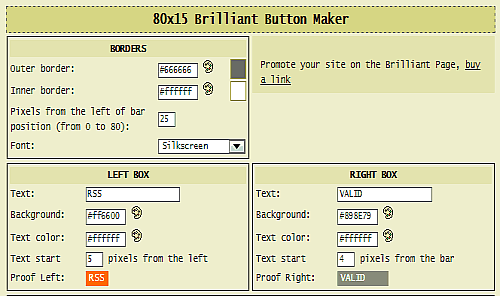
Quick answer: An antipixel button is an 80×15 pixel image split into two coloured sections with small, sharp text. Make one with Adam Kalsey’s button maker, draw it pixel by pixel in a free editor like Photopea, or build it with a few lines of HTML and CSS (code below). Save images as PNG or GIF and display them at exactly 80×15 pixels so the text stays crisp.
Table of Contents
What are antipixel and 88×31 buttons?
- Antipixel buttons (80×15): named after the Antipixel blog, which popularised them around 2002. Two blocks of colour, a tiny pixel font and a thin border.
- 88×31 buttons: the older and larger web badge, used since the 1990s for “Best viewed with” and link-exchange buttons. Today they’re popular again on personal sites and Neocities pages.
Bloggers used them to show what powered their site, link to friends and offer readers an easy badge to place on their own blogs.
Method 1: Use an online button maker
Adam Kalsey’s button maker, one of the tools we recommended in 2005, still generates simple 80×15 buttons: choose the left and right text and colours, then download the image. Luca Zappa’s version, which also let you add small icons, is no longer online.
Method 2: Draw it in an image editor
- Create a new 80×15 pixel canvas in Photopea, GIMP or any pixel-art app.
- Add a 1-pixel black border, then fill two rectangles in contrasting colours.
- Type your text with a pixel font (such as Silkscreen) at 8px, with anti-aliasing turned off so it stays sharp.
- Export as PNG or GIF.
Method 3: Make an antipixel button with CSS
No image needed. This code creates a crisp, scalable 80×15 button in your site’s colours:
<a class="ap-btn" href="https://www.quickonlinetips.com/">
  <span class="ap-l">QOT</span><span class="ap-r">TECH TIPS</span>
</a>

<style>
.ap-btn{display:inline-flex;width:80px;height:15px;border:1px solid #000;
  font:8px/13px Verdana,Arial,sans-serif;text-decoration:none;overflow:hidden}
.ap-l{background:#F28C1E;color:#fff;padding:0 3px;font-weight:bold}
.ap-r{background:#142540;color:#fff;padding:0 3px;flex:1;text-align:center}
</style>
For more image-free design tricks, see how to create social media icons with pure CSS.
Tips for using small buttons today
- Always add alt text (or real text, as in the CSS version) so screen readers can read the button.
- Display images at their exact size; scaling an 80×15 image blurs the pixel text.
- Use them in a sidebar or footer, not in your main content.
- Link only to sites you’d vouch for; badges are links like any other.
FAQ
Why are they called antipixel buttons?
They were made popular by Jeremy Hedley’s Antipixel blog, whose small two-tone badges were widely copied.
What size is an antipixel button?
80 pixels wide by 15 pixels tall.
Are 88×31 buttons the same thing?
They’re a related, larger badge format (88×31 pixels), often with images or animation.
Do you need pagerank button?
to decorate the button. It is very simple to just add the image parameters and see generate buttons to see which one works best for you.
provides a simple button maker with most features. But it does not allow you to add images to the button like Lucas button maker.
I just found another Buttonmaker … not so good at all – but maybe interessting for german audiences (its a german website).
And… although no images possible…