
How to Automatically Close Comments in WordPress After X Days (2026)
A post gets a burst of comments, the discussion fades, and a year later someone revives an outdated thread that pops up in your recent comments. In 2006 the fix was a small Auto Shutoff Comments plugin that closed comments after 21 days. Today you can automatically close comments in WordPress with a built-in setting, no plugin needed.
Quick answer: Go to Settings > Discussion, tick “Automatically close comments on posts older than [14] days”, enter the number of days you want and click Save Changes. It applies to all existing and future posts instantly. To close comments on just one post, uncheck Allow comments in that post’s Discussion panel.
Table of Contents
Method 1: Built-in Discussion setting
- Open Settings > Discussion.
- Under Other comment settings, tick Automatically close comments on posts older than and set the days (for example 30 or 90).
- Click Save Changes.
Comments on older posts close immediately, and existing comments stay visible. Untick the box later to reopen them.
Method 2: Close comments on a single post
- Edit the post and open the Settings sidebar.
- In the Discussion panel, turn off Allow comments.
- Update the post.
Method 3: Bulk edit
In Posts > All Posts, select posts, choose Edit from Bulk actions, set Comments to Do not allow and click Update. Useful for one category or a date range.
Should you close comments?
- Pros: less spam on old posts and less moderation work.
- Cons: evergreen guides lose useful questions and updates from readers.
- A long window (90-180 days) often balances both; keep comments open on popular how-to posts.
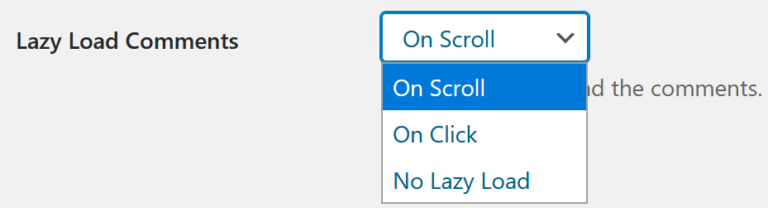
Other ways to manage comments: moderate comments quickly with keyboard shortcuts, stop comment spam with plugins and lazy load comments for speed.
FAQ
Does closing comments delete existing comments?
No. Old comments stay visible; only new ones are blocked.
Can I close comments on pages too?
Yes, pages have the same Discussion setting in the editor.
Does the auto-close setting affect pingbacks?
It applies to comments; turn off pingbacks separately under Discussion if you don’t want them.
Stuck on a gift? Try our free Gift Idea GeneratorIdeas for anyone by age, job, interests and budget, with Amazon.com and Amazon.in linksFind gifts →Didn’t find what you were looking for? Tell us in a line.

$4.99Free when you subscribe
Get 100 tech terms explained in plain English
8-page PDF on AI, coding, slang and SEO + one tech email a week.
Don’t want emails? Buy the PDF for $4.99 (opens in a new tab) (external site)
Sent by email. Unsubscribe anytime. See our privacy policy.


Very informative post. Thanks for taking the time to share your view with us.
I just book marked your blog on Digg and StumbleUpon.I enjoy reading your commentaries.
When I originally commented I clicked the “Notify me when new comments are added” checkbox and now each time a comment is added I get four emails with the same comment. Is there any way you can remove me from that service?Thanks
I love how 3 years after posting this article, it is still open to comments. Oh the irony…
I like the way you presented the plugin, telling a possible situation.
Thanks for recommending.