Favicon Size Guide: Formats, HTML Code and How to Update It in Google
Getting the favicon size, format and HTML right decides whether your little site icon looks sharp in browser tabs, on phone home screens and next to your name in Google search, or shows up as a blurry square or a grey globe. This guide covers what a good favicon looks like, every size and format you need, where browsers and search engines pick it up from, and how to get Google to show a new favicon after you change it.
Quick answer: Make a square icon (start from a 512×512 PNG or an SVG), add <link rel="icon"> and <link rel="apple-touch-icon"> tags to your homepage head (or upload it as the Site Icon in WordPress), keep a favicon.ico in your domain root as a fallback, make sure Googlebot can crawl both the homepage and the icon file, then use URL Inspection in Google Search Console to request indexing of your homepage. Google picks up the new icon after it recrawls the homepage, which can take days to weeks.
Table of Contents
What is a favicon and why it matters for your identity
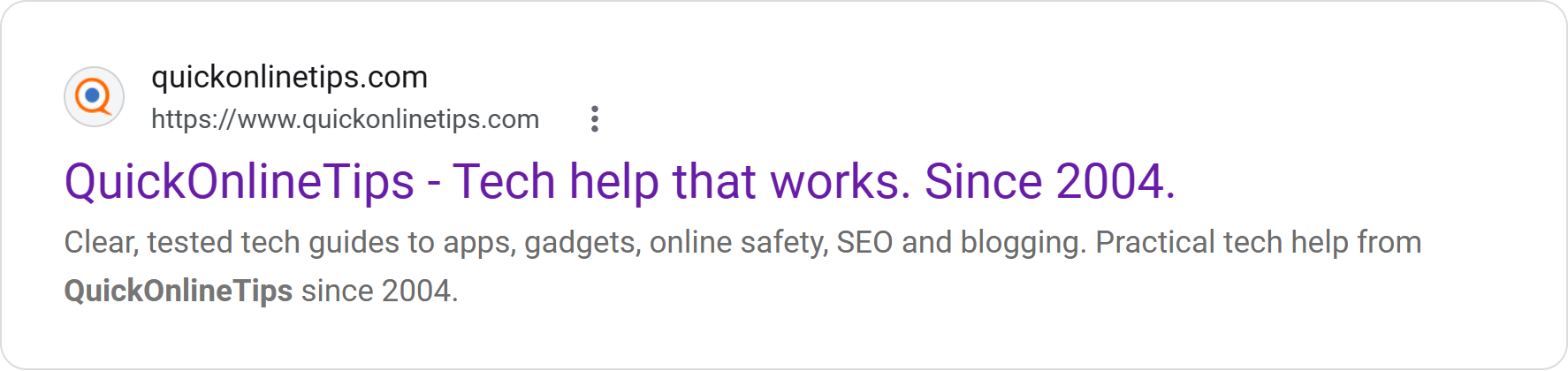
A favicon (short for “favourite icon”) is the small square image a browser shows in the tab, the bookmarks bar, history and on the new tab page. The same icon, in bigger sizes, becomes the shortcut when someone adds your site to a phone home screen, and search engines show it next to your site name in results.
That makes the favicon one of the most-seen parts of your brand:
- Recognition in a crowd of tabs. People with 20 tabs open find yours by the icon, not the title.
- Trust in search results. A clear, familiar icon beside your site name in Google search looks established. A missing favicon shows a generic globe, which looks unfinished.
- Consistency. The favicon should echo your logo colours and shape, so the tab, the home screen shortcut, your social profiles and your site header all tell the same story. Our blog branding guide explains why that consistency pays off.
Guidelines for creating a great favicon
A favicon has to work at 16 pixels, where a whole logo turns to mush. These rules keep it readable:
- Use one bold element, not your whole logo. A single letter, monogram or simple symbol works best. Drop taglines and fine text.
- Design square from the start. Search engines need a 1:1 icon, so a wide logo squeezed into a square looks wrong.
- Use strong contrast. Two or three solid colours read better than gradients and thin outlines.
- Check light and dark mode. A black icon on a transparent background vanishes on a dark tab bar. Add a coloured or white backing shape, or use an SVG that switches colour (shown below).
- Fill the space. Leave only a little padding so the icon doesn’t look tiny next to others.
- Keep it yours. Don’t use another brand’s logo or a look-alike, and keep it suitable for all audiences: Google replaces favicons it finds inappropriate with a default icon.
- Test at real size. Look at it at 16×16 and 32×32 on a real tab before you publish it.
If you’re designing the logo itself, see our blog logo design tips, and to turn an image into icon files, use one of these free favicon generators.
Favicon sizes you need
You don’t need dozens of files any more. This set covers browsers, phones, installed web apps and search engines:
| Size | File | Where it’s used |
|---|---|---|
| 16×16 and 32×32 (plus 48×48) | favicon.ico (several sizes inside one file) or PNG | Browser tabs, bookmarks, older browsers, the root fallback |
| Any size | favicon.svg | Modern browsers; scales cleanly and can switch colours for dark mode |
| Larger than 48×48 (a multiple of 48, such as 96 or 192, is a safe choice) | PNG | Google Search results (Google’s minimum is 8×8, but it recommends larger than 48×48) |
| 180×180 | apple-touch-icon.png | iPhone and iPad home screen shortcuts |
| 192×192 and 512×512 | PNG in the web app manifest | Android home screen and installed web apps (PWA) |
| 512×512 (source image) | PNG | What you upload as the WordPress Site Icon; WordPress makes the smaller sizes |
The simplest workflow: design one square master at 512×512 (or as an SVG), then export the smaller sizes from it. Never scale a small icon up; it turns blurry.
Supported favicon formats
- ICO: the original favicon format. One .ico file can hold several sizes (16, 32 and 48 pixels), and every browser understands it. Keep one in your root as a fallback.
- PNG: the everyday choice for sized icons, the Apple touch icon and manifest icons. Supports transparency.
- SVG: a vector icon that stays sharp at any size and can carry its own CSS, including a dark-mode colour switch. Supported by modern browsers; keep an ICO or PNG fallback for the rest.
- GIF and JPEG: work but are poor choices. JPEG has no transparency and adds blur to small icons; animated GIFs are distracting and not animated everywhere.
For Google Search, Google’s favicon documentation lists BMP, GIF, ICO, PNG, JPEG, PPM and TIFF as supported formats. SVG isn’t on that list, so if your main icon is an SVG, also link a PNG or ICO version so Google has a format it lists.
Where browsers and search engines find your favicon
Your favicon can come from three places. Knowing the order of preference explains most “wrong favicon” problems.
1. The HTML link tags in your page head
This is the main source. Browsers and Google read the <link> tags in the <head> of your page, and the link tag wins over the root file. Google reads the tags on your homepage, so they must be there even if other pages differ.
2. The favicon.ico file in your domain root
If a page has no icon link tag, browsers fall back to requesting /favicon.ico from the root of the domain (for example example.com/favicon.ico). An old file sitting there is a common reason an old icon keeps showing in some places, so replace it when you change your icon.
3. Your CMS settings (WordPress Site Icon)
Platforms such as WordPress write the link tags for you. In WordPress the favicon is called the Site Icon:
- WordPress 6.5 and later: go to Settings → General, click Choose a Site Icon, pick a square image of at least 512×512 pixels and save.
- Older versions: go to Appearance → Customize → Site Identity → Site Icon.
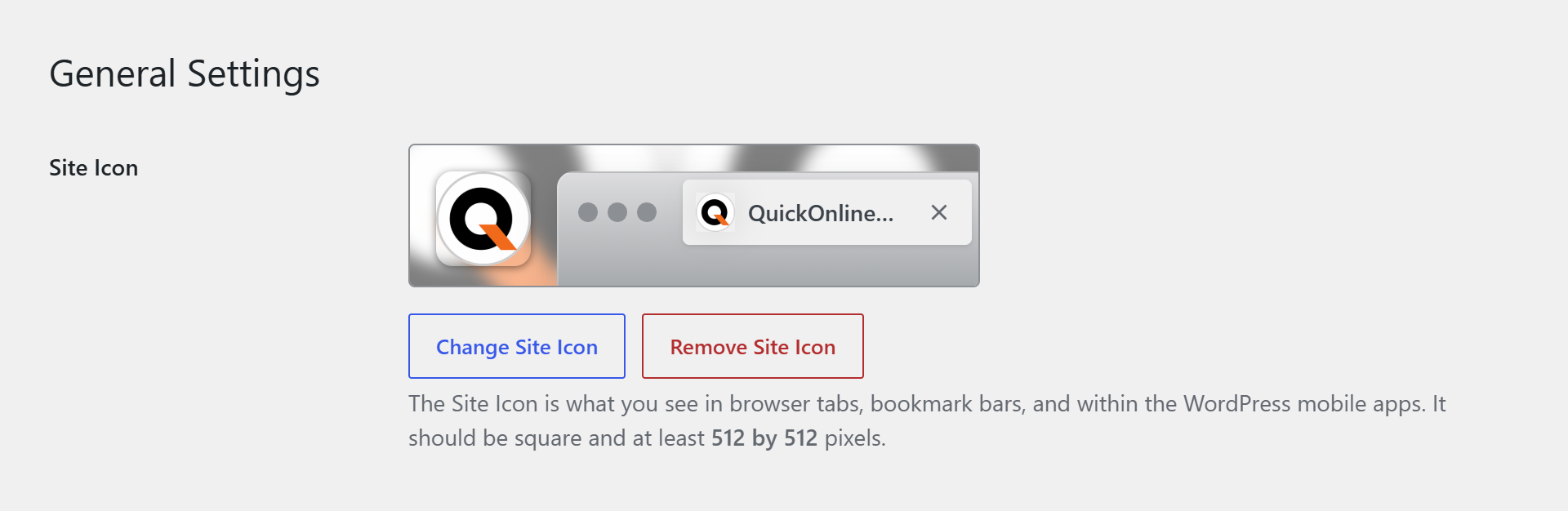
WordPress then outputs a 32×32 and a 192×192 icon tag, a 180×180 Apple touch icon and a 270×270 Windows tile image, as the WordPress favicon documentation (external site) and its code reference describe. If your theme or an SEO or “favicon” plugin also adds icon tags, you may end up with two different icons: keep one source and remove the other.
Tip for sites in a subfolder: Google uses one favicon per hostname. If WordPress lives in a folder (like ours in /archives/), the icon tags must also be on the root homepage of the domain, and a favicon.ico should sit in the domain root, not only inside the subfolder.
How to link your favicon in HTML
For a hand-built site, add this to the <head> of every page (at least the homepage):
<link rel="icon" href="/favicon.ico" sizes="32x32">
<link rel="icon" href="/favicon.svg" type="image/svg+xml">
<link rel="icon" href="/favicon-96x96.png" sizes="96x96" type="image/png">
<link rel="apple-touch-icon" href="/apple-touch-icon.png">
<link rel="manifest" href="/site.webmanifest">
And in site.webmanifest, list the two Android icons:
{
  "name": "Your Site",
  "icons": [
    { "src": "/icon-192.png", "sizes": "192x192", "type": "image/png" },
    { "src": "/icon-512.png", "sizes": "512x512", "type": "image/png" }
  ]
}
A few details worth knowing:
- rel values:
iconis the standard. Google also acceptsshortcut icon,apple-touch-iconandapple-touch-icon-precomposed. - href: can be relative or absolute, and the file can live on a CDN; it doesn’t have to be on your own domain.
- Manifest icons: Chrome needs at least a 192×192 and a 512×512 icon for installable web apps, and you can mark an icon as maskable so Android can crop it into round or rounded shapes. The web.dev manifest guide (external site) covers the details.
Dark-mode SVG favicon: an SVG icon can change colour with the visitor’s theme. Inside the SVG file:
<svg xmlns="http://www.w3.org/2000/svg" viewBox="0 0 32 32">
  <style>
    circle { fill: #1d5fb0; }
    @media (prefers-color-scheme: dark) { circle { fill: #ffffff; } }
  </style>
  <circle cx="16" cy="16" r="15"/>
</svg>
Google’s favicon requirements
Google’s favicon guidelines for Search (external site) set the rules for the icon beside your search results. Meeting them makes your icon eligible, though Google doesn’t promise to show it:
- One favicon per hostname.
example.comandshop.example.comcan have different icons;example.com/bloguses the one forexample.com. - Put the link tag on the homepage of the domain or subdomain. Subfolder home pages aren’t supported.
- Square, at least 8×8 pixels; Google recommends larger than 48×48 so it looks good everywhere.
- A supported format (BMP, GIF, ICO, PNG, JPEG, PPM or TIFF).
- A stable URL. Don’t change the favicon’s address often.
- Crawlable: Googlebot must be able to crawl the homepage (and follow any redirects to it), and Googlebot-Image must be able to crawl the icon file.
- Represents your brand and is appropriate; otherwise Google shows a default icon instead.
How to confirm crawlers can reach your favicon
A blocked or broken icon file is the most common reason Google shows a grey globe. Check these:
- Open the icon URL directly in a private browser window (for example
yoursite.com/favicon.icoand the PNG your link tag points to). It should load the image, not a 404 page, a login screen or a redirect loop. - Check the response: in your browser’s developer tools, open the Network tab, reload the icon URL and confirm status 200 and an image content type (such as
image/pngorimage/x-icon). - Check robots.txt: make sure no
Disallowrule covers the icon folder (for example/wp-content/uploads/or/images/) or blocks Googlebot-Image. The robots.txt report in Google Search Console shows the file Google last fetched. - Run a live test of the homepage: in Search Console, use URL Inspection on your homepage, click Test live URL and view the tested page’s HTML to confirm Google sees your
<link rel="icon">tag. - Check firewalls and hotlink protection: security plugins, CDN bot protection and hotlink rules sometimes block Google’s crawlers from images. Allow verified search engine bots.
How to force Google to update your favicon
There’s no button that makes Google swap a favicon instantly, but you can make sure the change is picked up on the next crawl and ask for that crawl sooner.
Step 1: Make the change cleanly
- Replace the icon in one place (WordPress Site Icon or your link tags), and update the root
favicon.icotoo. - Remove duplicate icon tags from plugins or the theme so the homepage points to one icon.
- If the new image uses the same file name, browsers and caches may keep the old one. Use a new file name once (for example
favicon-v2.png) or add a version, then leave that URL alone; Google prefers a stable favicon URL. - Clear your site cache and CDN cache so the homepage serves the new tags.
Step 2: Get your homepage recrawled with Google Search Console
- Open Google Search Console (external site) and choose the property for your domain.
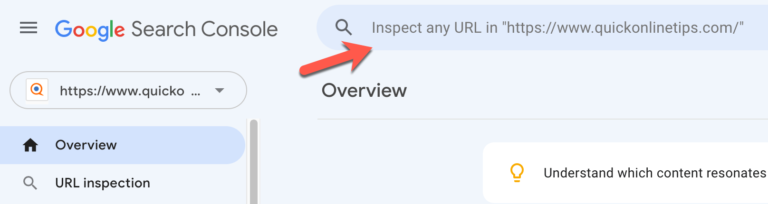
- Paste your homepage URL into the URL Inspection bar at the top.
- Click Test live URL and check that the page is available and the new icon tag is in the HTML.
- Click Request indexing.
This is the “submit your favicon to Search Console” step people talk about: you don’t submit the icon file itself, you ask Google to recrawl the homepage that links to it. Google says recrawling and processing can take from several days to several weeks, so request it once and wait; repeated requests don’t make it faster. Our guide to getting pages indexed in Google has more on how indexing requests work.
Step 3: Ask Bing to recrawl too
Bing shows favicons in its results as well. In Bing Webmaster Tools (external site), use URL Submission for your homepage, or send it through IndexNow if your SEO plugin supports it.
The Google favicon service cache
Many tools, browser extensions and dashboards show site icons from Google’s favicon service, a URL in the form https://www.google.com/s2/favicons?domain=example.com&sz=64. It’s an unofficial, undocumented service with no public setting to clear its cache, so you can’t force it to refresh directly.
What does work:
- Fix the source first: correct homepage tags, an updated root
favicon.icoand a crawlable icon file. - Request a homepage recrawl in Search Console as above, then wait. The service and Google Search catch up on their own once Google fetches the new icon.
- Use it as a checker: open the URL above with your domain now and then (try a larger
szsuch as 64 or 128) to see which icon Google currently has.
Still seeing the old favicon in your own browser?
Browsers cache favicons stubbornly, separately from the page. Open the icon URL directly and hard-refresh it (Ctrl+Shift+R on Windows, Cmd+Shift+R on Mac), check in a private window or another browser, and if a bookmark still shows the old icon, delete and re-add it. If a private window shows the new icon, your site is fine and only your local cache is old.
Favicon checklist
- Square master icon at 512×512 (PNG) or SVG, simple and high-contrast
- favicon.ico (16/32/48) in the domain root
- Icon link tags on the homepage, including a PNG larger than 48×48
- 180×180 Apple touch icon; 192 and 512 icons in the manifest
- Only one icon source (no theme and plugin duplicates)
- Icon URL returns 200, not blocked by robots.txt or a firewall
- Homepage recrawl requested in Google Search Console (and Bing)
Frequently asked questions
What is the best favicon size?
Start with a 512×512 square master. From it, provide 16×16 and 32×32 for tabs (in favicon.ico), a PNG larger than 48×48 for Google Search, 180×180 for Apple devices, and 192×192 and 512×512 for Android and web apps.
How long does it take for a new favicon to show in Google?
Google has to recrawl and process your homepage first, which can take from several days to several weeks. Requesting indexing of the homepage in Search Console can help it happen sooner.
Why is my favicon not showing in Google search?
Usually the link tag is missing from the homepage, the icon isn’t square, the file is blocked by robots.txt or a firewall, or Google simply hasn’t recrawled yet. Run the crawler checks above and request indexing of your homepage.
Can a favicon be an SVG?
Yes, modern browsers support SVG favicons, and they can even switch colours for dark mode. Keep an ICO or PNG fallback, because Google Search lists other formats and some browsers still need a bitmap icon.
Do I need a favicon.ico file if I use link tags?
It’s still worth having. Browsers request /favicon.ico when a page has no icon tag, and some tools and feeds only look there, so a small ICO in the root is a cheap safety net.
Didn’t find what you were looking for? Tell us in a line.

$4.99Free when you subscribe
Get 100 tech terms explained in plain English
8-page PDF on AI, coding, slang and SEO + one tech email a week.
Don’t want emails? Buy the PDF for $4.99 (opens in a new tab) (external site)
Sent by email. Unsubscribe anytime. See our privacy policy.