
How to Load Bootstrap CSS and Font Awesome Icons in the WordPress Editor
Do you use Bootstrap classes or Font Awesome icons in your WordPress posts, but they look plain in the editor? By default, the WordPress post editor doesn’t load your theme’s frameworks, so buttons, alerts and icons show up as plain text until you preview the post. You can fix that by importing Bootstrap CSS and Font Awesome into the WordPress editor, so what you see while writing matches the live site. Here’s how, for both the Classic Editor and the block editor.
Quick answer: Add an editor stylesheet to your theme with add_editor_style() in functions.php. In that stylesheet, import Bootstrap and Font Awesome, for example @import url("https://cdn.jsdelivr.net/npm/bootstrap@5.3.3/dist/css/bootstrap.min.css");, or pass the CDN URLs straight to add_editor_style(). Clear your browser and site cache, then reload the editor.
Table of Contents
The problem: the editor doesn’t show Bootstrap or icons
Bootstrap is a popular mobile-first CSS framework, and Font Awesome is the most widely used icon font. If your theme uses them, you’ll notice that the editor doesn’t look like your live site. For example, here’s a simple Bootstrap button with a Font Awesome thumbs-up icon:
<span class="btn btn-lg btn-success">
<i class="fa-solid fa-thumbs-up"></i> LIKE
</span>
This is how that code looks in the WordPress visual editor without the styles:

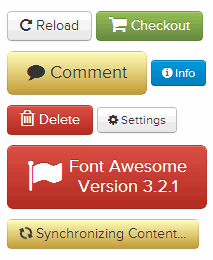
And this is how it looks once Bootstrap and Font Awesome are loaded in the editor:

When you can see the real styling, it’s much easier to format posts without switching back and forth to the preview.
Step 1: Add an editor stylesheet
First, set up a custom stylesheet for the editor. I explained this step by step in how to add custom CSS to the WordPress editor. In short, add this to your (child) theme’s functions.php:
function qot_editor_styles() {
    add_theme_support( 'editor-styles' ); // needed for the block editor
    add_editor_style( 'editor-style.css' );
}
add_action( 'after_setup_theme', 'qot_editor_styles' );
Then create an editor-style.css file in the same theme folder.
Step 2: Import Bootstrap CSS and Font Awesome
At the top of editor-style.css, import the framework stylesheets. If they’re hosted in your theme:
@import url("https://yoursite.com/wp-content/themes/yourtheme/css/bootstrap.min.css");
@import url("https://yoursite.com/wp-content/themes/yourtheme/fontawesome/css/all.min.css");
Or load them from a free public CDN:
@import url("https://cdn.jsdelivr.net/npm/bootstrap@5.3.3/dist/css/bootstrap.min.css");
@import url("https://cdnjs.cloudflare.com/ajax/libs/font-awesome/6.5.2/css/all.min.css");
Use the same versions your live site uses, so the editor matches exactly. The old StackPath BootstrapCDN links used in many older tutorials are no longer the recommended source; Bootstrap’s own docs now point to jsDelivr.
Alternative: pass the URLs to add_editor_style()
add_editor_style() also accepts full URLs, so you can skip the @import lines:
add_editor_style( array(
    'https://cdn.jsdelivr.net/npm/bootstrap@5.3.3/dist/css/bootstrap.min.css',
    'https://cdnjs.cloudflare.com/ajax/libs/font-awesome/6.5.2/css/all.min.css',
    'editor-style.css',
) );
Step 3: Clear your cache and reload
Save your changes, then clear your browser cache and any WordPress caching plugin or CDN cache. Otherwise you’ll keep seeing the old editor styles. Reload the post editor, and your Bootstrap buttons and Font Awesome icons now look the same as on the live site.
Block editor (Gutenberg) notes
- The block editor needs
add_theme_support( 'editor-styles' ), as shown above. WordPress then loads your editor stylesheets into the editor canvas and scopes them so they don’t break the editor’s own interface. - Bootstrap’s global styles (like body fonts and link colours) may change how the editor looks overall. That’s usually what you want, but if anything looks odd, import only the parts you need, such as buttons and utilities.
- Font Awesome icons need their font files. Loading the full
all.min.cssfrom a CDN takes care of that.
Do you still need Bootstrap?
Bootstrap 5 dropped jQuery and is lighter than earlier versions (see what’s new in Bootstrap 5), but loading the whole framework for a few buttons is still heavy. We switched our site to the 3 KB Chota CSS framework for speed. Whichever you use, the editor-style method above works the same way.
Frequently asked questions
Will this change how my posts look on the live site?
No. Editor stylesheets only affect the editor. Your live site keeps using your theme’s normal stylesheets.
Why don’t my changes show in the editor?
Usually it’s caching. Clear your browser cache, your caching plugin and your CDN, then reload the editor. Also check the stylesheet path is correct for your theme.
Can I use this with a child theme?
Yes. Add the code to the child theme’s functions.php and put editor-style.css in the child theme folder.
Get our free weekly email: new tech guides and tools, no spam.
New and updated tech guides, a free tool worth bookmarking and one useful pick, once a week. No spam, unsubscribe anytime.
One email a week. Unsubscribe anytime. See our privacy policy.

Good tips to follow. Mostly these WordPress plugins of Bootstrap will work with all latest browsers and they even comprise several design components such as forms, buttons, menus etc which can be easily deployed onto the website.
Very nice tip! I love live preview in post editor. This is the best way and simplest way to do that!