How to Block Adult Content on YouTube (Restricted Mode & Parental Controls 2026)
Worried about what your kids might see on YouTube? You can block adult content on YouTube in a few minutes using Restricted Mode, YouTube Kids, supervised accounts and Google Family Link. One video leads to another, and the recommendations can quickly drift into mature content, especially on a shared phone or TV. Here’s how to set up each control in 2026 and make it stick.
Quick answer: Turn on Restricted Mode from your profile menu on every device and browser. For children, use the YouTube Kids app or a supervised account set up through Google Family Link, which locks the settings so kids can’t switch them off.
Table of Contents
1. Turn on YouTube Restricted Mode to block adult content on YouTube
Restricted Mode hides videos flagged as mature, based on titles, descriptions, age restrictions and community flags. It also hides comments.
- On a computer: go to YouTube, click your profile picture at the top right, and at the bottom of the menu click Restricted Mode. Switch on Activate Restricted Mode.
- On Android or iPhone: tap your profile picture (You tab) → Settings (gear icon) → General → turn on Restricted Mode.
- On a smart TV: open the YouTube app, go to Settings → Restricted Mode and turn it on.
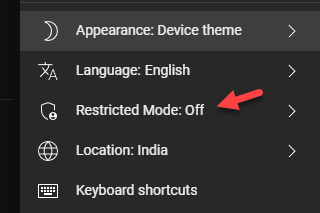


Restricted Mode is per device and per browser. Turning it on in Chrome on your laptop doesn’t change your phone, tablet or TV, so repeat it everywhere your kids watch to block adult content on YouTube fully. YouTube also notes that no filter is 100% accurate, so some mature videos may slip through.
2. Lock Restricted Mode so kids can’t turn it off

On its own, anyone can switch Restricted Mode off again. To lock it:
- Family Link: for a child’s Google account, Restricted Mode is managed by the parent, and the child can’t change it.
- Network level: on your home router or a DNS service, you can force YouTube’s Restricted Mode for every device on your Wi-Fi. Google explains this in its YouTube network restrictions guide, and filtering DNS services such as Cloudflare 1.1.1.3 for Families block adult sites too.
- School or work accounts: Google Workspace admins can enforce it for managed devices.
3. Use YouTube Kids for young children
For children under 13, YouTube Kids is safer than the main app. Parents choose a content level (Preschool, Younger or Older), or switch to Approved content only to allow just the videos and channels you pick. You can also turn off search, block specific videos or channels, and set a screen time limit with a timer.
4. Set up a supervised YouTube account
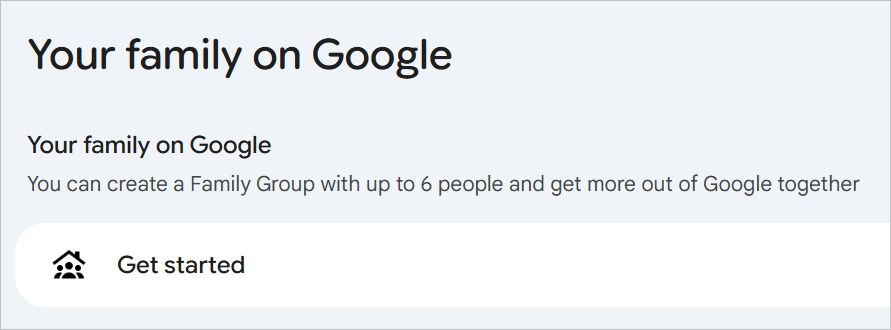
When children outgrow YouTube Kids, a supervised experience on the main YouTube app gives them more videos with guardrails. Set it up with Google Family Link and choose one of three content settings:
- Explore: videos generally suitable for ages 9+.
- Explore more: videos for ages 13+.
- Most of YouTube: almost everything except age-restricted videos.
Parents can also turn off autoplay, review watch history, block channels and limit uploads and comments. For teens aged 13–17, YouTube’s teen supervision lets you link accounts and see their uploads and activity, while teen accounts get Take a Break and Bedtime reminders by default.
5. Extra settings that help
- Limit Shorts: in the supervised settings, you can set a Shorts time limit, or set it to zero to turn the Shorts feed off completely.
- Pause or clear watch history so old videos don’t shape new recommendations: Settings → Manage all history.
- Use “Don’t recommend channel” from the three-dot menu on any unsuitable video.
- Block mature results in search engines too: see how to block adult content on Google with SafeSearch, and on other apps like Netflix and Amazon Prime Video.
Frequently asked questions
Why can’t I turn off Restricted Mode on YouTube?
It’s probably locked by Family Link, your network or router, or your school or work administrator. Ask whoever manages that account or network.
Is YouTube Restricted Mode enough to block adult content on YouTube?
Not on its own. It filters most mature videos, but it can be switched off and isn’t perfect. For children, use YouTube Kids or a supervised account, and keep devices in shared spaces.
Does Restricted Mode work on the YouTube app?
Yes, but you need to turn it on separately in each app and browser where you use YouTube.