WhatsApp DP: 5 Tips to Make Your Profile Picture Stand Out
Your WhatsApp DP (display picture) is your profile photo on WhatsApp. It is the first thing your contacts see in every chat, call and group, and it says a lot about your online identity. So everyone wants a DP that looks sharp and stands out. The catch: WhatsApp compresses every photo you upload to save data, which can make a good picture look blurry. Here are 5 tips to make your WhatsApp DP stand out without losing quality, plus how to change it and keep it private.
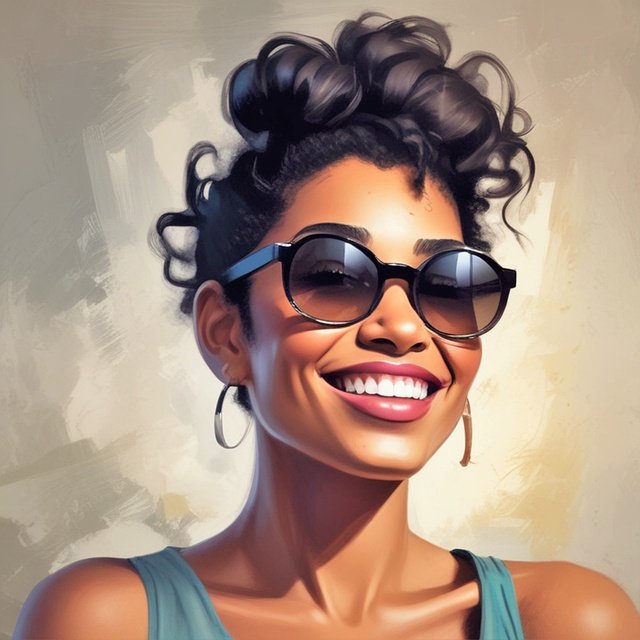
Quick answer: Use a square, well-lit, high-resolution photo (at least 500 x 500 pixels) with your face or main subject in the centre, because WhatsApp crops your DP into a circle. Keep edits natural, choose a simple background, update it when your look changes, and set who can see it under Settings, then Privacy, then Profile photo.
Your DP does not have to be your own photo. It can be a favourite quote, a flower you love, an achievement you are proud of, or your business logo. Just choose it with your audience in mind. A clear photo of yourself helps contacts, and members of your WhatsApp groups, recognise you instantly.
Table of Contents
1. Choose the right photo
- Resolution: use a high-resolution photo so it stays sharp after compression. Low-resolution images look pixelated. A square image of 500 x 500 pixels or more works well; larger photos such as 800 x 800 are fine too.
- Lighting: pick a well-lit photo that shows your features. Natural daylight is usually best, but avoid harsh shadows on your face.
- Recognisability: if the DP represents you, make sure your face is clearly visible. Remember that most people see your DP as a small circle in their chat list.
2. Show your personality
- Interests: a picture of you enjoying a hobby, travelling or doing something you love tells people more than a plain selfie. A photo with loved ones, or one that shows your profession or an achievement, also works.
- Mood: a smiling, friendly photo creates a positive impression, while a serious or artistic shot shows another side of you. You can change your DP to match how you feel or what is happening in your life.
3. Crop and edit thoughtfully
- Crop to a square and centre the subject. WhatsApp shows your DP as a circle, so anything near the corners is cut off. Crop out distracting background.
- Keep editing minimal. Adjust brightness, contrast and colour if needed, but avoid heavy filters or edits that change how you look. Free editors like Google’s free Snapseed app or your phone’s built-in photo editor are enough.
4. Use the rule of thirds and a clean background
- Rule of thirds: for photos that are not tight headshots, place your face or the main subject on one of the imaginary lines that divide the frame into thirds. It creates a balanced, eye-catching composition.
- Background: a simple or blurred background keeps attention on you. Portrait mode on most phones blurs the background automatically.
5. Keep it updated
- Change with time: update your DP when your life, look or interests change. A fresh DP often gets compliments and can start new conversations with your contacts.
- Stay recognisable: if you have a new haircut, beard, moustache or glasses, a new DP helps people recognise you on video calls and in person.
How to change your WhatsApp DP
- Open WhatsApp and go to Settings (on Android, tap the three dots, then Settings).
- Tap your name or profile photo at the top.
- Tap the camera or Edit icon on your photo.
- Choose Gallery or Camera, pick a photo, move and zoom it inside the circle, and tap Done.
You can also change your DP from WhatsApp Web or the desktop app: click your profile picture at the top left, then click the photo to upload a new one. When you finish on a shared computer, remember to log out of WhatsApp Web.
Privacy and security tips for your DP
- Control who sees it: go to Settings, then Privacy, then Profile photo, and choose Everyone, My contacts, My contacts except, or Nobody.
- Avoid personal details: do not show your address, phone number, car number plate or other sensitive information. Business owners can share professional details to attract customers.
- Screenshots: WhatsApp now blocks screenshots of other people’s profile photos on many devices, but anyone who can see your DP could still photograph their screen, so share only what you are comfortable with.
- Private photos: for pictures you only want someone to see once, send them as a WhatsApp view once photo instead of using them as your DP.
Managing a group? See how to control disappearing messages in WhatsApp groups.
Remember that your WhatsApp DP represents you, and it is often the first thing people notice when they chat with you. With these tips, your DP will not only stand out but show you at your best.
FAQ
What is the best size for a WhatsApp DP?
A square image of at least 500 x 500 pixels. WhatsApp crops it into a circle, so keep the subject in the centre.
Why does my WhatsApp DP look blurry?
WhatsApp compresses uploads. Start with a sharp, well-lit, square photo and avoid uploading a small crop of a larger picture.
Can I hide my WhatsApp DP from some contacts?
Yes. In Settings, then Privacy, then Profile photo, choose “My contacts except” and select the people who should not see it.
Does WhatsApp tell someone when I view their DP?
No. WhatsApp does not notify people when you view their profile photo.