How to Convert Categories to Tags in WordPress (and Redirect Them)
Want to convert categories to tags in WordPress? When you start a blog, it is easy to create too many categories, and later realise many of them should have been tags. We did exactly that on QuickOnlineTips: over the years we created separate categories for Facebook, Twitter and other networks. As Instagram, YouTube and Pinterest arrived, posts ended up in several categories at once. So we created one “Social Media” category and converted the individual networks into tags. WordPress makes this easy, but you must handle redirects too.

Quick answer: Install the free Categories to Tags Converter from Tools, then Import, in your WordPress dashboard. Select the categories to convert and click Convert. Then add 301 redirects from each old /category/ URL to its new /tag/ URL using Rank Math, Yoast or the Redirection plugin, so visitors and search engines do not hit 404 errors.
Table of Contents
Categories vs tags: what is the difference?
- Categories are your site’s broad sections, like chapters of a book. Every post needs at least one, and most sites need only 5 to 15.
- Tags are specific topics that can cross categories, like an index. A post about WhatsApp privacy might sit in the Social Media category with tags for WhatsApp and Privacy.
Too many overlapping categories confuse readers and spread your site structure thin. Clear categories with useful tags help both navigation and search engines.
How to convert categories to tags in WordPress
- Go to Tools > Import in your dashboard.
- Find Categories and Tags Converter and click Install Now, then Run Importer. You can also install the Categories to Tags Converter plugin directly.
- Tick the categories you want to convert. WordPress warns that child categories will become top-level categories if you convert a parent.
- Click Convert Categories to Tags. The new tags are created in seconds, and posts keep their links.
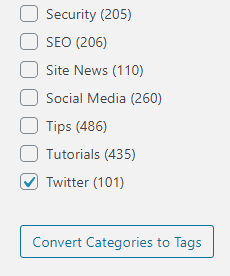
The same tool converts tags to categories if you ever need to go the other way.

Redirect old category URLs to the new tags
After conversion, links like /category/facebook/ return 404 errors. Redirect each one to the matching tag with a 301 redirect:
- Rank Math: Rank Math SEO > Redirections > Add New.
- Yoast SEO Premium: Yoast SEO > Redirects.
- Free option: the Redirection plugin, which we used.

Then check the redirects work, update your menus and widgets if they linked to the old categories, and look for broken links with our guide to find and remove internal broken links.
Before you convert: SEO warning
If a category page ranks well in Google, think twice. Changing its URL means Google has to discover the new address, and rankings can dip for a while even with redirects. Check category traffic in Google Search Console first, and convert low-traffic categories before popular ones. Also decide whether tag archives should be indexed; many sites set thin tag pages to noindex in their SEO plugin.
Tips for a clean WordPress structure
- Give each post one main category.
- Use tags sparingly; a tag with only one or two posts adds little value.
- Write short descriptions for important categories and tags so their archive pages are useful.
- Never change your permalink structure at the same time; make one change at a time.
FAQ
Does converting categories to tags change post URLs?
Only if your permalinks include %category%. With the common /%postname%/ or date-based structures, post URLs stay the same.
Can I undo the conversion?
Yes. The same tool converts tags back into categories, though you will need to restore any parent and child relationships by hand.
Should tag pages be indexed?
Index tags with plenty of useful posts; noindex thin ones to avoid low-quality pages in search.
Get our free weekly email: new tech guides and tools, no spam.
New and updated tech guides, a free tool worth bookmarking and one useful pick, once a week. No spam, unsubscribe anytime.
One email a week. Unsubscribe anytime. See our privacy policy.