Image to Text Extract Text From Images and Screenshots
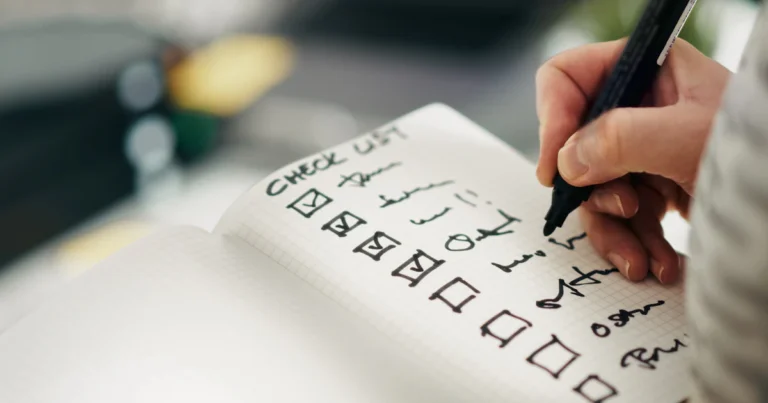
This free image to text converter copies the words out of a photo, screenshot or scanned page so you can edit, search or paste them. It uses optical character recognition (OCR) and works with English, Hindi, Spanish, French, German, Portuguese and Italian, right in your browser.
Private by design: the text is read on your own device with the free, open-source Tesseract.js engine. Your image is never uploaded to QuickOnlineTips or anywhere else; only the reading engine and its language file download to your browser the first time.
More image tools and other free tools
About this tool
Quick answer: Choose, drop or paste an image, pick the language of the text and press Extract text. After a few seconds the text appears in the box, where you can fix any mistakes, then copy it or download it as a .txt file.
How to convert an image to text
- Add the image: choose a file, drag it onto the box, or take a screenshot and press Ctrl+V (Cmd+V on a Mac).
- Choose the language of the text in the image.
- Press Extract text. The first time, the reading engine and the language file download to your browser, which takes a few seconds.
- Check and copy the text, or download it as a .txt file.
Tips for the best results
- Use a sharp, well-lit image with the text straight, not at an angle.
- Crop away everything except the text you need.
- Screenshots and scans give better results than photos of screens.
- Printed text works best; handwriting and decorative fonts are often misread.
- Always proofread numbers, names and email addresses before you use them.
What you can use it for
Copy a quote from a screenshot, turn a photo of a printed page into editable text, grab the text of an error message, save notes from a whiteboard, or pull an address out of an image so you can paste it into a map.
FAQ
Is my image uploaded?
No. The text is read on your own device with Tesseract.js, a free open-source OCR engine. Your image is never sent to QuickOnlineTips or anywhere else.
Is it free?
Yes, with no sign-up, watermark or daily limit.
Can it read PDF files?
Not directly. Take a screenshot of the PDF page and paste it in, or save the page as an image first.
Why is some text wrong?
OCR guesses each letter from the picture, so blur, shadows, small fonts and busy backgrounds cause mistakes. Try a clearer image, crop it closer, or check the language setting.
Get our free weekly email: new tech guides and tools, no spam.
New and updated tech guides, a free tool worth bookmarking and one useful pick, once a week. No spam, unsubscribe anytime.
One email a week. Unsubscribe anytime. See our privacy policy.