Online Timer Free Countdown Timer With Alarm
This free online timer counts down from any time you choose and rings an alarm when the time is up. Pick a preset such as a 2 minute timer, 5, 10 or 15 minutes, or set your own hours, minutes and seconds, then press Start. It keeps time correctly even in a background tab, and works on phones, tablets and computers.
Step 1: Pick how long
Option 1: Tap a preset
Option 2: Type your own time
Step 2: Press Start
Full screen shows a huge countdown for stages, classrooms and conference speakers, with a dark or light background.
Private by design: the timer and its alarm run in your own browser. Nothing is sent to QuickOnlineTips or stored. Turn your volume up so you hear the alarm, and keep this tab open.
More date and time tools and other free tools
About this tool
Quick answer: Tap a preset (for example 2 min) or type hours, minutes and seconds, then press Start. The big clock counts down and an alarm rings at zero. Use Pause, Add 1 minute or Start over at any time.
How to use the online timer
- Tap a preset: 30 seconds, 1, 2, 3, 5, 10, 15, 20, 30 or 45 minutes, or 1 hour. Or type your own hours, minutes and seconds.
- Choose whether an alarm should ring, and pick a sound: beeps, a bell or a soft chime.
- Press Start. The countdown, a progress bar and the finish time appear.
- When the time is up, the clock turns red and the alarm rings for about 5 seconds. Press Start over to set a new timer.
Full screen speaker timer for conferences, classes and video meetings
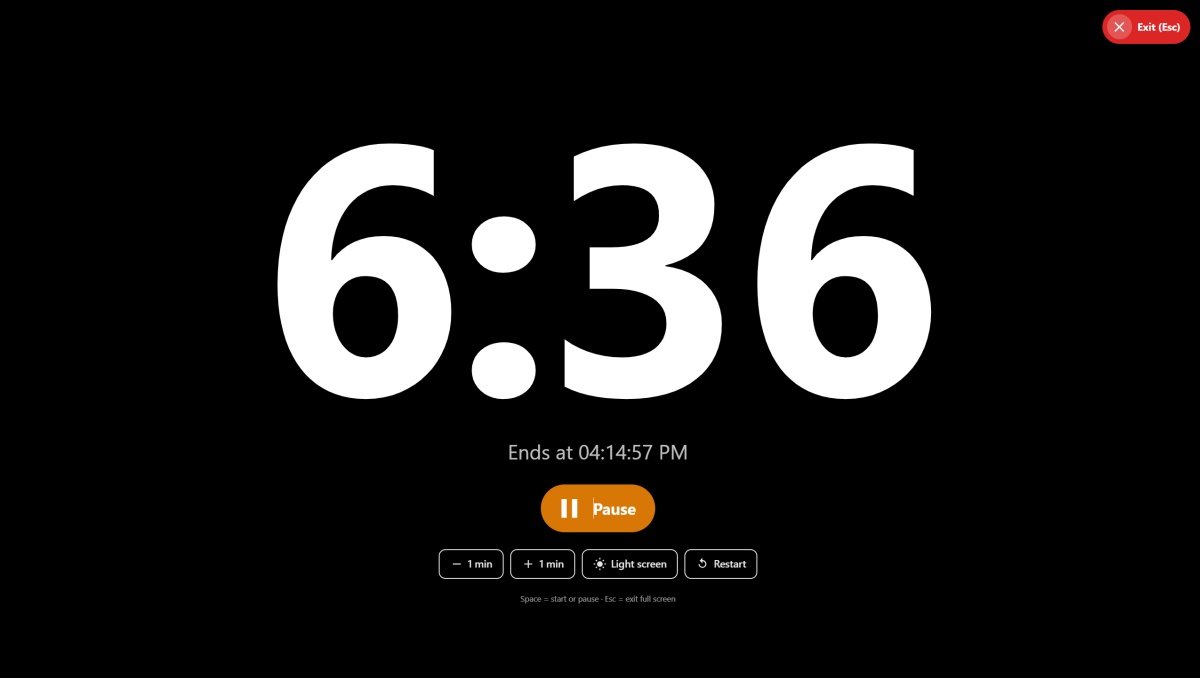
Press the red Full screen timer button and the countdown fills the whole screen, big enough to read from a stage or across a room. Everything a speaker or chair needs is on that one screen, so nobody has to hunt for a small button mid-talk.
Why it works well at conferences and events
- Readable from far away. The digits fill most of the screen, so a speaker can check the time with a glance from the stage or podium.
- Colour warnings without a word. The numbers turn amber in the last minute and red at zero, so the speaker knows to wrap up without the chair having to interrupt.
- One big Start or Pause button. It is green when the timer is ready and amber while it runs, with a clear play or pause icon. On a keyboard, the Space bar does the same.
- Add or take off a minute on the fly. The + 1 min and − 1 min buttons let the chair give a speaker extra time, or tighten a session that started late, without stopping the clock.
- Dark or light screen. Dark suits a dim hall or stage monitor; light suits a bright classroom or a projector that washes out dark colours. Your choice is remembered next time.
- Short alarm. The alarm rings for about 5 seconds, then stops, so it never drowns out a speaker who is finishing a sentence.
- Nothing to install or sign up for. It runs in any browser on a laptop, tablet or phone, so it works on a borrowed event laptop too.
How to show the timer in a video meeting
Video meeting apps such as Zoom, Google Meet and Microsoft Teams can share a single browser window or tab, so you can put this timer in front of everyone in the call:
- Open this page in its own browser window, set the time (for example 5 minutes per speaker) and press Full screen timer.
- In your meeting app, choose Share screen (or Present) and pick that browser window or tab, not your whole desktop.
- If you want everyone to hear the alarm, turn on the option to share sound or tab audio when you start sharing.
- Press Start, or the Space bar, when the speaker begins. Use + 1 min or − 1 min if the plan changes.
Tips: With two screens, keep the timer on one and the meeting on the other. A speaker presenting their own slides can open the timer on a phone or tablet propped beside the laptop instead of sharing it. To have your usual length ready every time, bookmark this page with the time added, for example ?min=10 for 10 minutes or ?sec=90 for 90 seconds; the timer opens set to that time and waits for you to press Start. Writing up the meeting afterwards? See our guide to the best free AI note takers for meetings.
QuickOnlineTips is not affiliated with Zoom, Google or Microsoft.
Popular timer lengths and what people use them for
| Timer | Good for |
|---|---|
| 1 minute | Plank holds, quick breathing breaks, speed rounds in class |
| 2 minutes | Brushing teeth, boiling a soft egg (add a minute or two), short speeches |
| 3 minutes | Steeping tea, short presentations, board-game turns |
| 5 minutes | Classroom tasks, stretching breaks, a quick tidy-up |
| 10 and 15 minutes | Reading, homework sprints, meditation, cooking |
| 20 to 30 minutes | Power naps, focused work blocks, workouts |
| 45 minutes and 1 hour | Exams and practice tests, baking, long study sessions |
For a 25-minute work block with automatic breaks, use the focus timer. To measure how long something takes instead of counting down, use the online stopwatch.
Will the timer still work if I switch tabs?
Yes. The timer works from the exact finish time, so it stays correct even when your browser slows down a hidden tab, and the alarm is scheduled ahead of time so it still rings. Keep the tab open (it can be in the background) and leave your sound on. On phones, keep the screen awake if you want to watch the countdown; some phones pause web pages when the screen locks.
FAQ
How do I set a 2 minute timer?
Tap 2 min and press Start 2-minute timer. You can also open this page with ?min=2 at the end of the address to preselect it.
Can I set a timer for seconds?
Yes. Type the seconds in the Seconds box (leave hours and minutes empty), or tap the 30 sec preset.
Why didn’t I hear the alarm?
Check that your device volume is up and not on silent, and that Ring an alarm is ticked. Browsers only allow sound after you press a button on the page, which is why the alarm is set up when you press Start.
Can I use it as a speaker timer at a conference or in a classroom?
Yes. Press Full screen timer (before or after you start). The countdown fills most of the screen so a speaker can read it from the stage. Choose a dark or light background, and the numbers turn amber in the last minute and red at zero. Press the big Start button (or Space) to start and pause, and press Esc or the red Exit button in the top right corner to leave. See the full screen section above for how to share it in a video meeting.
Get our free weekly email: new tech guides and tools, no spam.
New and updated tech guides, a free tool worth bookmarking and one useful pick, once a week. No spam, unsubscribe anytime.
One email a week. Unsubscribe anytime. See our privacy policy.