How to Hide Apps on iPhone (Home Screen, App Library, Locked Apps)
Here is how to hide apps on iPhone in three levels: remove an app from the Home Screen so it lives only in the App Library, hide a whole Home Screen page, or (on iOS 18 and later) lock and hide an app behind Face ID so it moves into a locked Hidden folder. None of these deletes the app or its data, and you can undo each one in seconds.
Quick answer: To hide an app completely, touch and hold its icon, tap Require Face ID (or Touch ID / Passcode), then tap Hide and Require Face ID, confirm with your face or passcode and tap Hide App. It moves to the locked Hidden folder at the bottom of the App Library. To just take an app off the Home Screen without locking it, touch and hold it, tap Remove App and choose Remove from Home Screen.
Table of Contents
Which way to hide apps on iPhone should you use?
| Method | What it does | Who can still open the app | Needs |
|---|---|---|---|
| Remove from Home Screen | App stays only in the App Library | Anyone using the phone | iOS 14 or later |
| Hide a Home Screen page | Hides a full page of apps at once | Anyone using the phone | iOS 14 or later |
| Lock an app | App stays visible but asks for Face ID, Touch ID or passcode | Only you | iOS 18 or later |
| Hide and lock an app | App moves into the locked Hidden folder | Only you | iOS 18 or later, apps you downloaded |
The first two methods only tidy your screen. If you want to keep an app private from someone who borrows your phone, use the lock or hide options.
How to hide apps on iPhone completely (iOS 18 and later)
This is the method most people mean when they search for hiding an app. The app disappears from the Home Screen, and Apple’s support pages say hidden apps don’t show up in the regular App Library or in Search.
- Find the app on your Home Screen.
- Touch and hold the app icon until the quick actions menu opens.
- Tap Require Face ID (on iPhones with a Home button it says Touch ID, and without either it says Passcode).
- Tap Hide and Require Face ID, then confirm with Face ID, Touch ID or your passcode.
- Tap Hide App.
The app now sits in the Hidden folder at the bottom of the App Library. Only apps you downloaded from the App Store can be hidden; the apps that come with your iPhone can’t.
How to find hidden apps on iPhone
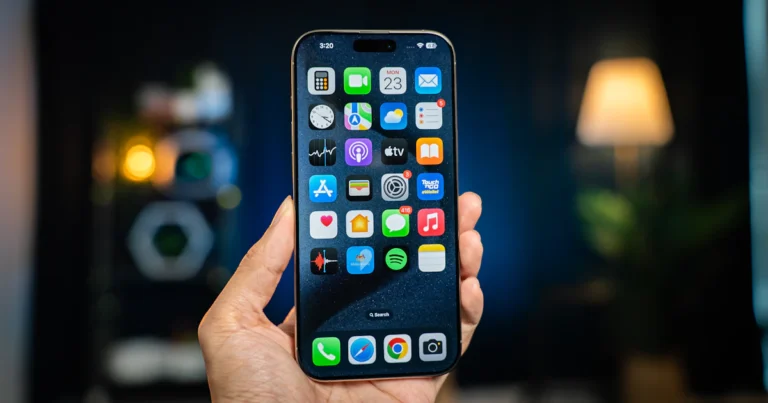
- Swipe left past your last Home Screen page to open the App Library.
- Scroll to the bottom and tap the Hidden folder.
- Unlock it with Face ID, Touch ID or your passcode, then tap the app to open it.
You can also see a list of every hidden app in Settings > Apps > Hidden Apps (it asks you to authenticate first).
How to unhide an app
- Open the App Library and tap the Hidden folder, then authenticate.
- Touch and hold the app.
- Tap Don’t Require Face ID (or Touch ID / Passcode) and authenticate.
The app leaves the Hidden folder and shows up in the App Library again. To put it back on a Home Screen page, see the App Library steps further down.
How to lock an app on iPhone without hiding it
If you don’t mind people seeing the icon but don’t want them opening it (a banking app, photos vault or notes app, for example), lock it instead:
- Touch and hold the app icon on the Home Screen.
- Tap Require Face ID (or Touch ID / Passcode).
- Tap Require Face ID again and authenticate.
From now on the app asks for your face, fingerprint or passcode every time it opens. According to Apple, information from a locked app also stays out of places such as notification previews, Search, Siri suggestions and call history.
Apple lists a few apps that can’t be locked: Calculator, Camera, Clock, Contacts, Find My, Maps, Shortcuts and Settings.
How to remove an app from the Home Screen (keep it in the App Library)
This is the simplest way to hide apps on iPhone without deleting them, and it works on any iPhone with iOS 14 or later. The app keeps working and stays searchable; it just isn’t on your Home Screen.
- Touch and hold the app on your Home Screen.
- Tap Remove App.
- Tap Remove from Home Screen.
Be careful not to tap Delete App in step 3: that removes the app and its data.
Want new downloads to skip the Home Screen too? Go to Settings > Home Screen & App Library and choose App Library Only.
How to get an app back from the App Library
- Swipe left past all your Home Screen pages to reach the App Library.
- Tap the search field at the top and type the app’s name.
- Touch and hold the app, drag it to the left onto a Home Screen page, then tap Done.
How to hide a whole Home Screen page
If you keep games or work apps together on one page, you can hide the entire page in one go:
- Touch and hold an empty area of the Home Screen until the icons start to jiggle.
- Tap the row of dots near the bottom of the screen (on newer iOS versions you may need to tap Edit and then Edit Pages).
- Tap the circle under each page you want to hide, so it is unchecked.
- Tap Done.
To show the page again, repeat the steps and tap the empty circle so it is checked. Apps on a hidden page still appear in the App Library and in Search, so this is about a cleaner screen, not privacy.
What hiding an app does not hide
Apple is clear that a hidden app is not invisible everywhere. Its name can still appear in:
- Settings > Apps > Hidden Apps (behind authentication)
- Settings > Screen Time
- Settings > Battery (Battery Health & Charging)
- Your App Store purchase history
Locking and hiding also apply only to the iPhone where you set them up; they don’t sync to your other Apple devices through iCloud.
Parents, take note: children under 13 in a Family Sharing group can’t lock or hide apps. Teens aged 13 to 17 can, but the parent or guardian can still see that the app was downloaded and how long it’s used, and can limit it with Screen Time (the age limits vary by country). If you are setting up a child’s phone, our guide on how to block adult content on iPhone with Screen Time walks through the restrictions that matter most.
Tips for keeping your iPhone tidy and private
- Set a strong passcode first: Face ID and Touch ID fall back to it, so a weak passcode weakens every locked app.
- Delete apps you no longer use instead of hiding them; it frees space too. Our guide to clearing cache on iPhone covers what else you can clean up.
- Hiding an app does not stop its subscription. If you are hiding an app because you’ve stopped using it, cancel the subscription on your iPhone as well.
For Apple’s own instructions, see Lock or hide an app on iPhone and Organize the Home Screen and App Library on Apple Support.
FAQ
Can you hide apps on iPhone without deleting them?
Yes. Every method here keeps the app and its data. Removing an app from the Home Screen leaves it in the App Library, and hiding it with Face ID moves it into the locked Hidden folder. Only Delete App removes it.
How do I hide apps on iPhone without Face ID?
The same steps work with Touch ID or your passcode. On iPhones with a Home button the menu says Require Touch ID, and the passcode is used when biometrics aren’t available.
Where do hidden apps go on iPhone?
Apps hidden with Face ID, Touch ID or a passcode go into the Hidden folder at the bottom of the App Library. Apps you only removed from the Home Screen stay in their normal App Library category.
Can I hide built-in apps like Messages or Photos?
No. Only apps you downloaded can be hidden. Many built-in apps can still be locked, except Calculator, Camera, Clock, Contacts, Find My, Maps, Shortcuts and Settings.
Which iOS version do I need to lock or hide apps?
Locking apps and the Hidden folder arrived with iOS 18. Removing apps from the Home Screen and hiding pages work from iOS 14 onwards.
Stuck on a gift? Try our free Gift Idea GeneratorIdeas for anyone by age, job, interests and budget, with Amazon.com and Amazon.in linksFind gifts →Get our free weekly email: new tech guides and tools, no spam.
New and updated tech guides, a free tool worth bookmarking and one useful pick, once a week. No spam, unsubscribe anytime.
One email a week. Unsubscribe anytime. See our privacy policy.