Strange Alternative Keyboard Designs: Blank Keys, Dvorak, Split and More
What do you look for when you buy a keyboard? There are far more alternative keyboard designs than most people imagine, from keyboards with blank keys to split and ergonomic models and different key layouts. This guide covers the strangest and most useful ones and who each design suits.
Quick answer: The main alternatives to a standard keyboard are blank-key keyboards for touch typists, alternative layouts such as Dvorak and Colemak, split and ergonomic keyboards that keep your wrists straighter, and on-screen virtual keyboards. Most people are best served by a standard QWERTY keyboard, but if you type all day, an ergonomic or split design is worth a try.
Table of Contents
Popular alternative keyboard designs
Keyboards with blank keys
I am sure you have heard about the keyboard with blank keys! The Das Keyboard for uber-geeks uses blank keycaps to push you into true touch typing, since you can’t look down for help. Das Keyboard (external site) still makes keyboards, and blank keycaps are still an option for writers who touch type.

Alternative layouts: Dvorak and Colemak
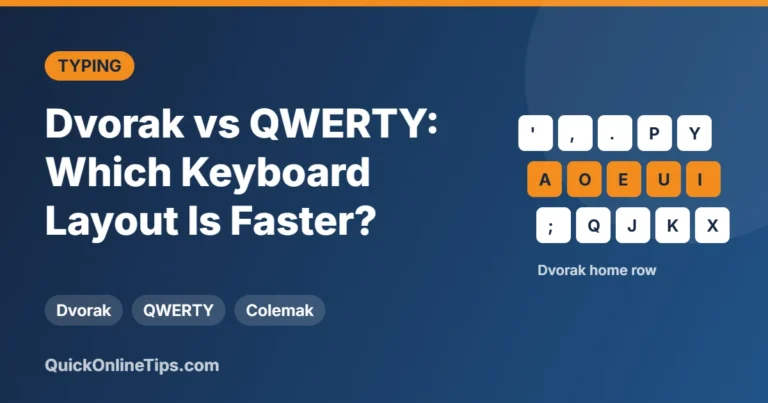
Most of us use QWERTY keyboards, named after the first six letters on the top row. A whole community uses Dvorak keyboards, claimed to be a faster, easier and more comfortable alternative to QWERTY. Colemak (external site) is a newer layout that keeps many common shortcut keys in place, which makes switching easier.
You don’t need a new keyboard to try them. Windows, macOS and Linux include Dvorak as a built-in layout option, and you can switch back any time.
Split and ergonomic keyboards
Split keyboards separate the left and right halves so your hands sit at shoulder width and your wrists stay straighter. Ergonomic keyboards often add a curved key bed, a raised middle (called “tenting”) and a padded palm rest. If you type for hours, an ergonomic keyboard or a split keyboard may feel more comfortable after a short adjustment period.
Virtual and on-screen keyboards
I use virtual keyboards on public computers to protect against keyloggers and spyware. Windows has its own On-Screen Keyboard. It is mainly an accessibility feature, and clicking keys instead of typing them adds a little privacy on public machines.
How to choose among alternative keyboard designs
- Wrist or shoulder discomfort: try a split or ergonomic keyboard first.
- Want to type faster: learn proper touch typing on QWERTY before switching layouts; the layout matters less than practice.
- Curious about layouts: try Dvorak or Colemak in software before buying any special hardware.
- Shared or public computers: use the on-screen keyboard for passwords, and avoid logging into sensitive accounts on them at all if you can.
Keep your keyboard clean
Just when you thought everything was safe, keyboards can carry germs too. Read how computer keyboards spread infections and bacteria, and clean your keys regularly.
FAQ
Are alternative keyboard layouts faster than QWERTY?
Fans of Dvorak and Colemak say they are more efficient and comfortable, but the evidence on speed is mixed. Practice makes a much bigger difference for most people.
Why would anyone use a keyboard with blank keys?
Blank keys force you to touch type without looking down, which some typists find helps them learn faster and stay focused.
Do split keyboards help with wrist pain?
They let you keep your wrists straighter, which many people find more comfortable. If you have ongoing pain, see a doctor or physiotherapist as well.
Can I try Dvorak without buying a new keyboard?
Yes. Add the Dvorak layout in your operating system’s keyboard or language settings and switch between layouts as needed.
Disclosure: As an Amazon Associate, QuickOnlineTips earns from qualifying purchases.
Stuck on a gift? Try our free Gift Idea GeneratorIdeas for anyone by age, job, interests and budget, with Amazon.com and Amazon.in linksFind gifts →Get our free weekly email: new tech guides and tools, no spam.
New and updated tech guides, a free tool worth bookmarking and one useful pick, once a week. No spam, unsubscribe anytime.
One email a week. Unsubscribe anytime. See our privacy policy.