
How to Customize the WordPress Login Screen (Branding, Custom URL and Security)
The WordPress login screen at /wp-login.php is the page you, your authors and your clients see every day, and out of the box it looks identical on millions of sites. When you customize the WordPress login screen you can give it your own branding, move it away from bots that hammer the default address, and add security that keeps intruders out. This guide covers all three, with plugin and code options for each.
Quick answer: For branding, use a plugin such as LoginPress or a few lines of code in your child theme with the login_enqueue_scripts hook. For a custom login URL, use a plugin such as WPS Hide Login. For security, add two-factor authentication and limit login attempts. Never edit WordPress core files: updates overwrite them.
Table of Contents
Why customize the WordPress login screen?
- Branding: clients and team members see your logo and colours instead of the WordPress logo.
- Trust: a branded page tells users they are on the right site, which matters on membership and client sites.
- Less bot traffic: automated scripts try the default login address on almost every WordPress site.
- Security: the login page is the front door to your dashboard, so it deserves the strongest lock.
Option 1: customize the login screen with a plugin
A plugin is the easiest route if you do not want to touch code, and the settings survive theme changes.
- LoginPress: a visual customizer for the logo, background, form, buttons, error messages and footer links, with a custom CSS box for extra tweaks.
- Your theme: some themes include their own login page options, so check your theme settings before adding a plugin.
With LoginPress installed, open its customizer, upload your logo, set a background colour or image, adjust the form style and publish. The changes apply to the standard login, lost password and registration screens.
Option 2: customize the login screen with code
If you prefer no extra plugins, a small snippet in your child theme’s functions.php (or a code snippets plugin) does the job. WordPress provides hooks made for this:
- login_enqueue_scripts: load your own CSS on the login page, for example to replace the logo and change colours.
- login_headerurl: make the logo link to your homepage instead of WordPress.org.
- login_headertext: change the logo’s link text to your site name.
A minimal example that links the logo to your own site:
add_filter( 'login_headerurl', function() { return home_url(); } );
add_filter( 'login_headertext', function() { return get_bloginfo( 'name' ); } );
For the full copy-paste code that swaps the logo, sets a dark background and styles the form, see our step-by-step guide to customize the WordPress login page logo and CSS.
Option 3: use a custom login URL
Every WordPress site answers at /wp-login.php and /wp-admin/, so bots try those addresses with guessed passwords all day. Moving the login page to an address only you know cuts that noise. WPS Hide Login lets you pick a new login address in Settings without editing core files.
- Bookmark the new address straight away. If you forget it, you can disable the plugin by renaming its folder over FTP or your host’s file manager.
- Tell your authors and clients the new address.
- Treat it as noise reduction, not real protection: it does not replace strong passwords and two-factor authentication.
Secure the WordPress login screen
Branding makes the login page look good; these steps keep it safe.
- Two-factor authentication: the free Two Factor plugin adds authenticator app codes, email codes and backup codes to the login form.
- Limit login attempts: Limit Login Attempts Reloaded locks out IP addresses that keep guessing passwords.
- Strong, unique passwords for every account, stored in a password manager.
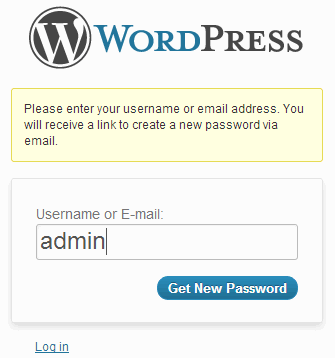
- Avoid the username “admin” and remove old accounts you no longer use.
- Use HTTPS so login details are encrypted on the way to your server.
- Be careful with “Remember Me” on shared or public computers, and log out when you finish.
Locked out after all that? Here is how to change a WordPress password with phpMyAdmin.
Plugins vs code: which should you choose?
- Choose a plugin if you want a visual editor, manage sites for clients, or switch themes often.
- Choose code if you only need a logo and colour change and want to keep plugins to a minimum.
- Either way, put code in a child theme or snippets plugin, never in the parent theme or core files, so updates do not wipe it.
What changed since 2007
When we first wrote this post in 2007, the trick (shared with us by blogger Rishi Raj) was to replace the background images inside the /wp-admin/images folder. That no longer works: the login screen has been redesigned many times, and any file you change in wp-admin is overwritten by the next WordPress update. Hooks, plugins and a proper security setup are the reliable way today.
FAQ
How do I change the logo on the WordPress login screen?
Use a plugin such as LoginPress, or add CSS through the login_enqueue_scripts hook in your child theme. Our login logo and CSS guide has the code.
Is it safe to change the WordPress login URL?
Yes, with a maintained plugin. Keep a note of the new address and know how to disable the plugin over FTP in case you get locked out.
Will my login customizations survive WordPress updates?
Yes, if they live in a plugin or child theme. Changes made directly to core files are lost on update.
Does customizing the login screen slow down my site?
No. The login page loads separately from your public pages, so a logo and a little CSS make no difference to visitors.
Get our free weekly email: new tech guides and tools, no spam.
New and updated tech guides, a free tool worth bookmarking and one useful pick, once a week. No spam, unsubscribe anytime.
One email a week. Unsubscribe anytime. See our privacy policy.



Egads, please don’t edit the WordPress core. Put customizations where they belong — in a theme or plugin.
The relevant API functions are the login_* filters, which have been available since WP 2.1 (January 2007):
https://codex.wordpress.org/Plugin_API/Filter_Reference
https://codex.wordpress.org/Plugin_API/Action_Reference/login_head
https://codex.wordpress.org/Plugin_API/Filter_Reference/login_headerurl
A walk-through article on the proper technique is available here:
https://www.problogdesign.com/wordpress/custom-wordpress-login-screen/
I want to make my login screen look like a bing page. With the nice graphics
Thank you for the very well explained info, i’m designing a wordpress theme, i never took into consideration the login page, but now I know it’s importance :) thanks