
TinEye Reverse Image Search: How to Use It and Find Copied Photos (2026)
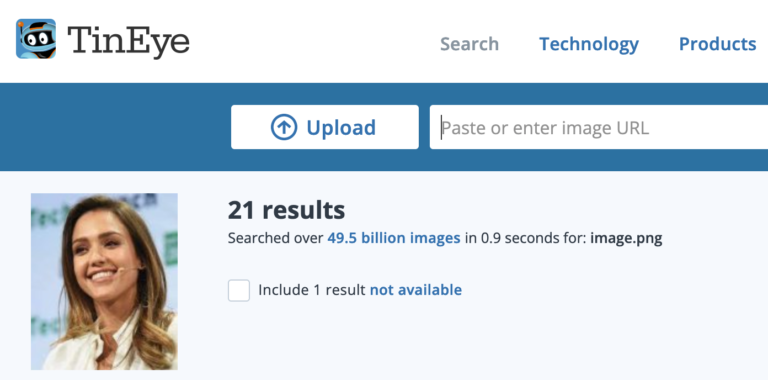
When TinEye launched in private beta in May 2008, it was one of the first search engines that let you upload a photo instead of typing keywords. I used it to find copies of an image across the web, including cropped and Photoshopped versions. TinEye reverse image search is still free and still one of the best tools for tracking where a picture came from. Here’s how to use it in 2026.

Quick answer: Go to tineye.com, upload an image, drag it in, or paste the image URL, and TinEye lists every page where it found matching copies. Sort results by oldest to find the likely original, by biggest for the highest resolution, or by most changed to find edited versions. It’s free for non-commercial searches and doesn’t save the images you upload.
Table of Contents
How to use TinEye reverse image search
- Open TinEye (external site) in your browser.
- Click Upload, drag an image onto the page, or paste an image URL.
- Review the matches and use the Sort menu: Best match, Most changed, Biggest image, Newest or Oldest.
- Use filters to limit results to a specific website or collection.
- Click Compare to see differences between your image and a match.
TinEye browser extension
Install the TinEye extension for Chrome, Firefox, Edge or Opera, then right-click any image on a web page and choose Search image on TinEye.
What TinEye is good for
- Finding who copied your photos and blog images, so you can ask for credit or removal.
- Checking fake news and scams: the oldest copy often reveals a recycled or out-of-context photo.
- Spotting fake profiles that use stolen pictures.
- Finding higher resolution versions of an image.
TinEye vs Google Lens
TinEye matches exact and edited copies of the same image and is great for finding the original source. Google Lens finds visually similar images, products and objects, and has a much larger index. For best results, try both. Our list of the best reverse image search engines compares them with Bing and Yandex.
Limits
- TinEye’s index is smaller than Google’s, so it may miss some copies.
- It doesn’t recognise people’s faces or objects, only matching images.
- Heavy edits or crops can stop a match.
- Commercial and API use is paid.
FAQ
Is TinEye free?
Yes, for non-commercial searches. Businesses can pay for API access and alerts.
Does TinEye store my uploaded images?
TinEye says it doesn’t save or index images you search with.
Can TinEye find a person?
No. It finds copies of the same image, not other photos of the same face.
Stuck on a gift? Try our free Gift Idea GeneratorIdeas for anyone by age, job, interests and budget, with Amazon.com and Amazon.in linksFind gifts →Get our free weekly email: new tech guides and tools, no spam.
New and updated tech guides, a free tool worth bookmarking and one useful pick, once a week. No spam, unsubscribe anytime.
One email a week. Unsubscribe anytime. See our privacy policy.

Please let me beta
I would love an invite please!
I felt the need to clarify for anyone else who reads this since I also missunderstood the search engine. Tineye does not search for the content of an image but rather the meta data and file name. Still cool and useful but not what you are expecting by this description.
I would love an invite please.
I want to know how I can use this. invite me too
I would love an invite. I’m trying to buy a ring and I don’t know where to find it.