Favicon for Dark Mode and Light Mode: How to Make One Icon Work on Both
A favicon that looks great on a white browser tab can almost disappear on a dark one. A black logo on a transparent background turns into a dark smudge when someone uses dark mode, and a white logo vanishes in light mode. The fix is a favicon for dark mode and light mode that switches on its own, and you can do it with one file. Here’s how it works in HTML and in WordPress, which browsers support it, and what to do for the ones that don’t.
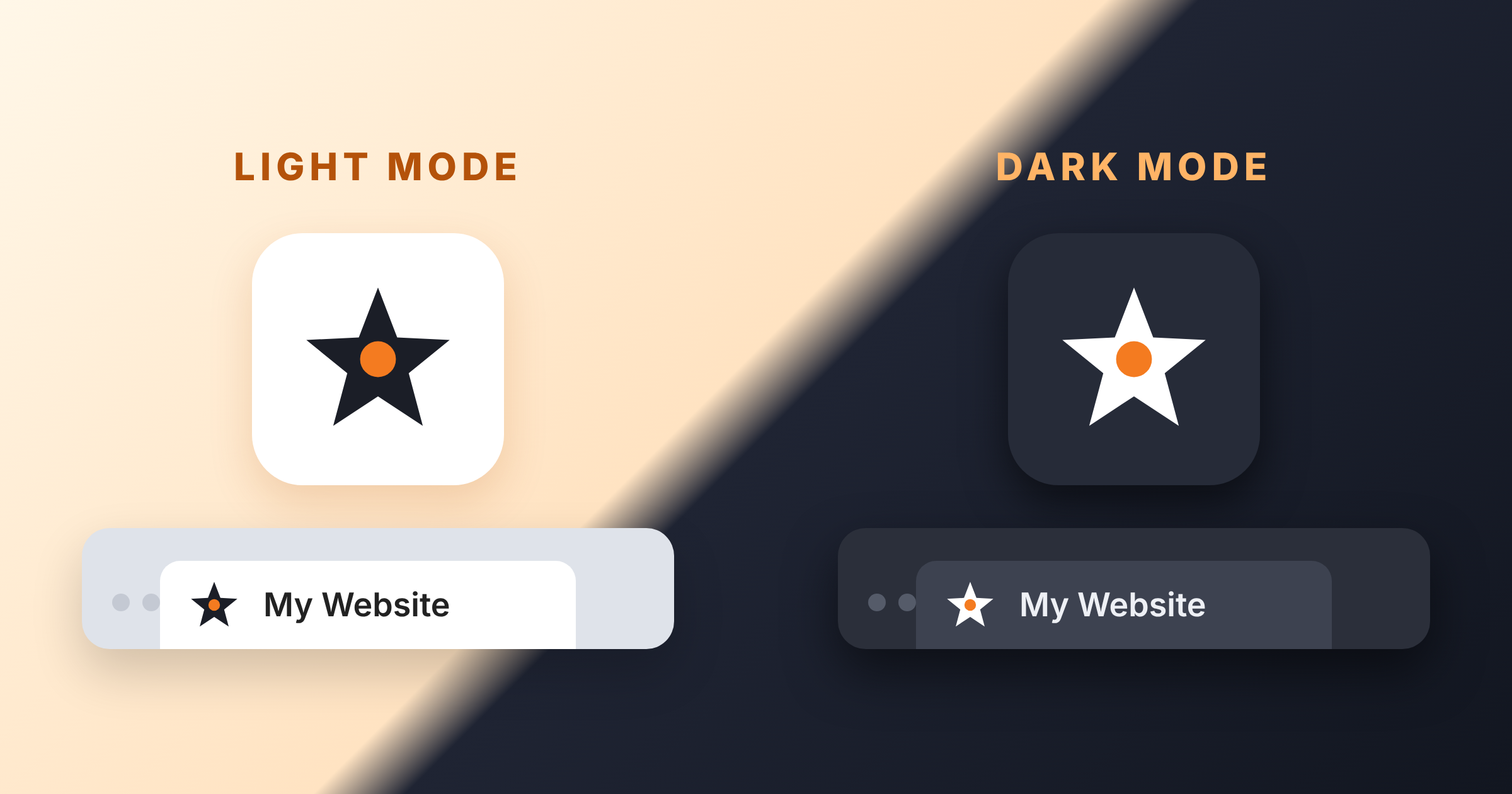
Quick answer: Make one SVG favicon with a small CSS rule inside it:
@media (prefers-color-scheme: dark)changes the colours, or swaps a dark-mode drawing for a light one. Link it as an extra icon after your normal PNG or ICO icons. Chrome, Edge and Firefox then switch it automatically with the browser’s theme. Safari shows the SVG but stays on the light version, so pick light colours that still read on a dark tab, or keep a backing shape behind the icon.
Table of Contents
Why your favicon disappears in dark mode
Most favicons are drawn for a white or light grey tab bar. When the browser or the operating system switches to dark mode, the tab bar turns dark grey or black, but the favicon file stays the same. A dark logo on a transparent background then has nothing to stand out against.
You can see it in your own WordPress admin bar too: WordPress shows your Site Icon in the black bar at the top of every admin screen, so a dark icon is hard to spot there even in light mode.
There are three ways out:
- One adaptive SVG favicon that changes colour by itself. This is the best option for most sites.
- Two separate favicon files chosen with a media query in the link tag. Simple, but only some browsers honour it.
- One icon that works on both, with a white or coloured backing shape. No switching at all, and it works everywhere.
Can one favicon work in both dark and light mode?
Yes. An SVG file is just text, and it can carry its own CSS. Inside that CSS you can use the same prefers-color-scheme media query that websites use for dark themes. When the browser draws the favicon, it checks whether it is in dark mode and applies the matching colours. You upload one file and never touch it again.
The browser decides based on its own light or dark theme, which normally follows your computer or phone setting. That is also what you want: the icon matches the tab bar it sits on, not the colours of your web page.
Method 1: Make an adaptive SVG favicon
Option A: Change the colours inside the SVG
If your icon is a simple shape or a letter that already exists as an SVG (most logo tools and favicon generators can export one), open it in a text editor and add a <style> block. This example draws a dark icon normally and a white one in dark mode:
<svg xmlns="http://www.w3.org/2000/svg" viewBox="0 0 64 64">
  <style>
    .mark { fill: #1b1e27; }
    .accent { fill: #f47b20; }
    @media (prefers-color-scheme: dark) {
      .mark { fill: #ffffff; }
    }
  </style>
  <path class="mark" d="M32 4 39.5 23.5 60 24.5 44 37.5 49.5 58 32 46.5 14.5 58 20 37.5 4 24.5 24.5 23.5Z"/>
  <circle class="accent" cx="32" cy="32" r="7"/>
</svg>
Give each part of your logo a class, set its normal colour, then set the dark-mode colour inside the media query. Brand colours that read on both backgrounds (like the orange dot above) can stay the same. Save the file as favicon.svg.
Option B: Put your light and dark PNG favicons inside one SVG
Maybe you already have two finished favicons: a dark one for light mode and a light one for dark mode, made in Canva or another design app. You don’t need to redraw them as vectors. An SVG can hold two images and show only one at a time:
<svg xmlns="http://www.w3.org/2000/svg" viewBox="0 0 96 96">
  <style>
    .dark-icon { display: none; }
    @media (prefers-color-scheme: dark) {
      .light-icon { display: none; }
      .dark-icon { display: inline; }
    }
  </style>
  <image class="light-icon" width="96" height="96" href="data:image/png;base64,PASTE-LIGHT-MODE-PNG-HERE"/>
  <image class="dark-icon" width="96" height="96" href="data:image/png;base64,PASTE-DARK-MODE-PNG-HERE"/>
</svg>
The important detail: the two PNGs must be embedded as base64 data, not linked by URL. When a browser uses an SVG as an image (and a favicon is an image), it does not load other files from inside it, so href="favicon-dark.png" would show nothing. Convert each PNG to base64 with any free “image to base64” converter and paste the long string after base64,. Use small, square PNGs (96×96 is plenty for a tab) so the file stays light.
This is exactly how we set up the favicon on QuickOnlineTips: our black “Q” with its orange tail shows on light tabs, and a white “Q” takes over on dark tabs.
Add the SVG favicon to your page
Upload favicon.svg to your site (the root folder is easiest) and add the link tag to the <head>, after your existing icons:
<link rel="icon" href="/favicon.ico" sizes="32x32">
<link rel="icon" href="/favicon.svg" type="image/svg+xml" sizes="any">
<link rel="apple-touch-icon" href="/apple-touch-icon.png">
Keep the ICO or PNG icons. Browsers that can’t use SVG favicons fall back to them, and Google Search doesn’t list SVG among its supported favicon formats, so it needs a PNG or ICO. Our favicon size guide covers every size and format you need alongside the SVG.
Method 2: Two favicon files with a media attribute
HTML also lets you point to two separate files and let a media query choose:
<link rel="icon" href="/favicon-light-tab.png" media="(prefers-color-scheme: light)">
<link rel="icon" href="/favicon-dark-tab.png" media="(prefers-color-scheme: dark)">
It looks tidy, but browser support is patchy. Chrome and other Chromium-based browsers honour the media attribute on icon links. Firefox ignores it and simply uses the last icon tag on the page, so one group of your visitors would get the wrong icon. Unless you only care about Chrome-based browsers, use the adaptive SVG instead. It reaches more browsers and needs one file.
Which browsers support dark mode favicons?
| Browser | SVG favicon | Dark mode switch inside the SVG | media attribute on two icon links |
|---|---|---|---|
| Chrome, Edge and other Chromium browsers | Yes (version 80 and later) | Yes | Yes |
| Firefox | Yes (version 41 and later) | Yes | No |
| Safari (Mac, iPhone, iPad) | Yes (version 26 and later) | No: shows the light version | Don’t rely on it |
| Older Safari and old browsers | No: uses your PNG or ICO | No | No |
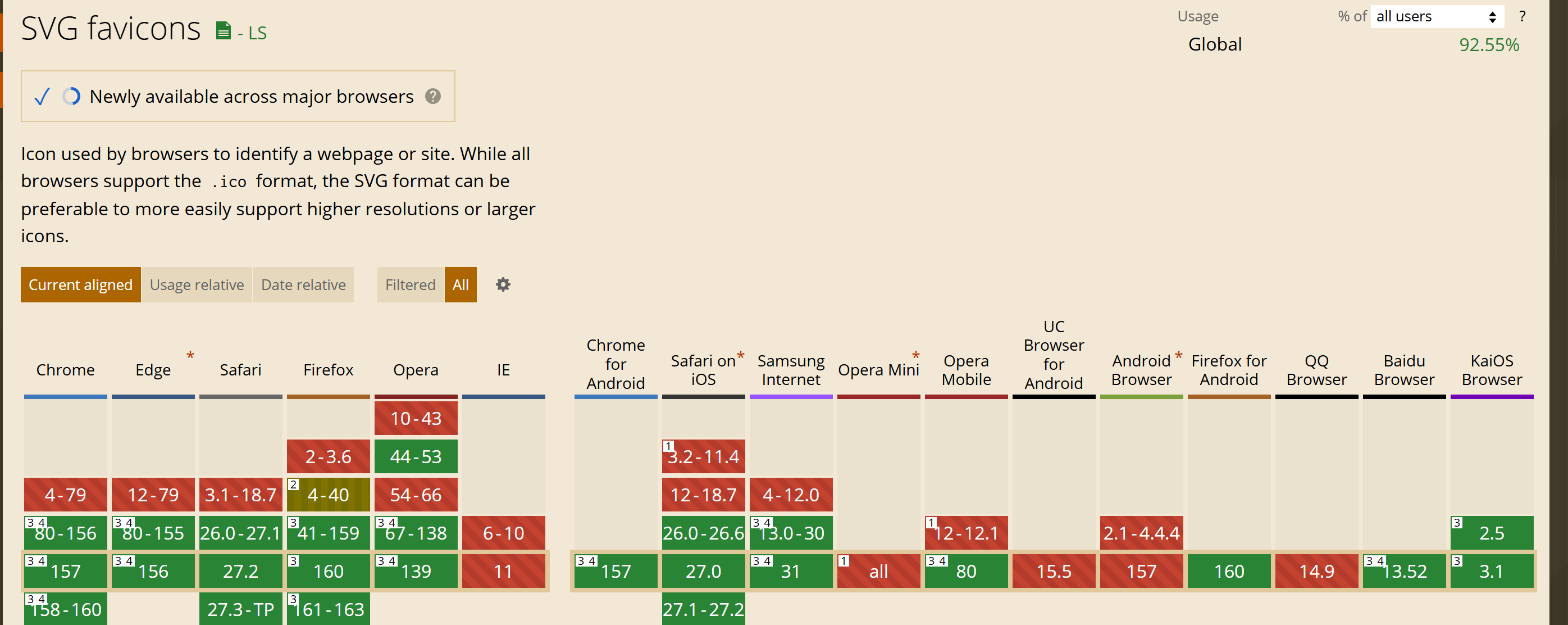
The Safari catch: Safari now shows SVG favicons, but it ignores the dark-mode media query inside them, so Safari users in dark mode still see your light-mode drawing. Plan for it: make sure the default (light-mode) version still has enough contrast on a dark tab, for example a mid-tone colour, a coloured accent, or a thin light outline. Then the worst case is “a little less crisp”, not “invisible”.
How to add a dark mode favicon in WordPress
WordPress’s Site Icon setting (Settings → General) takes one square image and writes the icon tags for you. It has no dark-mode option, and WordPress blocks SVG uploads to the Media Library by default for security reasons. So keep the Site Icon as your PNG fallback and add the SVG yourself:
- Keep your Site Icon. Leave a square PNG (512×512) in Settings → General. WordPress uses it for the Apple touch icon and older browsers, and Google reads it.
- Upload
favicon.svgby file manager or FTP. In your hosting control panel’s File Manager, put it in the folder where WordPress is installed, next towp-config.php. Openyoursite.com/favicon.svgin a browser to check that it loads. - Add the link tag with a snippet. Install the free Code Snippets (external site, opens in new tab) plugin (or use your child theme’s functions.php), add a new PHP snippet with the code below, set it to run everywhere and activate it.
function myprefix_dark_mode_favicon() {
    echo '<link rel="icon" href="' . esc_url( home_url( '/favicon.svg' ) ) . '" type="image/svg+xml" sizes="any">' . "\n";
}
add_action( 'wp_head', 'myprefix_dark_mode_favicon', 100 );
add_action( 'admin_head', 'myprefix_dark_mode_favicon', 100 );
add_action( 'login_head', 'myprefix_dark_mode_favicon', 100 );
The priority of 100 prints the SVG tag after WordPress’s own Site Icon tags. The three hooks matter:
- wp_head adds it to every page of your site.
- admin_head adds it to the WordPress dashboard. Without it, the admin tabs keep showing the plain Site Icon, which is the classic “my favicon looks dark only in wp-admin” problem.
- login_head covers the login page.
If WordPress lives in a subfolder or you put the file elsewhere, replace home_url( '/favicon.svg' ) with the full address of your file.
Bonus: a readable icon in the black admin bar
The WordPress admin bar is always black, so a dark Site Icon is hard to see there whatever mode you use. A one-line CSS rule shows your light version in the bar instead. Upload a white or light PNG of your icon to the Media Library, copy its URL, and add this to the same snippet:
function myprefix_admin_bar_icon() {
    if ( ! is_admin_bar_showing() ) { return; }
    echo '<style>#wpadminbar #wp-admin-bar-site-name img.site-icon{content:url("https://yoursite.com/wp-content/uploads/icon-white.png");}</style>';
}
add_action( 'wp_head', 'myprefix_admin_bar_icon', 100 );
add_action( 'admin_head', 'myprefix_admin_bar_icon', 100 );
Only logged-in users who see the admin bar get this style, so visitors are not affected.
After any of these changes, clear your caching plugin and CDN so pages serve the new tags.
How to test your favicon in dark mode
- Switch your system theme. Change Windows, macOS, Android or iOS to dark mode, or change your browser’s own theme, and look at the tab. Most browsers update the icon within a few seconds or after a reload.
- Use Chrome DevTools without changing your settings. Press F12, open the menu (three dots) → More tools → Rendering, and set “Emulate CSS media feature prefers-color-scheme” to dark. The favicon follows the emulated setting.
- Open the SVG directly. Visit
yoursite.com/favicon.svgin light and dark mode to see both versions full size. - Beat the favicon cache. Browsers cache icons hard. If nothing changes, try a private window, or add
?v=2to the SVG address in your link tag once.
Method 3: Design one favicon that works on both backgrounds
If you’d rather not deal with any switching, design the icon so it never depends on the tab colour:
- Add a backing shape. A white or coloured circle or rounded square behind your mark gives it its own background on every tab bar.
- Use a mid-tone colour. Strong orange, blue, green or red reads on both white and near-black. Pure black and pure white are the colours that fail.
- Add a thin outline in a contrasting colour around a dark mark.
The trade-off is size: a backing shape makes the mark itself smaller inside the 16-pixel space. That’s why sites that want a big, bold icon in the tab, with no circle around it, use the adaptive SVG. For more ideas on making the icon itself, see our list of free favicon generators.
Common problems and fixes
- The dark version never shows: check that the SVG tag comes after your other icon tags, that the file is served as
image/svg+xml, and that you are not testing in Safari. - The SVG favicon is blank: the images inside it are probably linked by URL. Embed them as base64 data instead.
- Dark only in the WordPress dashboard: your snippet only uses
wp_head. Addadmin_headandlogin_head. - Google still shows the old icon: Google uses the PNG or ICO, not the SVG, and only updates after it recrawls your homepage. The size guide linked above explains how to request that.
- The icon changes with the website’s theme toggle, not the browser: favicons follow the browser’s light or dark setting. A dark-mode button on your own site does not change them.
Frequently asked questions
Can I upload two favicons for dark and light mode in WordPress?
Not through the Site Icon setting, which takes one image. Keep one PNG as the Site Icon and add an adaptive SVG (holding both versions) with a small code snippet, as shown above.
Does a dark mode favicon work in Safari?
Safari shows SVG favicons but does not apply the dark-mode rule inside them, so it always shows the light-mode version. Choose light-mode colours that still read on a dark tab.
What is prefers-color-scheme?
It is a CSS media query that tells a page or an image whether the user has chosen a light or dark theme. Inside an SVG favicon, it lets the icon pick colours that suit the tab bar.
Do I still need a favicon.ico or PNG?
Yes. Older browsers, some apps and Google Search use bitmap icons, so keep a PNG or ICO alongside the SVG.
Will a dark mode favicon slow down my site?
No. A favicon is one small file that browsers cache. Keep any embedded PNGs small (96×96) and the SVG stays a few kilobytes.
Want the background on why this works? The web.dev article on building an adaptive favicon (external site, opens in new tab) walks through the same technique with a hand-drawn SVG.
Subscribe to our weekly tech newsletter
🎁 Free 100 Tech Terms ebook when you subscribe. Unsubscribe anytime. Privacy