
How to Make a Small Business Booking Website in One Prompt (Bluehost AI Builder Review)
Want customers to book you online without paying for booking software every month? This guide shows how to make a booking website for a small business with AI, from a single prompt. We built a working booking site for a phone repair shop with Bluehost AI Builder, tested every part of it, and share the exact prompt so you can make your own.
A booking website does more than a normal business website. Customers pick a service and a free time slot, and you get every request in one place to approve, track and manage. Booking apps usually mean a monthly fee and a website that doesn’t match your brand. Here the AI builds both the site and the back office from a plain-English description.
Disclosure: This is a sponsored post. Bluehost paid QuickOnlineTips to write about Bluehost AI Builder, and we may earn a commission if you sign up through our links. The opinions, tests and verdict are our own.
Quick answer: Sign up at Bluehost AI Builder (external site, opens in new tab) ($0 to start, no credit card) and describe your business, your services, your opening hours, how bookings should work and what you want to manage, all in one detailed prompt. Our phone repair booking website was ready in about 7 minutes from one prompt and used 1 of the 5 free daily credits. It came with online booking, open time slots, approvals, repair tracking and an admin panel. Publishing on a free address costs nothing; your own domain needs a paid plan (paid plans from $20/mo).
Table of Contents
What we built: a booking website for a phone repair shop
Our example is Mendly Phone Repair, a fictional small shop (all names, addresses and bookings in this guide are samples). We wanted a site where:
- Customers choose their phone, pick a repair with its price and time, book an open drop-off slot and get a booking reference.
- Customers can check progress later with their reference and phone number, and nobody else can see their repair.
- The owner approves or declines each booking, sees today’s drop-offs, updates each job’s status, edits prices and opening hours, and downloads the bookings as a spreadsheet.
- A technician can log in to update jobs but can’t change prices or settings.
That is a real web app with a database and logins, not just pages. If you only need a simple page about yourself, see our guide on how to create a personal website with the same builder.
How to make a booking website in one prompt
Step 1: Sign up free
Open Bluehost AI Builder (external site, opens in new tab) and create an account with your email. The Free plan has no end date and needs no card. It gives you 5 credits a day, up to 30 a month, and every message that creates or changes your site uses 1 credit.
Step 2: Write one detailed prompt
This is the step that matters most. Every change after your first message costs a credit, so put the whole brief in one prompt. A good booking prompt covers six things:
- Your business and the promise you want on the home page.
- The pages you want.
- Your services, each with a typical duration and a starting price.
- The booking rules: slot length, opening hours, closed days, how many bookings per slot, and what the customer fills in.
- The back office: who approves bookings, the statuses a job moves through, the reports or downloads you need, and who else logs in.
- The look: colours, style and “works well on phones”.
This is the exact prompt we used:
Build a booking website for Mendly Phone Repair, a small independent phone repair shop (fictional business, use only fictional sample details). PAGES: Home (hero with a short promise: fast, honest phone repairs, most fixes done the same day), Repairs & Prices, Book a Repair, Track My Repair, FAQ and Contact (fictional address, phone and opening hours Monday to Saturday 10 am to 7 pm, closed Sunday). REPAIRS (each with typical time and starting price): Screen replacement 60 min from $89; Battery replacement 45 min from $59; Charging port repair 45 min from $49; Camera or speaker repair 60 min from $69; Water damage check 30 min, free. BOOKING: the customer picks the phone brand (iPhone, Samsung Galaxy, Google Pixel, OnePlus, Other) and types the model, picks the repair, then picks an open drop-off slot (30-minute slots inside opening hours, no past dates, no Sundays, at most 2 bookings per slot so full slots are hidden), then enters name, mobile number, email and an optional note about the problem. Customers pay in the shop after the repair, no online payment. After booking show a confirmation with a short booking reference like MND-1042 and the drop-off time. TRACK MY REPAIR: the customer enters the booking reference and mobile number to see the current status of their repair; nobody else can see it. ADMIN PANEL (team only, customers never sign in): list of all bookings with filters by date and status; the owner approves or declines each new booking; each job has a status: Pending approval, Booked, Repairing, Ready for pickup, Collected, Declined; a notes field per job; a today view showing the day’s drop-offs; manage the repairs list, prices, times and opening hours; a button to download all bookings as CSV. USERS: the owner (full access) and one technician role who can view bookings and change job status but cannot change prices, hours or users. Do not send emails for now. DESIGN: clean, modern and trustworthy, blue and white with one bright accent colour, simple phone and tool icons, no phone brand logos, large easy buttons, fully mobile friendly. Add a short privacy note on the booking form saying details are used only to manage the repair. Add 6 sample bookings across different statuses so the admin panel can be tested.
To make your own, copy this template and fill in your details:
Build a booking website for [business name], a [type of business] in [city]. PAGES: Home, Services & Prices, Book Now, [Track My Booking], FAQ and Contact (opening hours [days and times], closed [days]). SERVICES: [service 1, duration, price]; [service 2, duration, price]; [service 3, duration, price]. BOOKING: the customer picks a service, then an open [30/60]-minute slot inside opening hours (no past dates, at most [number] bookings per slot), then enters name, phone, email and a note. Customers pay [in person / after the service], no online payment. Show a confirmation with a booking reference. ADMIN PANEL (team only): all bookings with filters; I approve or decline each booking; statuses: [Pending, Confirmed, Completed, Cancelled]; notes per booking; a today view; manage services, prices and hours; download bookings as CSV. USERS: me (full access) and [staff role] who can [what they can do]. DESIGN: [style and colours], fully mobile friendly.
Step 3: Paste the prompt and build
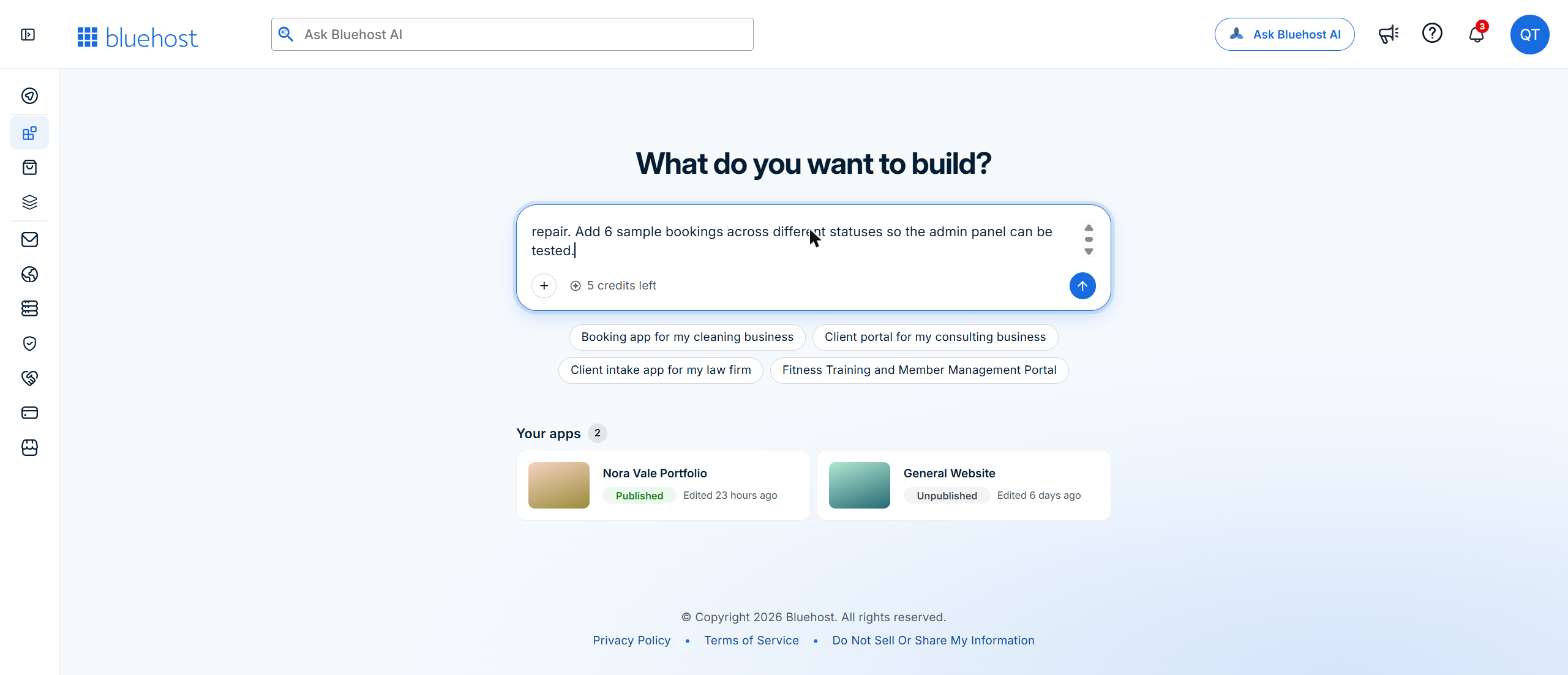
Paste the prompt into the “What do you want to build?” box. The credit counter under it showed 5 credits left. Click the arrow to start.
Step 4: Watch it build
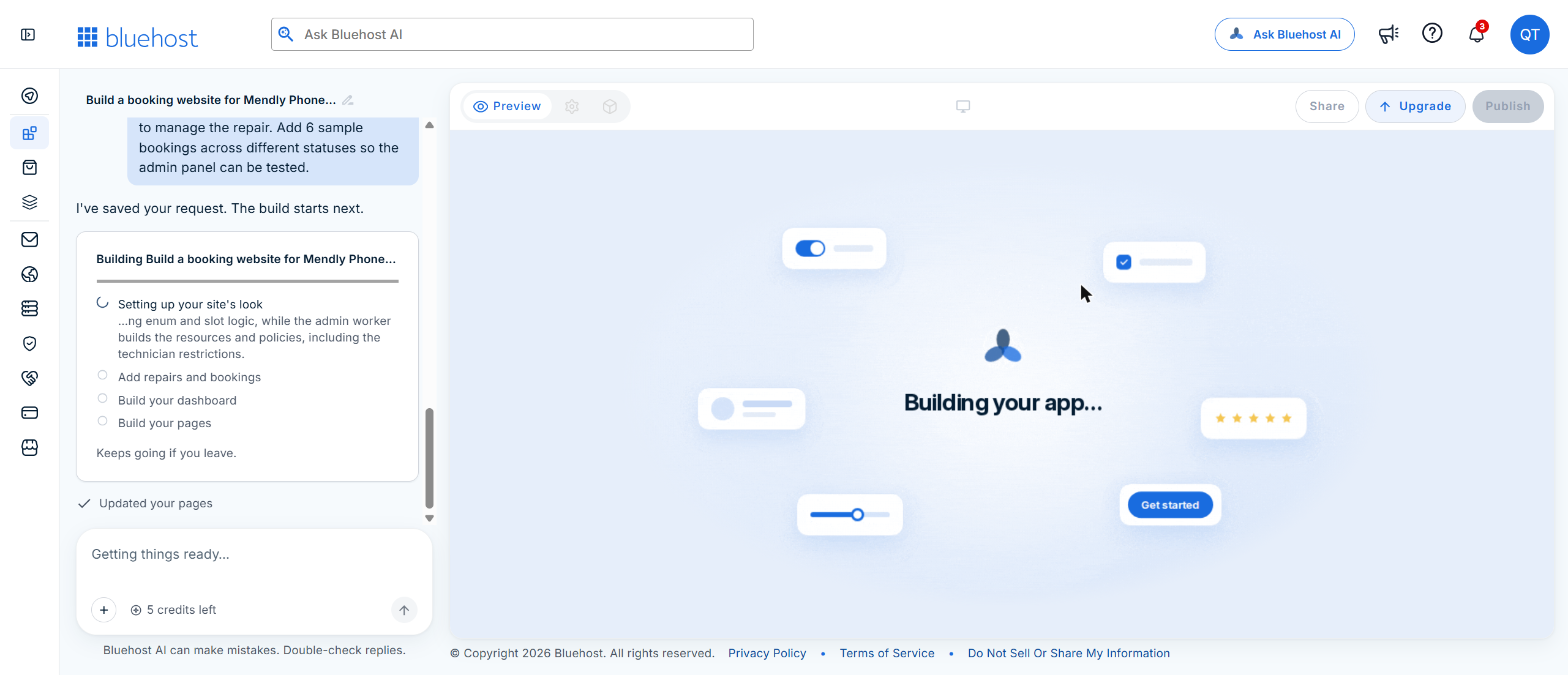
Because the prompt already answered everything, the builder asked us no follow-up questions. It showed “Reading your prompt” and “Understanding your business”, then a checklist: set up the site’s look, add repairs and bookings, build your dashboard, build your pages. The build keeps going if you leave the page.
Step 5: Your booking website is ready
About 7 minutes after we sent the prompt, the site was ready, and the credit counter showed 4 left: the whole booking website cost 1 credit. The AI’s summary listed 6 pages, online booking with open-slot picking, repair tracking by reference and phone number, a technician role and 6 sample bookings, one in each status.
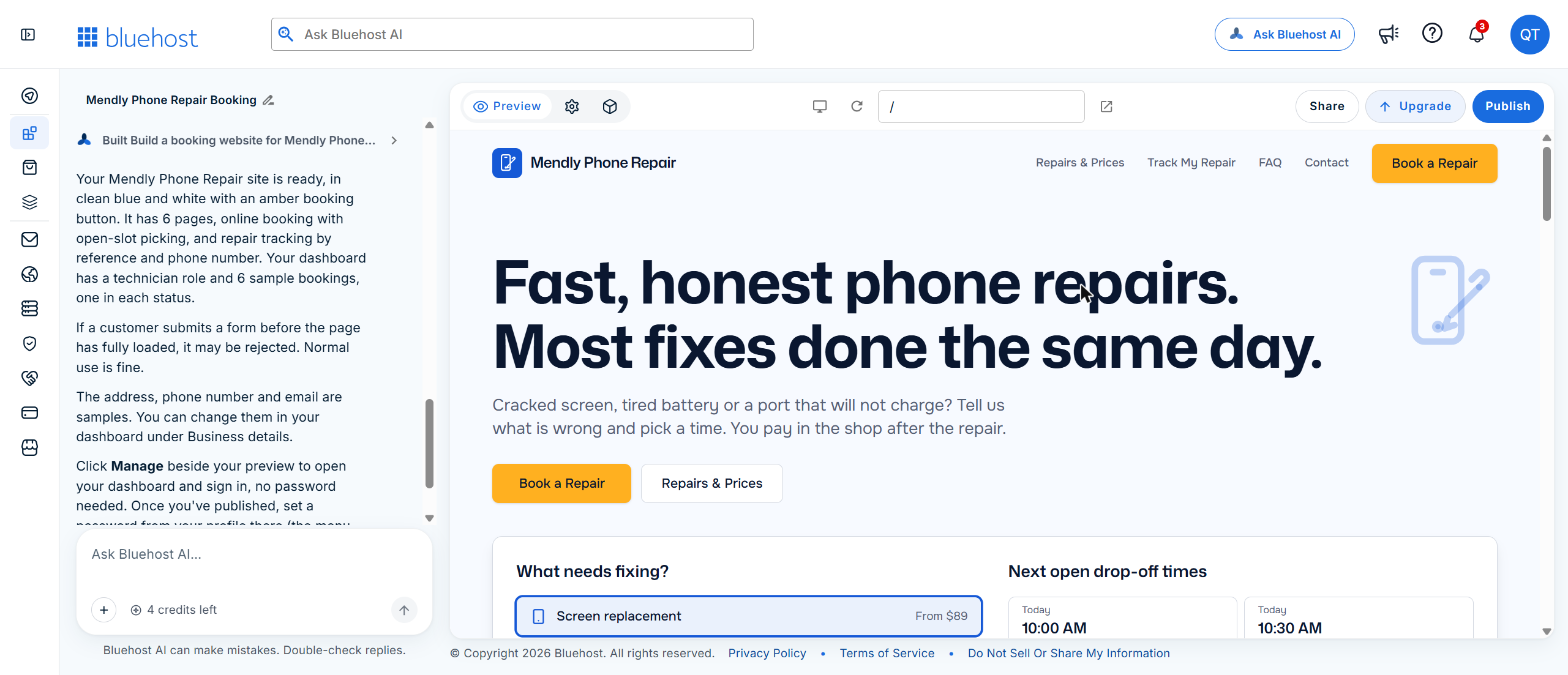
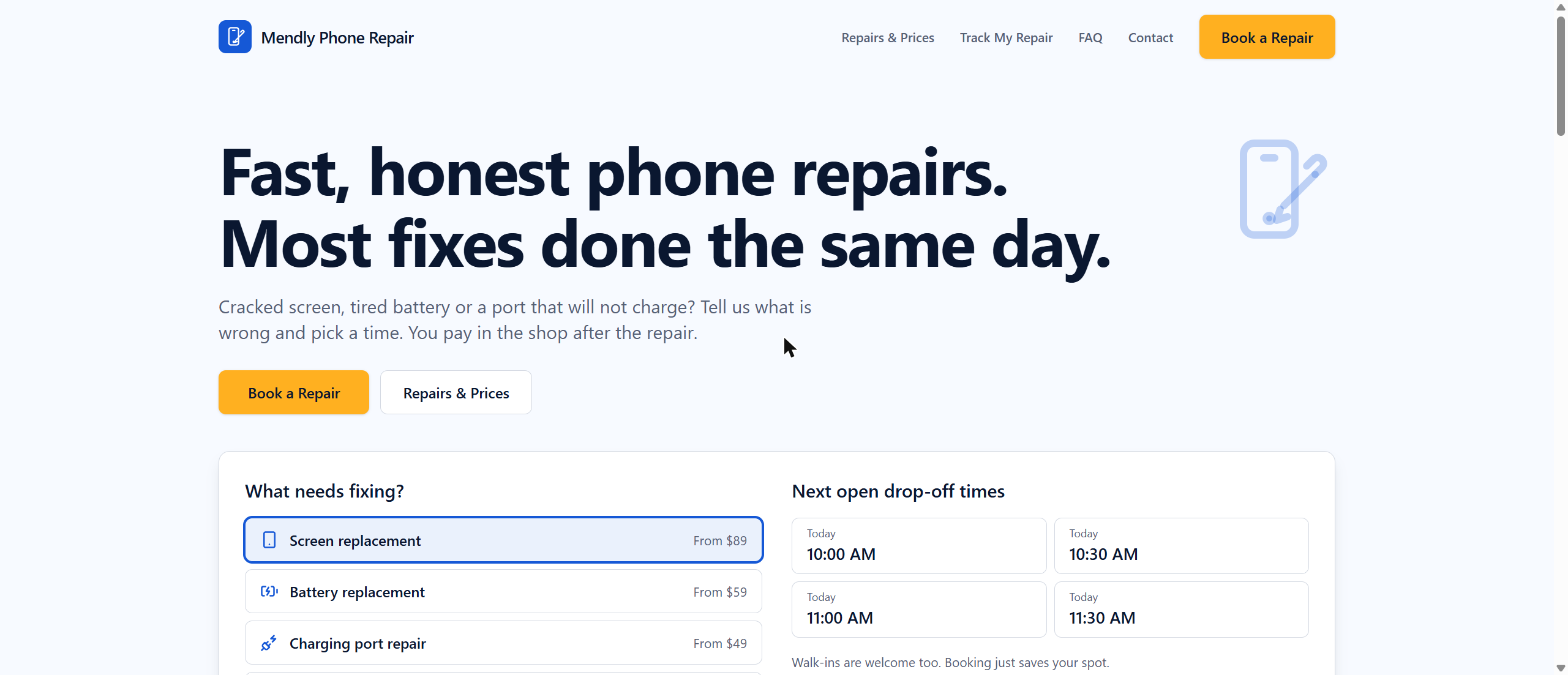
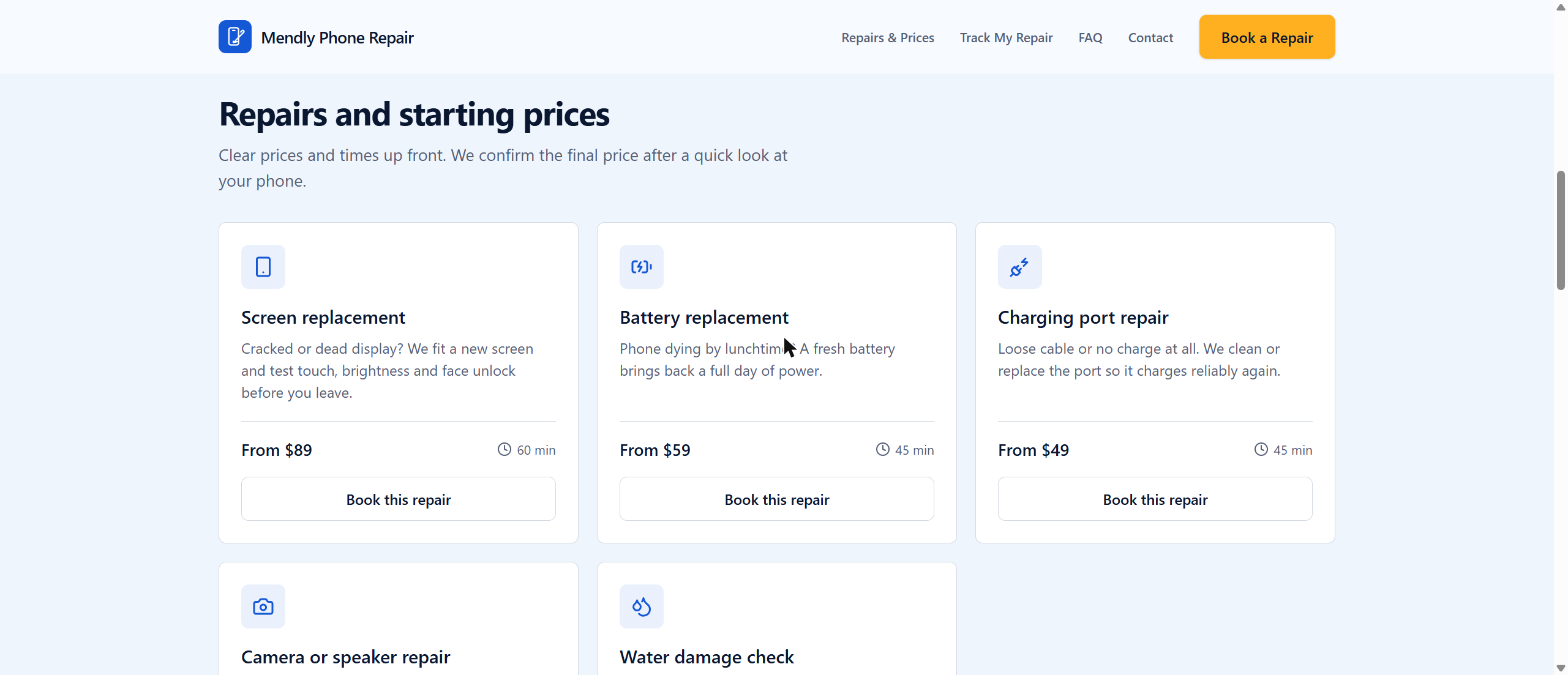
It followed the brief closely: our headline, our five repairs with the right prices and times, a “How it works” section, opening hours in the footer, and an address clearly marked “(sample)” for us to replace.
Step 6: Publish it free
Click Publish at the top right. The panel shows your free .app.bluehost.ai address and options to buy or connect a domain. Click Publish now. Publishing took a few minutes and used no credits.
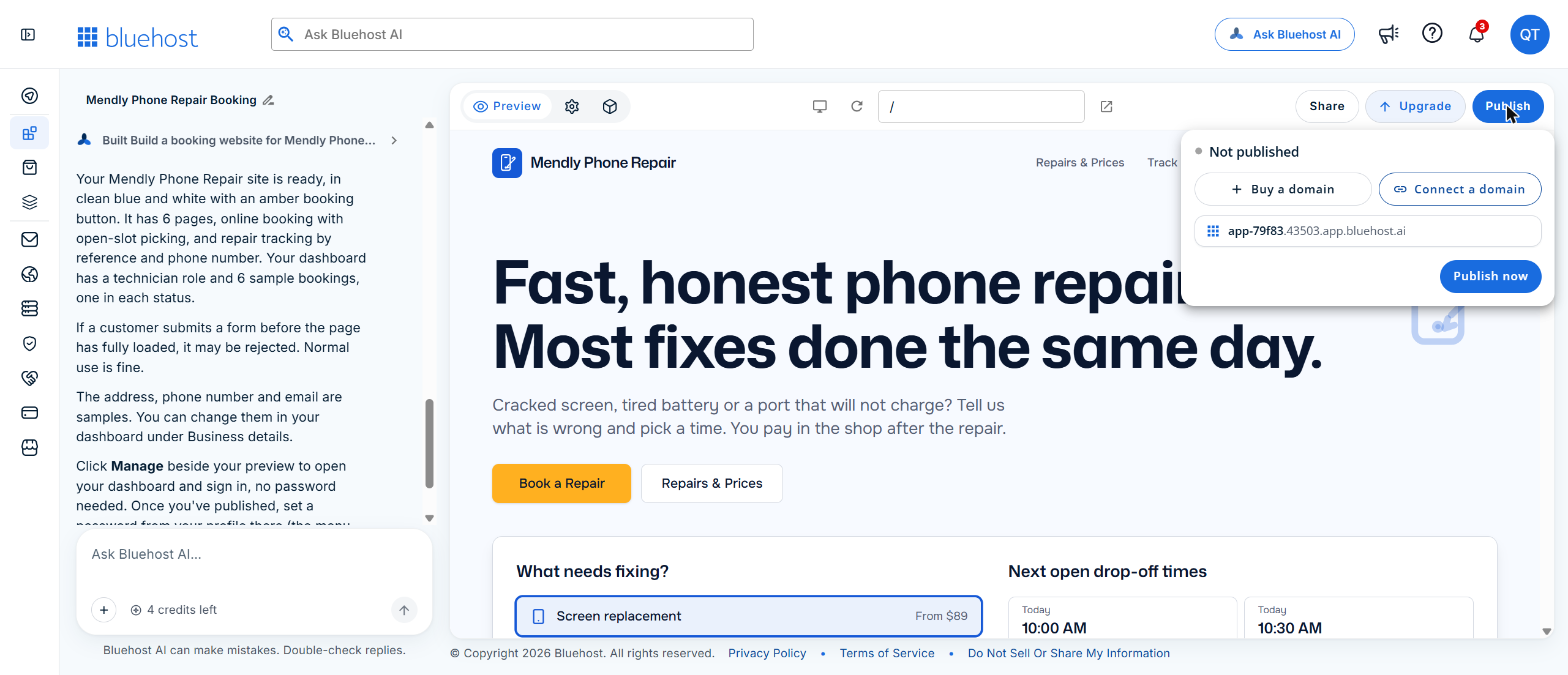
Tip: test your booking form on the published site. In the editor preview, our test bookings were refused with a “Too Many Requests” error, while the same booking went through at once on the live address.
Step 7: Make a test booking
We booked like a customer would. The form has four short steps: your phone, what needs fixing, a drop-off time and your details. Each repair shows its price and time.
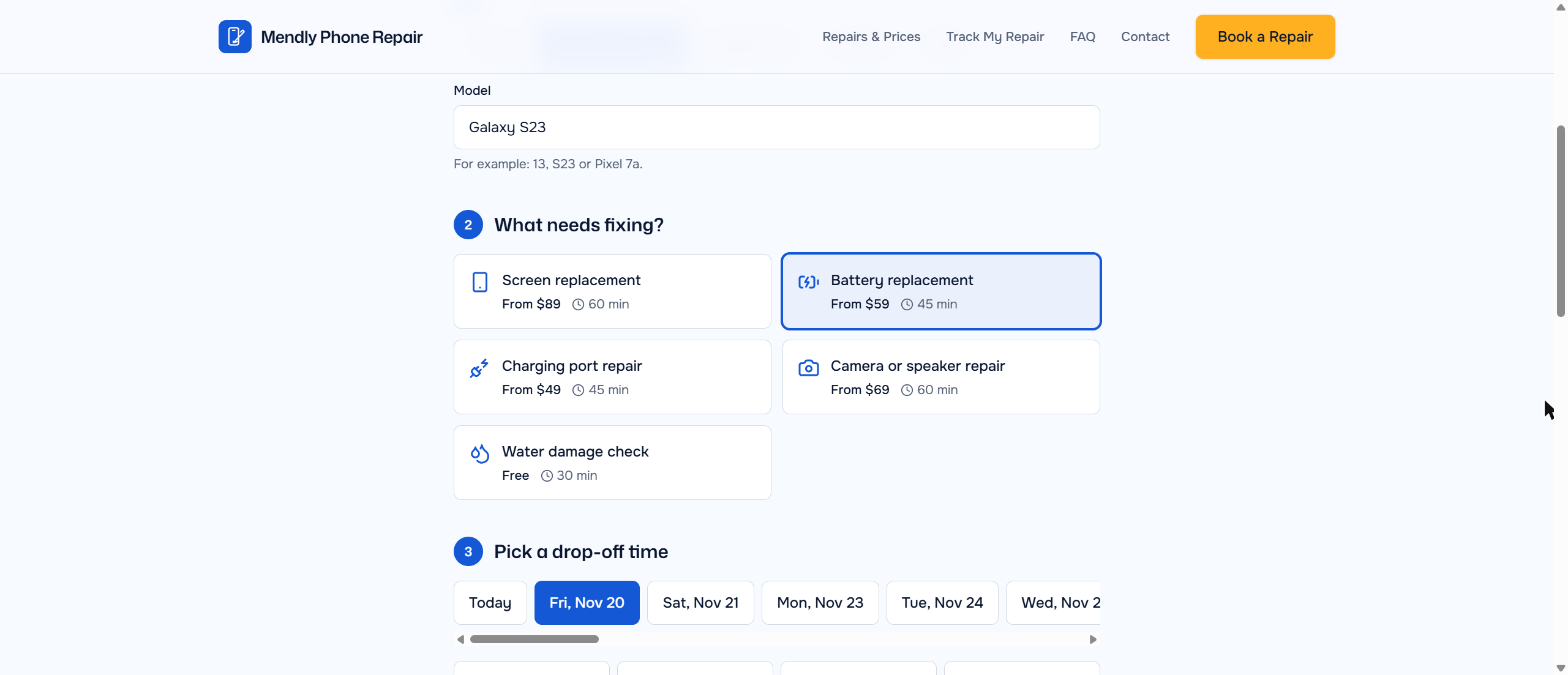
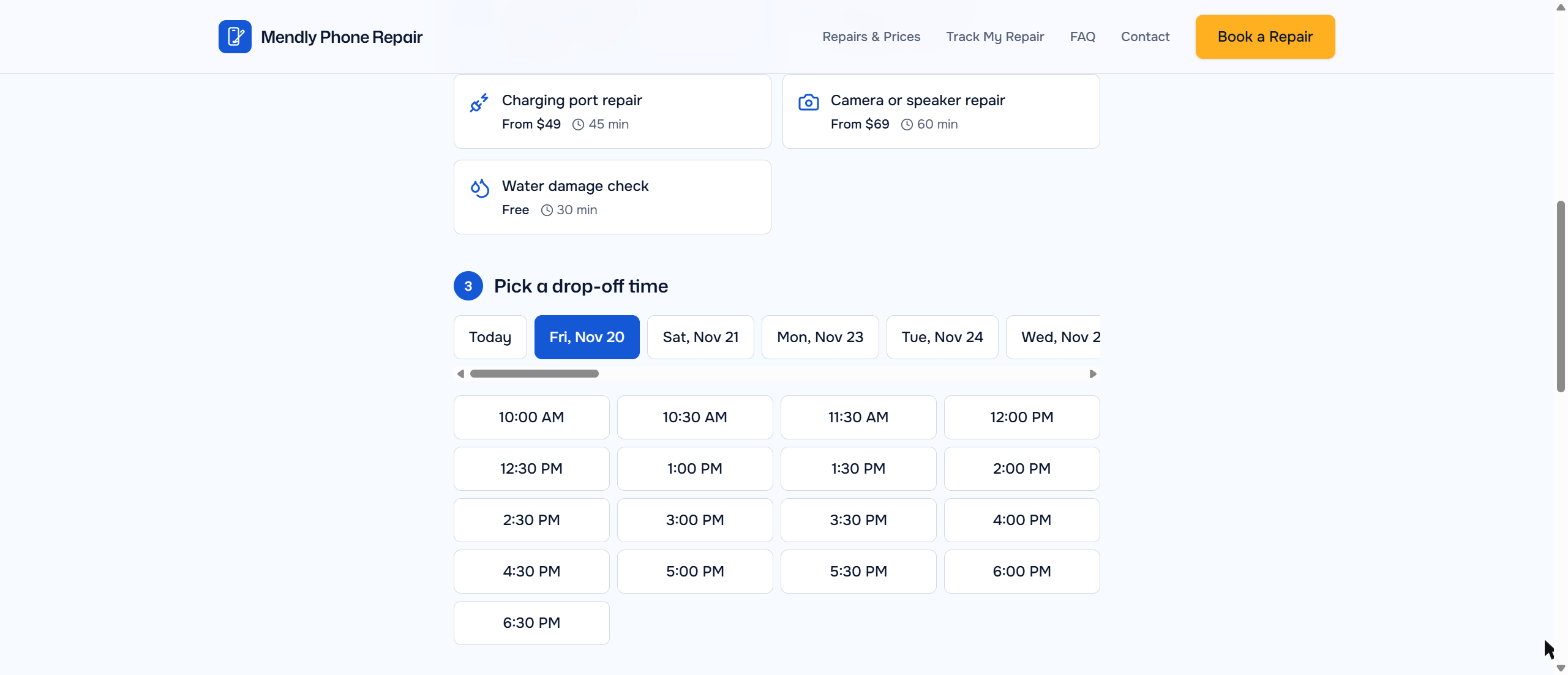
The date strip skips Sundays, as we asked, and shows 30-minute slots within opening hours.
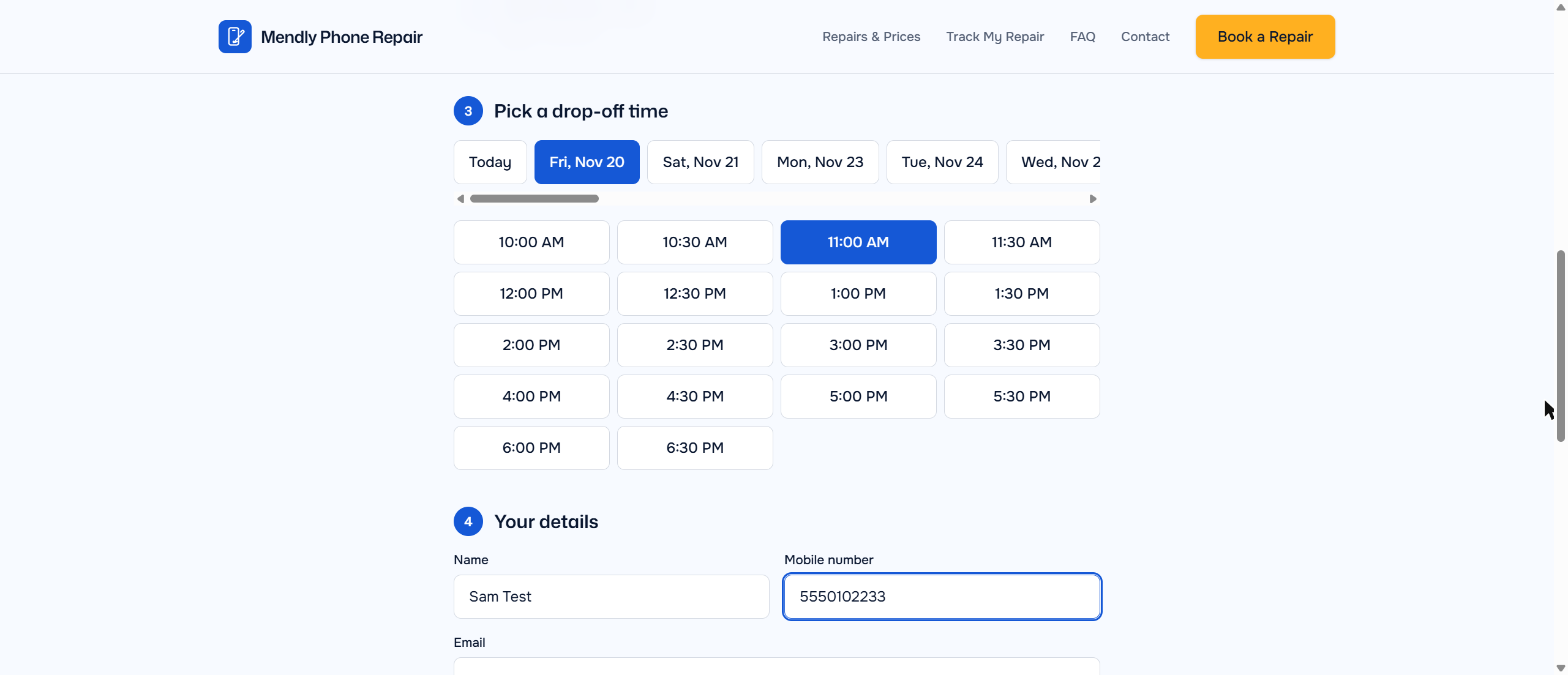
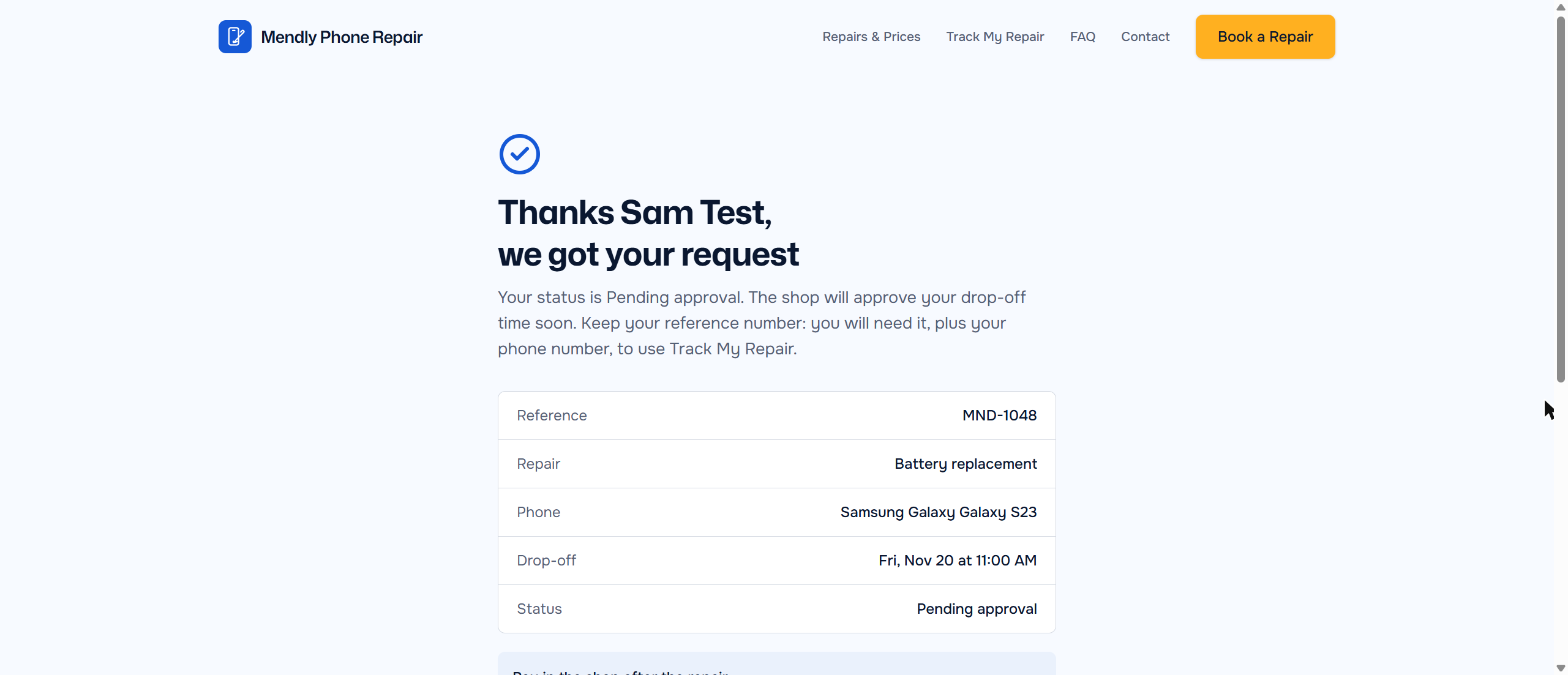
After “Request my repair”, the customer gets a confirmation with a booking reference, the repair, the drop-off time and the status “Pending approval”. Submitting with empty fields doesn’t go through: the form jumps to the first missing field.
Step 8: Run your bookings from the admin panel
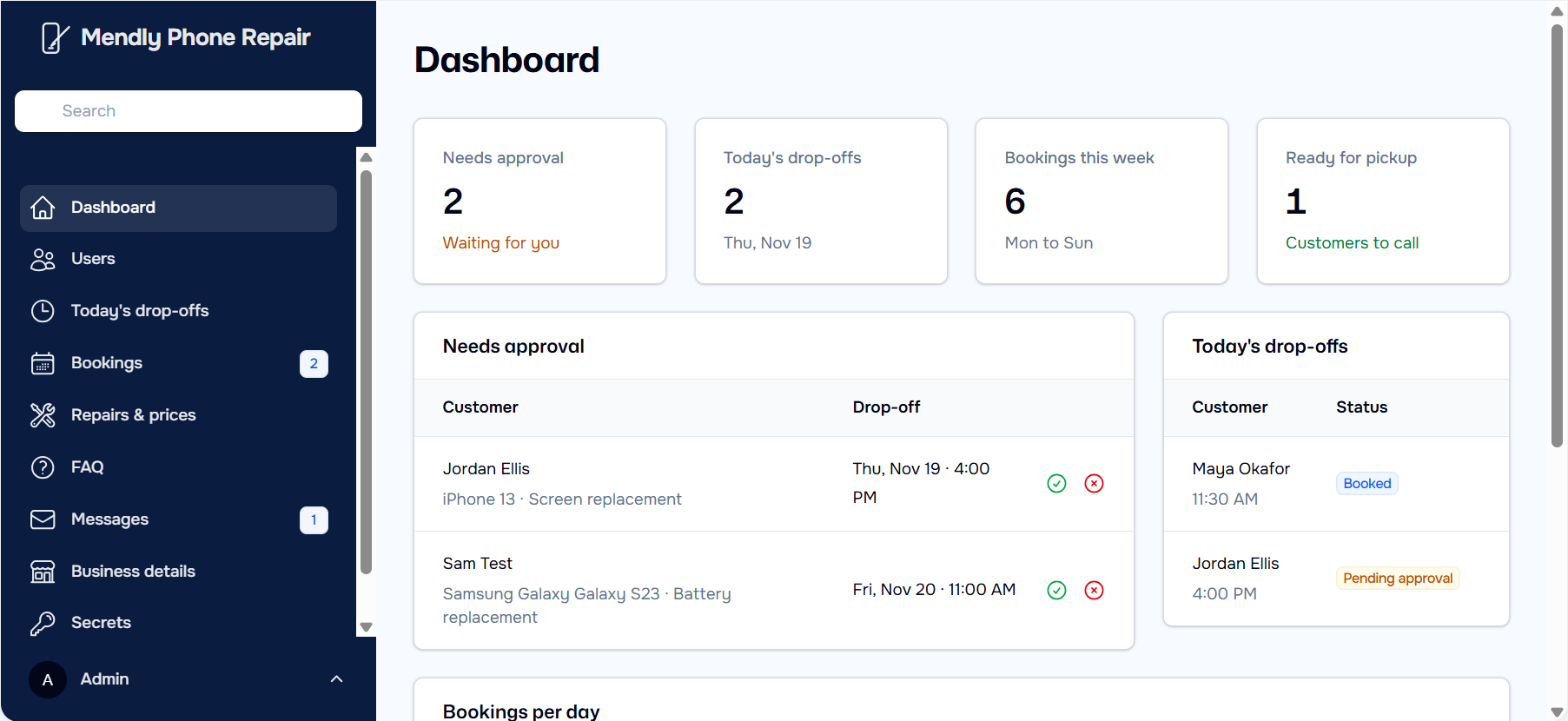
Click Manage beside the preview to open the admin panel; you don’t need a password from inside the builder. After publishing, set a password from your profile to sign in at /admin/login. The dashboard shows what needs your attention: bookings waiting for approval, today’s drop-offs, bookings this week and jobs ready for pickup. Our test booking was waiting with a green tick to approve and a red cross to decline.
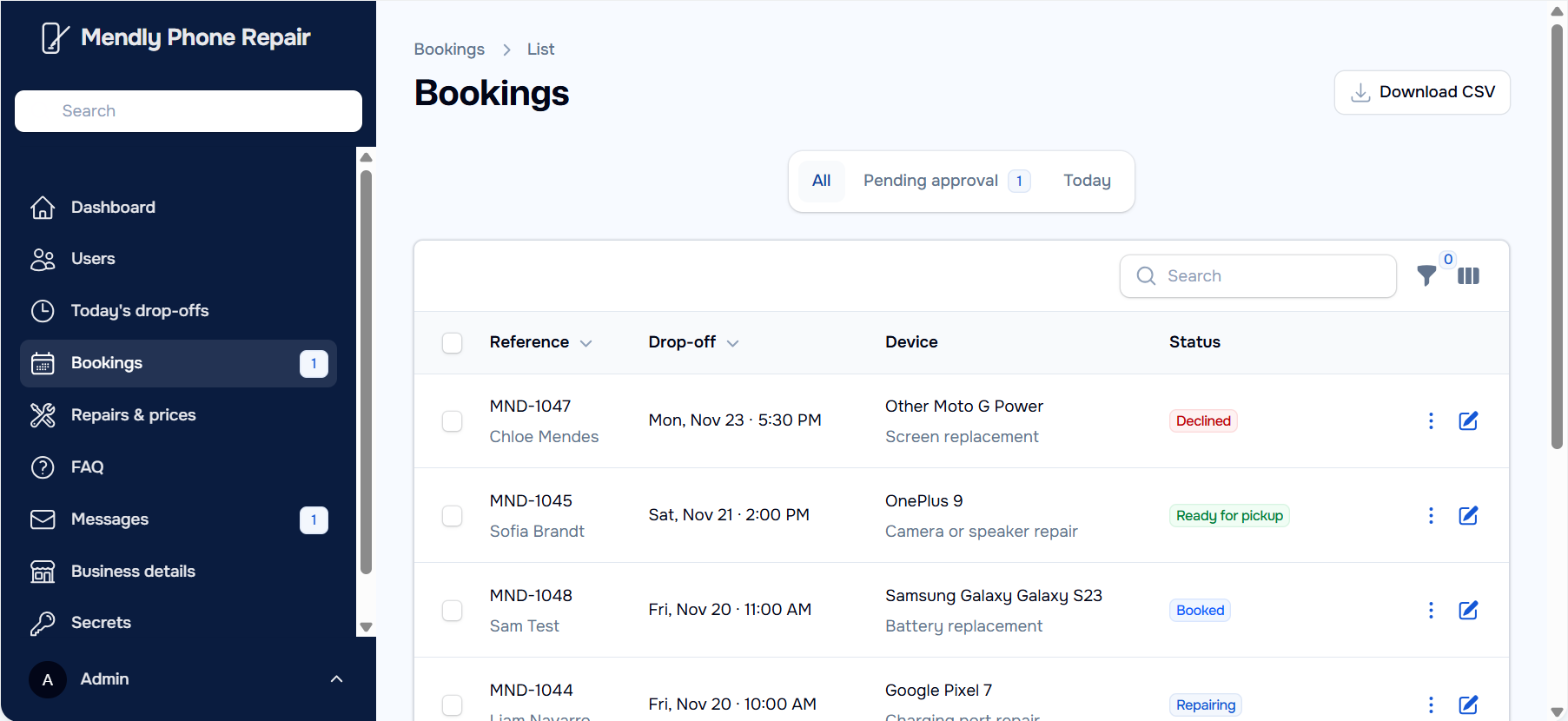
The Bookings page lists every booking with its reference, drop-off time, device and a coloured status, with filters for pending and today, a search box and a Download CSV button for a spreadsheet of all bookings.
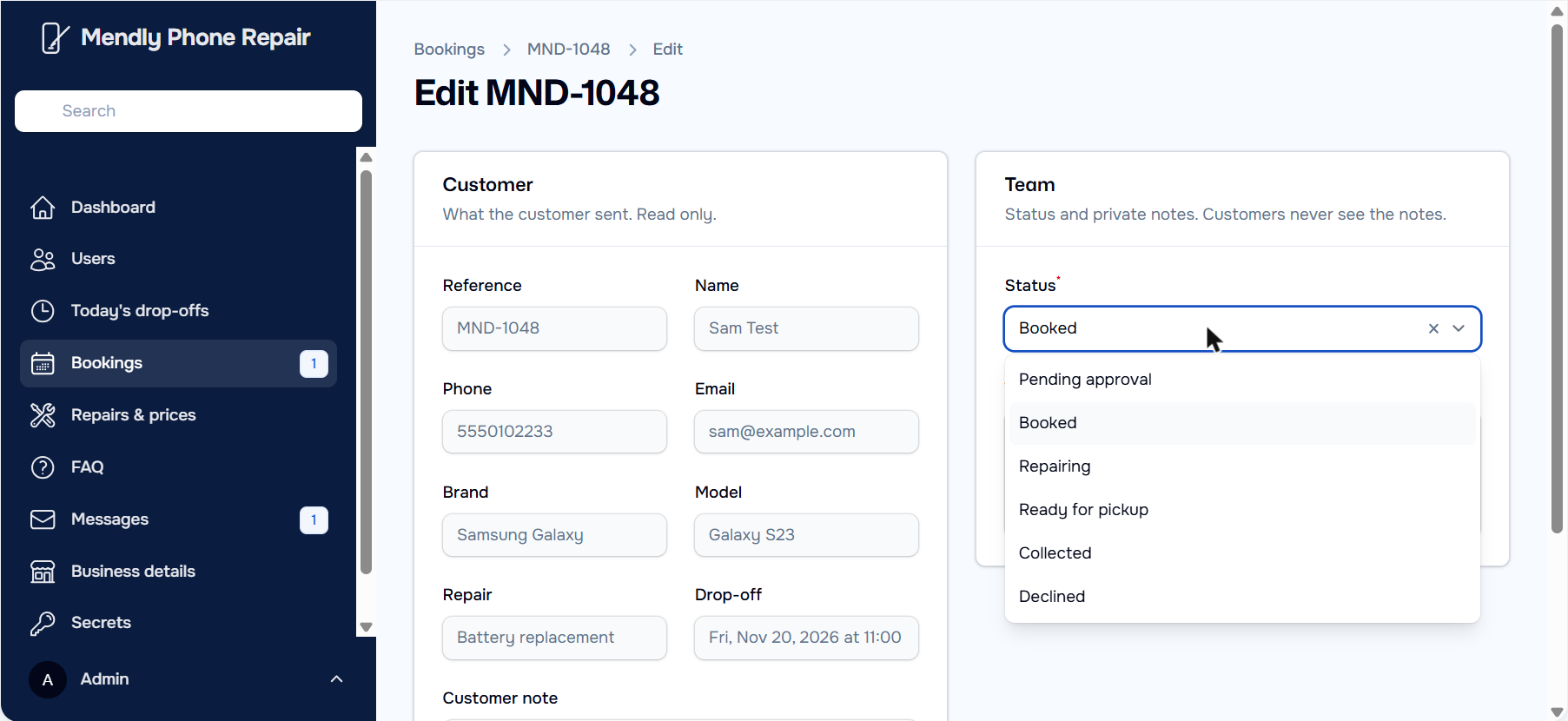
Open a booking to see what the customer sent and to update the job. We moved our test booking from Booked to Repairing and added a private team note.
Step 9: Let customers track their booking
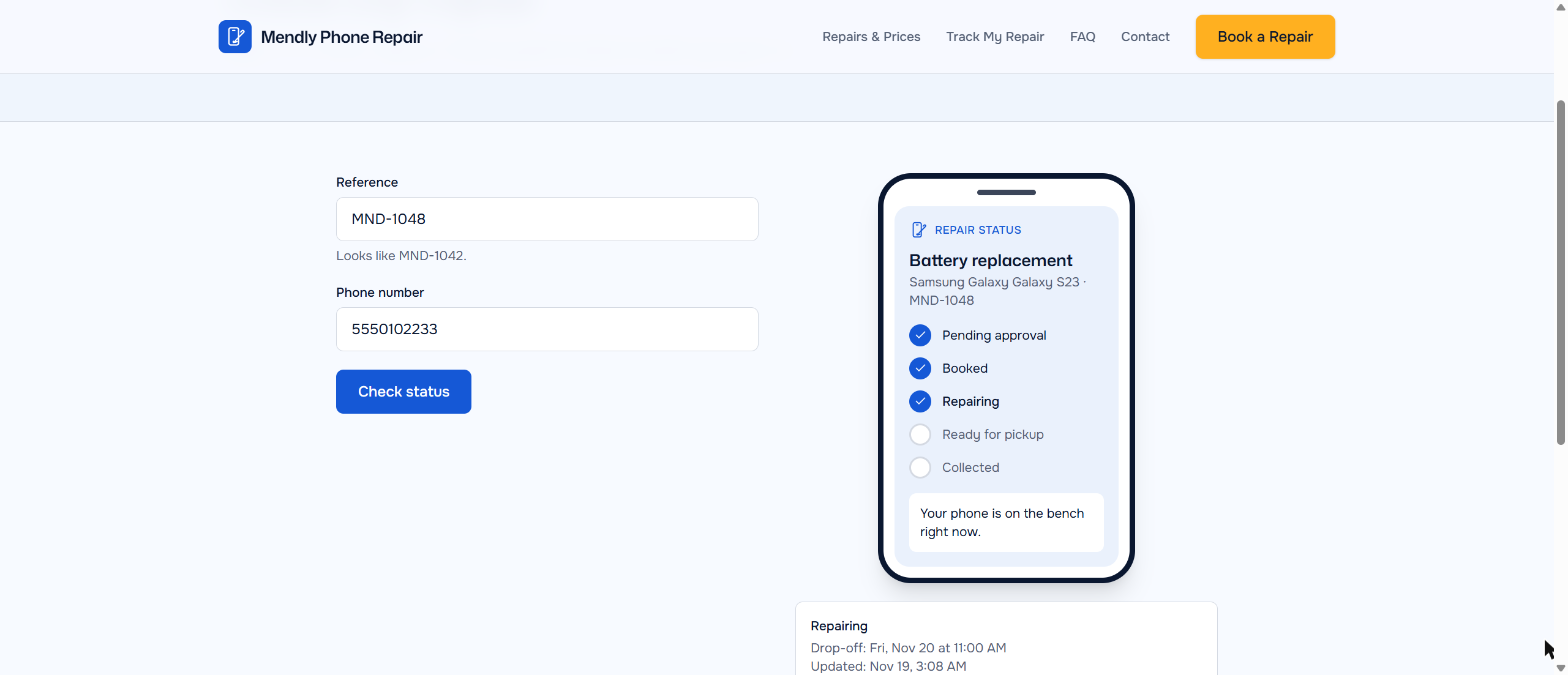
On the Track My Repair page, the customer types the booking reference and phone number. After our status change, the tracker showed the repair at the Repairing step with the message “Your phone is on the bench right now”. The private team note stayed hidden.
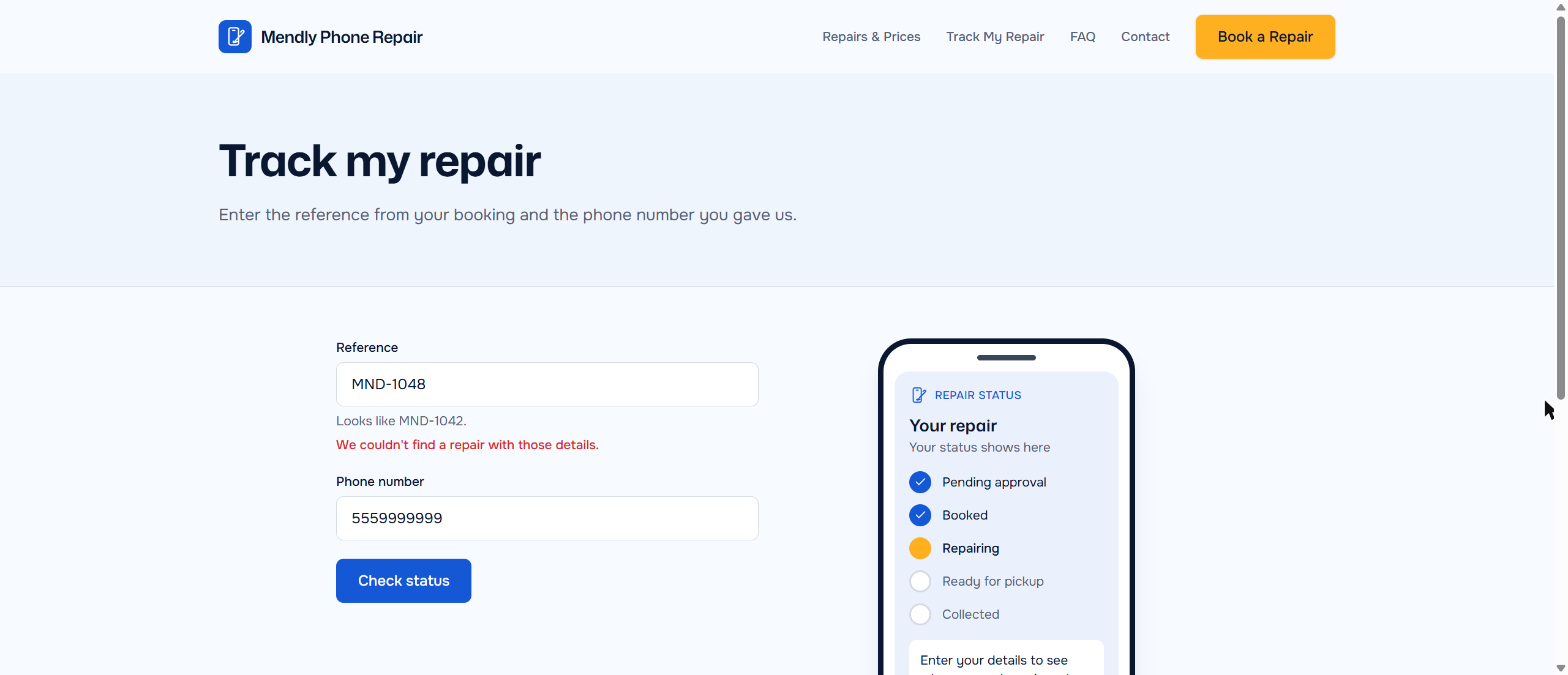
We also checked privacy: the right reference with a wrong phone number shows “We couldn’t find a repair with those details”.
Step 10: Check your booking rules
We asked for at most 2 bookings per slot. After a second test booking at the same time, that slot disappeared from the form, so you can’t be double-booked beyond your limit.
Step 11: Add your team, prices and real details
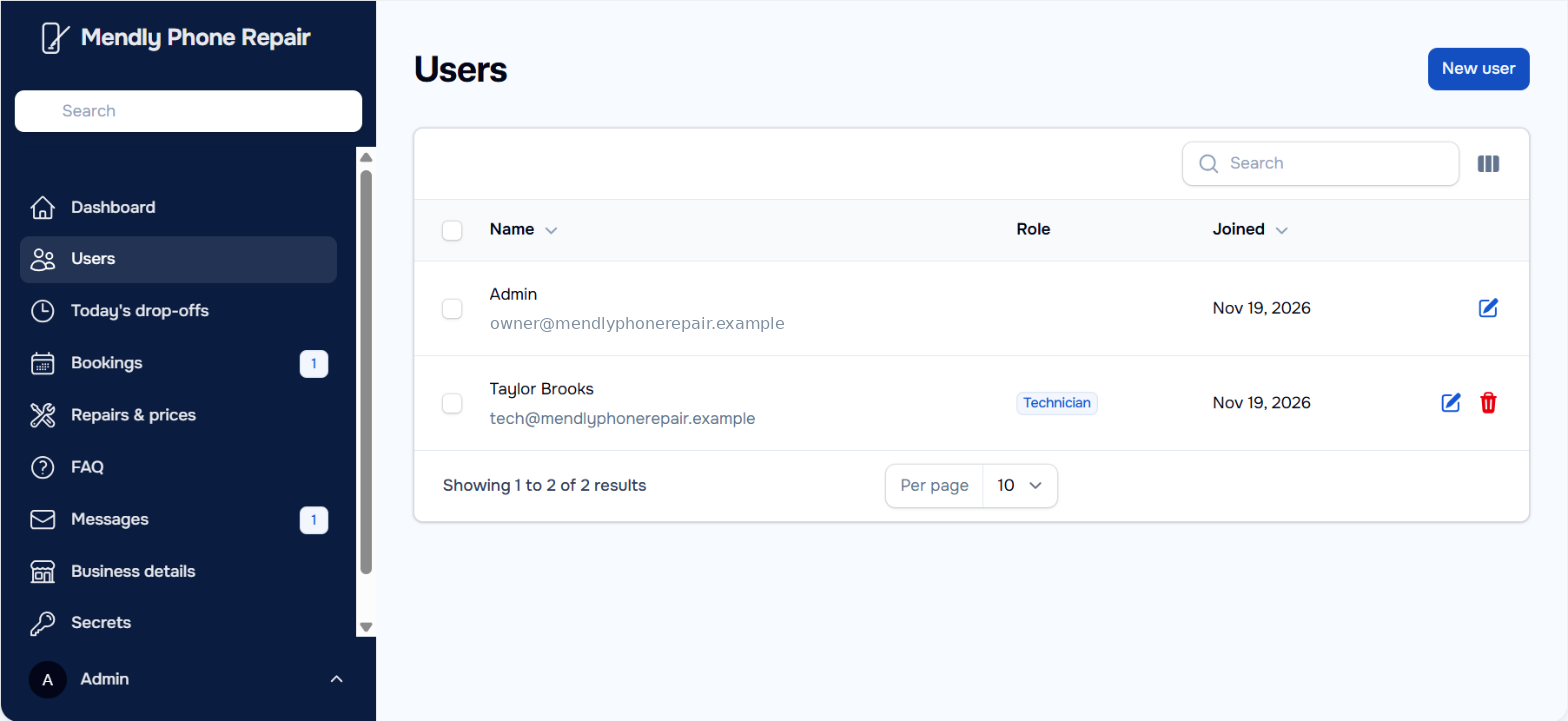
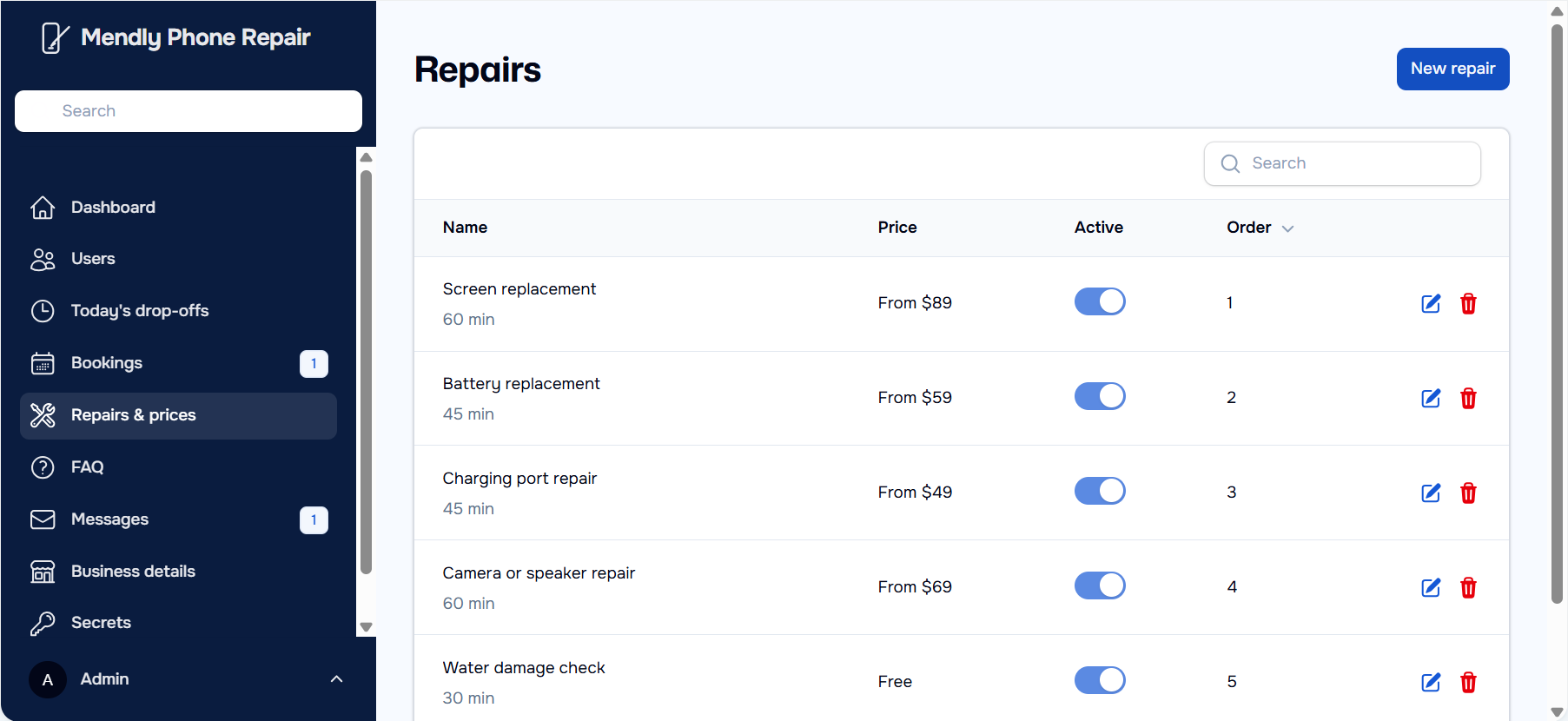
The Users page already had a technician account as asked. Replace the sample with your real staff member. On Repairs & prices you can switch services on or off, change prices and times, and reorder them, without asking the AI or using credits. Business details holds your phone, email, address and opening hours. Change the sample address, phone and email there before you share the site.
Before going live, delete your test bookings: the preview and the live site share one database, so tests are real records.
Step 12: Check it on a phone
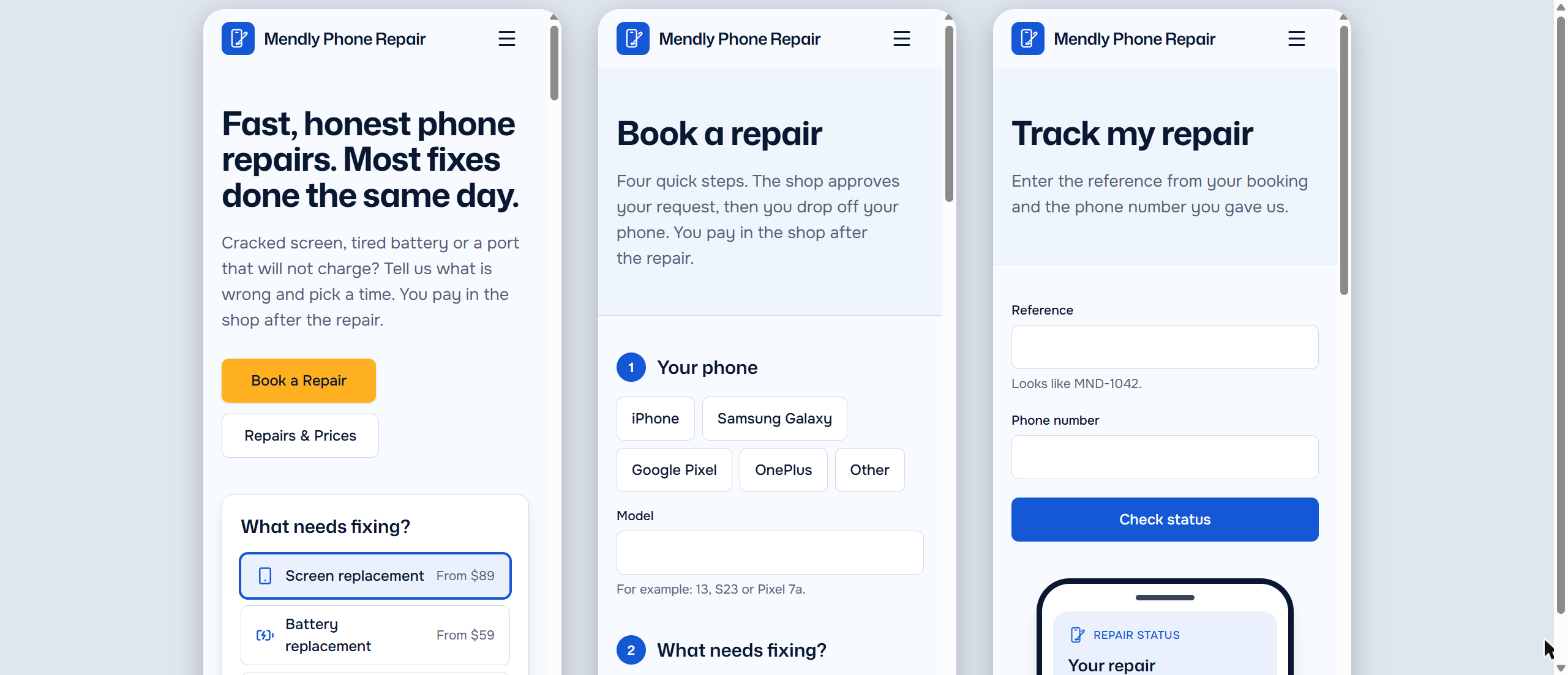
Most customers will book from their phone. At phone width, every page fitted the screen with no sideways scrolling, the buttons stayed large and the menu folded into a button.
Step 13: Put it on your own domain
The free address is fine for testing, but it is hidden from search engines and you can’t choose it. For a real business, upgrade to a paid plan and connect your own domain from the Publish panel, so customers can find you on Google and the address matches your brand.
Bluehost AI Builder review: what worked
- One prompt really was enough. No follow-up questions and no fixes needed: a 6-page booking website with a working back office for 1 credit.
- It followed the business rules. Sundays closed, 30-minute slots, a 2-per-slot limit, the five repairs with our prices, and the six job statuses all matched the brief.
- A real back office. Approvals, a today view, status tracking, private notes, CSV export and a separate technician role came built in.
- Customer tracking with privacy. The reference-plus-phone check worked, and team notes stayed private.
- You can edit without credits. Prices, services, hours and business details are normal forms in the admin panel.
- Ready for phones without asking twice.
What needed fixing
Our tests found a few rough edges, so check these on your own build:
- Preview vs live. Bookings failed in the editor preview but worked on the published site. Test on the live address.
- Doubled brand name. Typing “Galaxy S23” after picking Samsung Galaxy showed “Samsung Galaxy Galaxy S23”. Tell customers to type only the model, or ask the AI to fix it.
- Late slots. The 6:30 PM slot was offered even for 60-minute repairs that would end after the 7 PM close. If that matters, ask for slots that finish before closing time.
- Holidays. Public holidays are offered like any other day. Close them in your hours, or ask for a holidays list.
- No emails by default. We asked for none. Confirmation and alert emails need your own Resend or Postmark account connected in Settings; bookings still appear in the admin panel without it.
- No online payments. AI Builder doesn’t take payments, so customers pay you in person.
- Your login email shows on the Users page, so keep that in mind if you share your screen.
Each fix is one more chat message, so one more credit. None of them stopped the site working.
What else can you build this way?
The same approach works for most appointment-based small businesses: salons, barbers, tutors, cleaners, photographers, dog groomers, consultants and repair services of any kind. Bluehost also lists quote request apps, customer portals, directories and internal team tools among the apps AI Builder can make. Swap the services, slot rules and statuses in the template above to fit your business. For the bigger picture, see our steps to start a small business online.
How much does it cost?
Bluehost AI Builder is $0 to start, no credit card, and paid plans from $20/mo.
| Plan | Price | Credits | Publish on |
|---|---|---|---|
| Free | $0 | 5 a day, up to 30 a month | Free .app.bluehost.ai address |
| Lite | $20/mo | 100 a month | Your own domain |
| Standard | $40/mo | 200 a month | Your own domain |
Every plan includes hosting. Credits expire after 30 days and don’t roll over. A domain bought through Bluehost is billed separately. Our whole booking website used 1 credit, so the Free plan is plenty to build and test; a paid plan is what puts it on your own domain. For other hosting offers, see our web hosting deals.
Our verdict
We expected to spend several prompts fixing a booking system. Instead, one detailed prompt produced a complete small business booking website in about 7 minutes: a clear service menu, real time slots with sensible rules, customer tracking, and an admin panel that a shop owner and a technician could use from day one. The rough edges we found, such as late slots, holidays and the doubled phone name, are small and each takes one message to fix. The real limits are no online payments and no emails without your own email service. If you run an appointment-based business and want bookings on your own site without monthly booking software, it is well worth trying free; upgrade when you are ready to put it on your own domain.
FAQ
Can I make a booking website for free?
Yes. Bluehost AI Builder’s Free plan needs no credit card and has no end date. You can build and publish a booking website on a free .app.bluehost.ai address. A paid plan is needed for your own domain.
How long does it take to make a booking website with AI?
Our phone repair booking website was ready about 7 minutes after we sent the prompt, and publishing took a few more minutes.
Can customers pay online when they book?
No. AI Builder doesn’t support online payments, so customers pay in person. Bluehost points online sellers to its AI Store instead.
Will customers get confirmation emails?
Only if you connect your own Resend or Postmark email account in Settings. Without it, bookings still arrive in your admin panel and customers see a confirmation on screen.
Can my staff log in?
Yes. Our build created a technician role that can view bookings and update job status, separate from the owner account.
Will my booking website show up on Google?
Not on the free address, which is hidden from search engines. Connect your own domain on a paid plan so customers can find you.
Subscribe to our weekly tech newsletter
New tech guides, free tools and 2-minute fixes, once a week.
🎁 100 Tech Terms ebook comes free with every subscription.
Unsubscribe anytime. See our privacy policy.