
How to Fix Unclosed HTML Tags in WordPress Posts (2026)
Has your sidebar suddenly dropped below your content, or does half a page show up in giant heading text? The usual cause is unclosed HTML tags in WordPress: a <div>, <h2> or <strong> that was opened in a post but never closed. I ran into this in 2006 after moving QuickOnlineTips from Blogger to WordPress. Here’s why it happens, how to find the broken post, and how to fix it in today’s block editor and Classic Editor.
Quick answer: To fix unclosed HTML tags in WordPress, open the broken post, switch the block to Edit as HTML (or use the Code editor with Ctrl+Shift+Alt+M), and close or remove the stray tag. Find the culprit by viewing the page source or running it through the W3C Markup Validator. In the block editor, an “unexpected or invalid content” warning often points straight to the broken block.
Table of Contents
What went wrong on my blog
After importing my posts and comments from Blogger, I went through hundreds of posts fixing lost formatting and broken internal links. To speed up editing, I used a plugin that hid the post preview. That was my mistake. Blogger’s editor closed tags automatically or warned about them, but WordPress happily published posts with unclosed tags. Some stray <div> and <h2> tags, possibly left over from the import, slipped through.
The result: broken page templates and distorted fonts. An unclosed <div> can push your sidebar under the content in a CSS layout, and an unclosed heading tag can turn the rest of the page into heading-sized text.
Why unclosed HTML tags still happen in 2026
- Custom HTML blocks or “Edit as HTML” changes with a missing closing tag.
- Pasting from other websites or Word, which brings hidden markup with it.
- Old posts from the Classic Editor or imports from Blogger and other platforms.
- Shortcodes and ad code pasted into posts that open a tag but don’t close it.
How to find the broken post
- Check where the layout breaks. If it only breaks on one post, that post is the culprit. If it breaks on your home page or an archive, look at the posts shown just above the break.
- Look for block warnings. The block editor shows “This block contains unexpected or invalid content” when markup doesn’t match what it expects. Click Attempt recovery or open it as HTML.
- Validate the page. Paste the post URL into the W3C Markup Validation Service (external site, opens in new tab); it lists unclosed elements with line numbers.
- Use browser developer tools. Right-click the broken area and choose Inspect to see where an element unexpectedly wraps the rest of the page.
How to fix unclosed HTML tags in WordPress
In the block editor (Gutenberg)
- Select the block, open the three-dot menu and choose Edit as HTML. Add the missing closing tag or delete the stray opening tag.
- For the whole post, open the Code editor from the Options menu (Ctrl+Shift+Alt+M on Windows, Cmd+Shift+Option+M on Mac).
- Convert an old Classic block to blocks (Convert to blocks). The editor often cleans up messy markup during the conversion.
In the Classic Editor
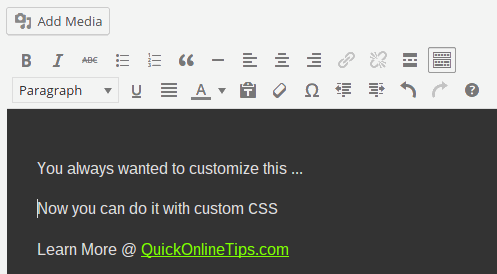
Switch to the Text tab and find the stray tag. Back in 2006 my advice was to write in the text editor and use its “Close tags” button before publishing, and the Text tab still gives you that control today.
Lessons that still apply
- Always preview before publishing. WordPress preview shows the whole page, including the header, sidebar and footer, so layout problems are easy to spot.
- Paste as plain text. Use Ctrl+Shift+V (Cmd+Shift+V on Mac) to paste without formatting, or paste into a plain text editor first. Copied HTML can bring its own classes and tags into your theme.
- Do regular quality checks. Skim your archives after big edits or imports, and fix broken internal links at the same time.
- Keep backups and revisions. In 2006 long posts sometimes vanished in the editor and I kept copies in a text file. Today WordPress autosaves and keeps revisions, so you can restore an earlier version from the Revisions panel.
If your theme styles break only inside the editor, see how to add custom CSS to the WordPress editor.
FAQ
Why is my WordPress sidebar showing below the content?
Usually an unclosed or extra <div> in a post or widget. Find the post shown just before the break and fix its HTML.
Does WordPress close HTML tags automatically?
Partly. WordPress and browsers try to balance tags, but they can’t always guess your intent, so broken markup can still affect the layout.
How do I see the HTML of a WordPress post?
In the block editor, open the Options menu and choose Code editor, or choose Edit as HTML on a single block. In the Classic Editor, click the Text tab.
What does “This block contains unexpected or invalid content” mean?
The block’s saved HTML doesn’t match what the editor expects, often because it was edited by hand. Use Attempt recovery or fix the HTML.
Subscribe to our weekly tech newsletter
🎁 Free 100 Tech Terms ebook when you subscribe. Unsubscribe anytime. Privacy



I’m glad I found this blog site, I couldnt discover any info on this topic prior to. Also run a site and if you’re ever interested in doing some visitor writing for me you should feel free to let me know, i’m always look for people to check out my web site. Please stop by and leave a comment sometime!
simple text editor (similar to backing up your blog). At least if this post disappearing bug strikes you, your most popular post is readily available for recopying?