
How to Change Cm to Inches in PowerPoint (Windows and Mac)
Can you change cm to inches in PowerPoint? Yes, but not from inside PowerPoint. We found this out while making a conference poster that had to be 36 x 55 inches, and PowerPoint kept showing the slide size in centimetres. The measurement units in PowerPoint (and Word and Excel) come from your Windows or Mac region settings. Here’s how to change PowerPoint from centimetres to inches, or inches to cm, in 2026.

Quick answer: On Windows, open Control Panel → Region → Additional settings and set Measurement system to U.S. (inches) or Metric (cm). On a Mac, PowerPoint uses PowerPoint → Settings → General → Ruler units or your Mac’s Language & Region setting. Restart PowerPoint to see the change.
Table of Contents
How to change cm to inches in PowerPoint on Windows 11 and 10
- Close PowerPoint.
- Press Windows + R, type
intl.cpland press Enter to open the Region settings (or search for “Control Panel” and open Clock and Region → Region). - On the Formats tab, click Additional settings.
- On the Numbers tab, change Measurement system from Metric to U.S. (or the other way round for centimetres).
- Click Apply and OK, then open PowerPoint again.
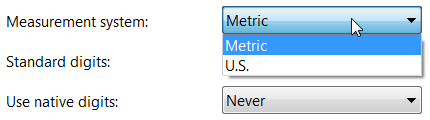
Now Design → Slide Size → Custom Slide Size, the ruler and the shape size boxes all show inches. The same setting changes units in Word, Excel and Publisher too.
How to change PowerPoint units on a Mac
- In PowerPoint for Mac, open PowerPoint → Settings (Preferences) → General and look for Ruler units, if your version has it.
- Otherwise, change your Mac’s units: System Settings → General → Language & Region → Measurement system (Metric, US or UK), then restart PowerPoint.
Quick trick: type the units yourself
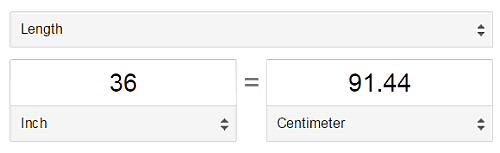
You don’t always need to change settings. In any size box in PowerPoint (slide size, shape height or width), you can type a value with units and PowerPoint converts it automatically. For example, type 36 in or 36" while PowerPoint is set to centimetres, press Enter, and it becomes 91.44 cm.
You can also convert in your browser: type 36 in to cm into Google and it shows 91.44 cm instantly.
Our poster story
We needed a 36 x 55 inch poster, but PowerPoint showed every size in centimetres, and converting by hand (91.44 cm x 139.7 cm) risked small errors when the printer could only handle 36 inches on one side. Changing the Windows measurement system from Metric to U.S. fixed it at once: the slide size, and even the ruler, switched to inches.
PowerPoint poster size tips
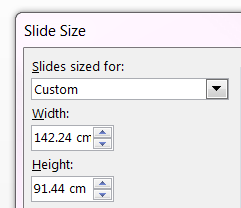
- Maximum slide size: PowerPoint slides can be up to 56 inches (142.24 cm) on each side. For bigger posters, design at half size with the same proportions and ask the printer to scale up.
- Set the size first, before adding content, so text and images don’t get stretched.
- Use high-resolution images so they stay sharp when printed large.
- Export as PDF (File → Export → Create PDF/XPS) for the printer.
Can you change units for just one presentation?
No. Units aren’t saved inside a presentation; they always follow your computer’s settings. If you share the file with a colleague who uses centimetres, they’ll see the same slide in centimetres, but the actual size doesn’t change. That’s why designers often type sizes with units, like 36 in, to avoid mistakes. Microsoft explains slide sizes in its PowerPoint help pages.
Frequently asked questions
Why is PowerPoint showing centimetres instead of inches?
PowerPoint uses your computer’s regional measurement system. If it’s set to Metric, sizes show in centimetres.
Does changing the measurement system affect other apps?
Yes. Word, Excel and other Office apps, and some Windows apps, will also use the new units.
How many cm is 36 inches?
36 inches is 91.44 cm (1 inch = 2.54 cm).
Get our free weekly email: new tech guides and tools, no spam.
New and updated tech guides, a free tool worth bookmarking and one useful pick, once a week. No spam, unsubscribe anytime.
One email a week. Unsubscribe anytime. See our privacy policy.





Why is everything so complicated in Powerpoint. For each thing you either have to go to control panel, or to registers. Should be a settings section in to the software.
now if we can only change the settings for use from “hard” to “easy” i wouldn’t have to use keynote instead.
invaluable tip! thanks!
Highly Recommended Article.
Very quick online tip for powerpoint presentation. Thanks a lot. I love using this software. :)
It’s Called Perfect Article. Really Helpful Article. Thanks for Sharing with us.
I guess that change measurements from Regional settings is most appropriate if you are about use the metric system from the current moment on.
Great post. we know many thing about power point from this. we used everyday Power point to our computer. Thanks for share this.
Getting excited about reading more. Great blog post.Really looking forward to read more. Great.