How to Use Copilot (Free) on Windows, Web and Phone
Here is how to use Copilot, the free AI chat from Microsoft. Open copilot.com in any browser, launch the Copilot app on Windows 11, or install the Microsoft Copilot app on your iPhone or Android phone. Then type or say what you need. Sign in with a free Microsoft account to keep your chat history and unlock extras like voice chat and image creation.

Quick answer: Go to copilot.com, or press the Copilot key (or Windows key + C) on a Windows 11 PC, or install the Microsoft Copilot app on your phone. Type a question in the message box and press Enter. Sign in with a personal Microsoft account to save your chats and use voice and image creation.
Table of Contents
What Is Microsoft Copilot?
Microsoft Copilot is Microsoft’s AI chat assistant for personal use. It can answer questions, write and rewrite text, summarize documents, explain photos, create images and talk out loud. Microsoft lists paid plans with higher usage limits, but the basic Microsoft Copilot free experience covers chat, voice, vision and image creation. The paid plans only advertise “higher usage than free” for those features.
If you are comparing AI chat tools, Copilot is one of the strongest options in our list of free ChatGPT alternatives.
Where to Open Copilot
Copilot works on the web, on Windows, on Mac, on phones, and inside the Microsoft Edge browser.
On the Web
- Open any browser and go to copilot.microsoft.com. Microsoft’s help pages now call it copilot.com.
- Click the Message Copilot box and type your question.
- Press Enter to send it, and read the reply.
- To keep your chats, sign in with your Microsoft account. On the web you can also sign in with an Apple ID or Google account.
On Windows 11
Microsoft’s Copilot on Windows help page lists these ways to open the Copilot app:
- Copilot key: Press the Copilot key, if your keyboard has one.
- Keyboard shortcut: Press Windows key + C.
- Taskbar or Start menu: On most new Windows 11 PCs, the Copilot app is already pinned to the taskbar or listed in the Start menu.
- Microsoft Store: If you can’t find the app, download Copilot free from the Microsoft Store.
- Pen button: On supported pen devices, go to Settings > Bluetooth & devices > Pen & Windows Ink and set the pen shortcut to Same as Copilot key.
The Windows app requires a Microsoft account to sign in. The Copilot key can open either the full app or a smaller quick view. To choose which, go to Account > Settings > Copilot Keyboard Shortcuts in the app.
Copilot on Windows can also look at your screen. Click the + button in the message box, choose Take a Screenshot, mark the area you want, and then ask your question about it. If you want to save what is on your screen as a video instead, see how to screen record on Windows 11.
On iPhone and Android
- Install the free Microsoft Copilot app for iPhone from the App Store, or the Microsoft Copilot app for Android from the Google Play Store.
- Open the app and sign in with a Microsoft account, Apple ID or Google account.
- Type in the message box, or tap the microphone to talk.
Microsoft notes that mobile app availability varies by country or region. Microsoft also offers Copilot downloads for Windows and Mac. The Mac app requires macOS Sonoma 14 or later.
In Microsoft Edge
- Sign in to Edge with your personal Microsoft account.
- Open the web page, PDF or video you want help with.
- Select the Copilot icon in the upper-right corner of Edge.
- Type a question or pick a suggested prompt. You can also select Create a Summary to get a quick overview of the page.
To stop Copilot from reading the page you’re on, open the More menu (…) and go to Copilot and AI. Then turn off Allow Copilot to read context clues on the web. Microsoft explains the details in its Copilot in Edge guide.
Should You Sign In?
Microsoft’s privacy FAQ mentions users who are not logged in, so you may be able to try a quick question without an account. Signing in is still worth it. According to Microsoft:
- Only signed-in users get conversation history, which is kept for the last 18 months.
- Signing in with a personal account adds chat history, image creation, longer conversations and voice interactions.
Your First Prompts
Copilot works best when you say clearly what you want, who it’s for, and what format you need. Try prompts like these:
- “Explain how a heat pump works in simple words, in five bullet points.”
- “Write a polite email to my landlord asking to fix a leaking faucet this week.”
- “Plan a 3-day trip to Chicago on a budget, with one free activity each day.”
- “Rewrite this paragraph so it sounds friendlier:” (then paste your text).
Ask follow-up questions in the same chat to refine the answer. For more ideas, our best ChatGPT prompts work just as well in Copilot.
Talk to Copilot With Your Voice
- Click or tap the microphone icon in the message box.
- If asked, allow Copilot to use your microphone.
- Copilot plays a short greeting. Then just talk to it like a person, and interrupt whenever you want.
- Click the microphone icon to mute it, and click the X to end the voice session.
A text transcript is saved afterward. To change Copilot’s voice, open your profile icon and look for the Voice settings. On Windows 11 you can also turn on the optional “Hey, Copilot” wake word for hands-free chats. See Microsoft’s Copilot Voice help page for details.
Upload Images and Files
Copilot can read a document or photo and answer questions about it.
- Click the + (Open) icon in the message box.
- Select Add images or files and pick a file from your device.
- When the file appears in the chat, type a prompt such as “Summarize this PDF” or “Describe this image.”
- Ask follow-up questions in the same conversation.
Supported files include PDF, DOCX, XLSX, PPTX, TXT, CSV, JSON and MD documents, plus PNG and JPEG images. Microsoft says you can upload up to 20 files per conversation, with a 50MB file limit. Uploaded files are deleted automatically after no more than 18 months. See the file upload help page for the full list.
Create Images With Copilot
- Sign in with your personal Microsoft account.
- Describe the picture you want in detail, for example: “Create a bright watercolor image of a hot air balloon over a lavender field at sunrise.”
- Wait while Copilot generates it. Microsoft says this can take a couple of minutes.
- Ask for changes in the same chat, such as a different style or color.
You can also upload your own photo and ask Copilot to edit it, for example “remove the people in the background.” Microsoft says to upload only images you own or have the rights to use. Read more in Using Image Generation in Microsoft Copilot.
Free Copilot vs Microsoft 365 Copilot
The two names sound alike, but they are different products. Here is how they compare, based on Microsoft’s help pages:
| Free Microsoft Copilot | Copilot in Microsoft 365 apps | |
|---|---|---|
| What it is | A standalone AI chat assistant for personal use | Copilot built into Word, Excel, PowerPoint, Outlook and OneNote |
| Where it works | copilot.com, Copilot app for Windows and Mac, iPhone and Android apps, Edge | Inside the Microsoft 365 desktop apps (work accounts can also use Microsoft 365 Copilot Chat) |
| Account needed | A free Microsoft account (web and mobile also accept Apple ID or Google accounts) | A Microsoft 365 Personal or Family subscription, or a work or school account with access |
| Uses your data | Your chats and files you upload, plus the web | Work accounts can also use your organization’s email, chats and files you already have access to |
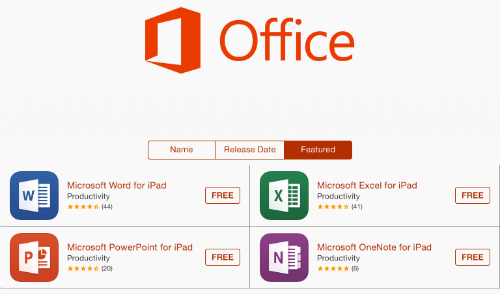
If you only need Word, Excel or PowerPoint without AI on an iPad, see how to get Microsoft Office on iPad free.
Privacy Controls and Chat History
- Delete one chat: On copilot.com or mobile, select the three dots next to a conversation and choose Delete. In the Windows or Mac app, right-click it and choose Delete.
- Delete all chats: In your Microsoft account, go to Manage your Copilot activity history and select Delete all activity history.
- Stop model training: Open your profile icon and go to Privacy. There you can turn off Training on conversation activity and Training on voice conversations. This applies to future chats only.
- Memory: Under Memory, you can turn off Personalization and memory or choose Delete all Memory. You can also just ask Copilot what it remembers about you.
Microsoft explains each setting in its Copilot privacy controls and conversation history pages.
Tips to Get Better Answers
- Give context: Say who the answer is for and how long it should be.
- Ask for a format: Request a table, a checklist or bullet points.
- Check important facts: AI can make mistakes, so verify health, money and legal answers with a trusted source.
- Don’t share secrets: Keep passwords, ID numbers and bank details out of your chats.
FAQ
Is Microsoft Copilot free?
Yes. You can chat, use voice, share images and create pictures with the free version. Microsoft’s paid plans mainly offer higher usage limits than the free tier, plus Copilot inside the Microsoft 365 apps.
Do I need a Microsoft account to use Copilot?
The Windows app needs a Microsoft account. On the web and mobile apps, you can also sign in with an Apple ID or Google account. You need to sign in to save chat history, and Microsoft lists image creation and voice as sign-in features too.
How do I open Copilot on Windows 11?
Press the Copilot key or Windows key + C, or click the Copilot app on the taskbar or in the Start menu. If the app is missing, install it from the Microsoft Store.
How long does Copilot keep my conversations?
For signed-in users, Microsoft keeps conversation history for 18 months by default. You can delete single chats or your whole history at any time.
Get our free weekly email: new tech guides and tools, no spam.
New and updated tech guides, a free tool worth bookmarking and one useful pick, once a week. No spam, unsubscribe anytime.
One email a week. Unsubscribe anytime. See our privacy policy.