
YouTube Kids App: How to Set Up Parental Controls (2026)
The YouTube Kids app is Google’s separate, child-friendly version of YouTube, with its own profiles, content levels and parental controls. It launched in 2015 and has changed a lot since then. This guide shows how to download it, set it up for your child, choose the right content level, set a timer and block videos, and when to move an older child to a supervised YouTube account instead.

Quick answer: Download YouTube Kids from Google Play or the App Store (or open it on the web or a smart TV), sign in with your Google account, and create a profile for your child. Pick a content level (Preschool, Younger, Older or Approve content yourself), decide whether search is on, and use the parent settings to set a timer, block videos or channels and lock settings with a passcode.
Table of Contents
Download the YouTube Kids app
- Android: YouTube Kids on Google Play (external site)
- iPhone and iPad: YouTube Kids on the App Store (external site)
- Computer: open youtubekids.com (external site) in a browser.
- Smart TVs and streaming devices: many support the YouTube Kids app or a kids profile inside the main YouTube app.
YouTube Kids is free and available in many countries, including India and the US. A YouTube Premium membership removes ads and adds downloads and background play.
How to set up the YouTube Kids app
- Open the app and sign in with your (parent’s) Google account.
- Create a profile for your child with their name and age. Each child can have their own profile.
- Choose a content level that suits their age (see below).
- Decide whether to turn search on or off.
- Review the parent guide, then hand over the device.
Your child’s profile can also be managed from YouTube’s Family Center or the Google Family Link (external site) app, depending on how you set it up.
YouTube Kids content levels
- Preschool (4 and under): videos that encourage creativity, playfulness and learning.
- Younger (5 to 8): songs, cartoons and crafts suited to young children.
- Older (9 to 12): adds music, gaming, science and more for older kids.
- Approve content yourself: your child can only watch videos, channels and collections you have hand-picked, and search is switched off. This is the safest option for young children.
YouTube Kids parental controls
Open the lock icon in the app and answer the multiplication question or enter your own passcode to reach the parent settings.

- Timer: set how long your child can watch. When time is up, the app locks and shows a friendly message, so you don’t have to take the device away.
- Turn off search: limits your child to verified videos and channels on the home screen.
- Block videos and channels: tap the three-dot menu next to any video and choose Block to hide it or the whole channel.
- Watch history: see what your child has watched, clear watch and search history, or pause history so recommendations don’t change.
- Autoplay: turn it off so a new video doesn’t start automatically.
- Custom passcode: replace the maths question with your own code so older kids can’t change settings.
- Report a video: flag anything inappropriate. No filter is perfect, so check in on what your child is watching.
YouTube Kids or a supervised YouTube account?
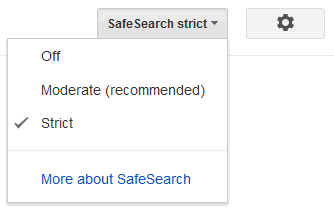
For children who have outgrown YouTube Kids (usually around 9 to 12), parents can set up a supervised experience on the main YouTube app, with content settings such as Explore, Explore More and Most of YouTube. Teenagers can use a supervised teen account. If your child uses regular YouTube, also turn on Restricted Mode; see our guide to blocking adult content on YouTube. For wider protection, lock SafeSearch on your child’s devices.
What changed since 2015
When we first covered YouTube Kids in 2015, it was a new Android and iPhone app with one shared experience, a shut-down timer, a sound-effects switch and an option to turn off search. Today it adds separate profiles for each child, age-based content levels, an approved-content-only mode, blocking, watch history controls, web and TV versions, and supervised accounts on main YouTube for older kids.
FAQ
What age is the YouTube Kids app for?
It is designed for children up to 12, with separate content levels for preschoolers, younger kids and older kids.
Is the YouTube Kids app free?
Yes. It is free with ads. YouTube Premium removes the ads and adds offline downloads.
Can I use YouTube Kids on a computer?
Yes, open youtubekids.com in a web browser and sign in with your parent account.
Is YouTube Kids completely safe?
It is much safer than regular YouTube, but automated filters can miss things. For young children, use Approve content yourself mode and watch together when you can.
Stuck on a gift? Try our free Gift Idea GeneratorIdeas for anyone by age, job, interests and budget, with Amazon.com and Amazon.in linksFind gifts →Get our free weekly email: new tech guides and tools, no spam.
New and updated tech guides, a free tool worth bookmarking and one useful pick, once a week. No spam, unsubscribe anytime.
One email a week. Unsubscribe anytime. See our privacy policy.

This is a great idea. My kids always end up Youtube surfing after they get my phone, and i’m always slightly worried about what videos they are watching. This would eliminate all of that and make me feel more confident about content they were consuming. Thanks for the info.
All tools are very nice and make work easy. I thankful to you sharing nice internet marketing tool for boost your online business.
Finaly , it-s good to have youtube for kids and Parental controls