How to Password Protect a Word Document (and Remove the Password)
It’s easy to password protect a Word document on Windows or Mac, and it takes less than a minute. If a file contains private information, such as financial details, medical records or a contract, a password stops anyone who gets hold of the file from opening it. Microsoft Word encrypts the whole document, so it can’t be read without the password. Here’s how to add a password, share the file safely and remove the password later.
Quick answer: In Word for Windows, go to File > Info > Protect Document > Encrypt with Password, type a password twice and save the file. On a Mac, go to Review > Protect Document, enter a password under Password to open and save. To remove it, open the same box, delete the password, click OK and save.
Prefer to watch? This short video shows the steps:
Table of Contents
How to password protect a Word document on Windows
These steps work in Word for Microsoft 365, Word 2024, 2021 and 2019.
1. Open the File menu
Open your document and click File at the top left.

2. Go to Info
Click Info to see the document’s protection options.

3. Choose Encrypt with Password
Click the Protect Document drop-down. Of the options shown, choose Encrypt with Password.

4. Type your password
A box asks for the password. Type it, click OK, then type it again to confirm.

Important: Word warns that a lost password can’t be recovered. Microsoft can’t unlock it for you, and the file will be unreadable forever. Store the password in a password manager, or keep a list of documents and passwords somewhere safe.
5. Check the document is protected
The Info screen now shows Protect Document highlighted in yellow, with a note that a password is required to open the document.

6. Save the document
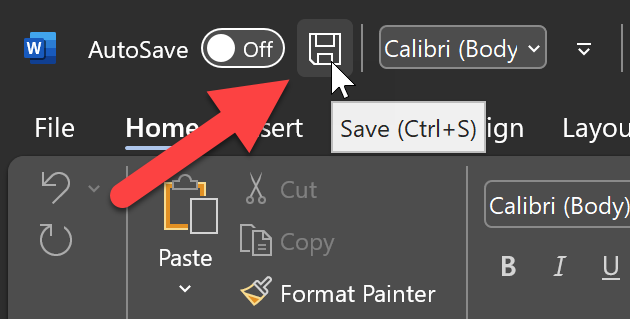
This step is easy to forget. The password only takes effect once you save the file. Press Ctrl+S, click the save icon, or go to File > Save.
How to password protect a Word document on Mac
- Open the document in Word for Mac.
- Go to the Review tab and click Protect Document (on some versions it’s under Protect > Protect Document).
- Under Security, type a password in Password to open. You can also set a separate Password to modify, which lets others read the file but not change it.
- Click OK, retype the password, and save the document.
See Microsoft’s guide to password protecting a document in Word for Mac for more detail.
Can you add a password in Word for the web or mobile?
Not at the moment. Word for the web and the Word mobile apps can’t add a password to a document. Add the password in Word on a Windows PC or Mac, then save the file to OneDrive or your phone. Microsoft’s password protection guide lists what each version supports.
Encrypt with Password vs Restrict Editing
Word has two kinds of protection, and they’re easy to mix up:
- Encrypt with Password stops anyone opening the file without the password. Use it for private content.
- Restrict Editing lets people open and read the file but limits what they can change, such as allowing only comments or form filling. It isn’t secure encryption, so don’t rely on it to keep content private.
How to send a password protected Word document safely
Never send the file and its password in the same email or message. If someone gets into that email account or chat, they get both. Instead, email the file and share the password another way, such as an SMS, a phone call or a WhatsApp message. For sensitive files you share often, a OneDrive or Google Drive link limited to specific people is another safe option.
How to remove a password from a Word document
Removing the password is just as easy, but you need to know the current password to open the file first.
- Open the document with its password.
- On Windows, go to File > Info > Protect Document > Encrypt with Password. On a Mac, go to Review > Protect Document.
- Delete the password so the box is empty, then click OK.
- Save the document.
The yellow highlight disappears from the Info screen. As before, remember to save, or the password stays on the file.
Want to protect other files too? Here’s how to export your saved passwords from LastPass so you always have a backup of the passwords you use.
Frequently asked questions
Can I recover a forgotten Word document password?
No. Microsoft can’t recover it, because the file is encrypted with the password. Third-party “password recovery” tools work by guessing, which rarely succeeds against a strong password. Always keep a backup of your passwords.
Is a password protected Word document secure?
Yes. Modern versions of Word use strong AES encryption when you choose Encrypt with Password. The weak point is the password itself, so use a long, unique one.
Does password protection work on older .doc files?
Older .doc files use weaker protection. Save the file in the modern .docx format before adding a password.
Can I password protect a PDF instead?
Yes. In Word, go to File > Save As, choose PDF, click Options and tick Encrypt the document with a password.
Get our free weekly email: new tech guides and tools, no spam.
New and updated tech guides, a free tool worth bookmarking and one useful pick, once a week. No spam, unsubscribe anytime.
We will email you a link to confirm your subscription. See our privacy policy.